


Start With the Right Support Status
So, does Delta Force support controller? The answer depends on your platform and what you mean by "support." On PC, the game is playable with a controller through Steam Input as of Season 5 Break, though it lacks full native integration. On mobile, only the Backbone One controller is officially supported, leaving standard Bluetooth gamepads out in the cold. Console versions, meanwhile, launched with native gamepad support built in.
That three-way split is exactly why online reports seem to contradict each other. Someone saying "it works great" and someone else saying "no controller support" can both be telling the truth, just from different platforms or different seasons of the game.
The Short Answer on Controller Support
Delta Force controller support exists on PC through Steam Input and on mobile through the Backbone One, but it is not the same as full native support. Menu navigation on PC still requires a keyboard, and most Bluetooth controllers do not work on mobile.
If you are wondering whether Delta Force is controller compatible for your specific setup, the quickest way to find out is to follow this decision path:
- Identify your platform: PC (Steam), mobile (iOS/Android), or console.
- Check whether your controller type is recognized. On PC, Xbox pads work wirelessly or wired; DualShock requires a wired connection through Steam Input.
- Test actual in-game behavior: look for button prompts, menu navigation, and aim response, not just whether the game detects the device.
- If anything feels off, check your Steam Input settings before assuming the game lacks support entirely.
Native Support vs Steam Input vs Unsupported
These three categories trip people up constantly. Native support means the game recognizes your controller directly, shows correct prompts, and lets you navigate every screen with a gamepad. Steam Input is a translation layer: it converts your controller signals into inputs the game understands, which can make a title playable even without built-in gamepad code. Unsupported means neither path works without third-party workarounds. Controller support for Delta Force on PC currently falls into that middle category, functional through Steam Input but not fully native.
How to Read Mixed Reports Correctly
When checking whether Delta Force has controller support, lean on three source types: the Steam store page indicators, actual in-game behavior like button prompts and menu access, and community feedback where official documentation is thin. Keep in mind that controller support for Delta Force has changed across seasons. What was completely absent during the October 2024 NEXT FEST build became partially available in Season 4 and expanded further in Season 5. Patches and platform updates can shift the status at any time, so a report from a few months ago may no longer reflect current behavior.
With the right support status in hand, the real question becomes what "supported" actually looks like in practice, and why Steam Input and native support deliver very different experiences.
Understand Native Support and Steam Input
A controller plugged in and responding to button presses does not mean a game fully supports it. That distinction catches a lot of players off guard, especially when they can move their character around but menus refuse to cooperate or button prompts show the wrong icons. The gap between "it kind of works" and "it's properly supported" comes down to how the game receives your input.
What Native Controller Support Means
When a game has native controller support, the developers wrote code that talks directly to your gamepad. The game recognizes the device, displays the correct button icons, lets you navigate every menu, and responds to analog sticks and triggers without any middleman translating signals. Think of it as two people speaking the same language: your controller says "A" and the game hears "A" instantly. Most modern titles that ship on console and PC bake in Xbox controller recognition at minimum, because Microsoft's XInput API has been the industry standard for years.
If you can use a controller on Delta Force through every screen, from the lobby to the settings menu to mid-match gameplay, with matching prompts and zero keyboard fallback, that would be full native support. Right now on PC, that is not the case.
Why Steam Input Can Make a Game Playable
Steam Input is Valve's translation layer sitting between your physical controller and the game. Instead of the game reading your pad directly, Steam intercepts the signals, converts them into inputs the game expects, and passes them along. It started life as a companion tool for the Steam Controller back in 2015 but now covers Xbox pads, DualSense, DualShock 4, Switch Pro controllers, and over 300 devices according to Valve's own codebase. This is why you can play Delta Force with a controller on PC even though the game was not originally built around gamepad input. Steam Input does the heavy lifting.
The tradeoff? You may see Xbox button prompts regardless of which pad you are holding, menus might still need a mouse click here and there, and features like aim assist or vibration depend entirely on what the game itself offers rather than what Steam Input can fake. Controller support Delta Force players experience through this method is real and usable, but it carries quirks that full native integration would not.
Myths That Cause Most Confusion
A handful of misunderstandings fuel most of the conflicting advice online. Here is a quick glossary to keep the terms straight:
- Native support — the game itself recognizes and responds to your controller without any external software translating inputs.
- Steam Input — Valve's system that intercepts controller signals and converts them into whatever the game expects, making otherwise unsupported pads usable.
- Button prompts — the on-screen icons telling you which button to press. Mismatched prompts (seeing Xbox icons while holding a DualSense) usually mean Steam Input is translating rather than the game reading your pad natively.
- Rebinding — reassigning what each physical button does. Steam Input allows deep rebinding even when a game's own settings menu does not.
- Aim assist — a game-side feature that slightly adjusts your crosshair toward targets. Steam Input cannot add aim assist on its own; the game must include it.
- Double input — what happens when both Steam Input and the game try to read your controller at the same time, causing duplicate presses or erratic menu behavior.
Just because you can use a controller on Delta Force does not mean the game has full native controller support. A playable experience through Steam Input and a properly integrated gamepad are two very different things. Knowing which one you are dealing with saves hours of frustration.
With these definitions sorted, the practical question shifts to verification: how do you actually confirm what is working on your own PC before spending time chasing phantom bugs?
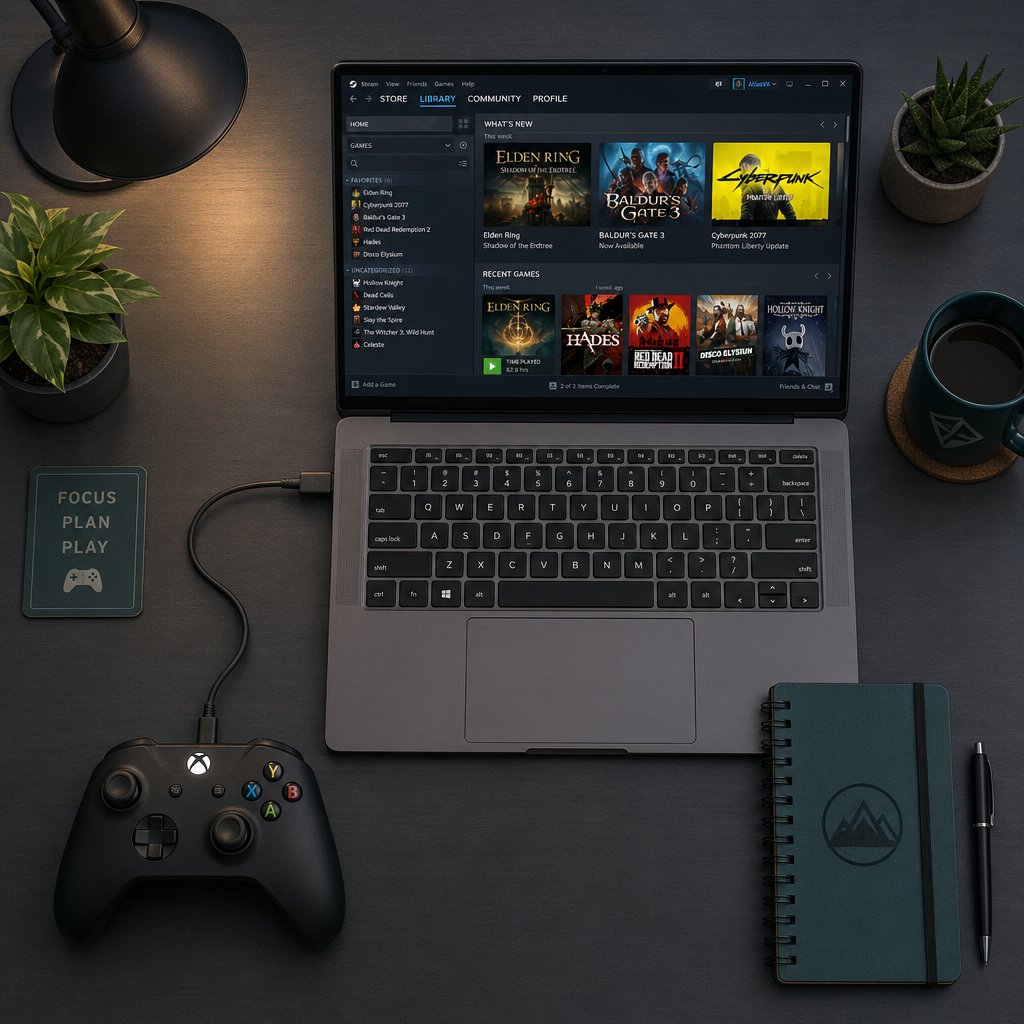
Check PC Controller Support the Smart Way
Guessing wastes time. A five-minute verification sequence can tell you exactly where Delta Force PC controller support stands on your rig, so you are not chasing ghost issues that turn out to be a single toggle buried in Steam's menus.
How to Check Controller Support on Steam
Start at the store page. Steam lists controller support indicators near the game's details: full controller support, partial controller support, or nothing at all. That label gives you a baseline, but it does not tell the whole story. Partial support can mean anything from "works in gameplay but not menus" to "barely functional without community templates." The real confirmation happens in your own Steam client.
Follow this sequence before you even launch the game:
- Connect your controller to your PC via USB or Bluetooth. Make sure your system recognizes the device in your OS settings first.
- Open Steam and go to Settings > Controller. Under External Gamepad Settings, check the box matching your pad type: Xbox, PlayStation, Switch Pro, or generic controller.
- Navigate to your Library, right-click Delta Force, and select Properties > Controller.
- Change the dropdown to Enable Steam Input. This tells Steam to actively translate your controller signals for this specific title.
- If community controller templates are available, click the controller icon on the game's library page and browse Community Templates. Applying a well-rated layout saves you from mapping every button manually.
- Restart Steam to lock in the changes, then launch the game.
That process covers Delta Force Steam controller support setup. If your pad still is not responding after these steps, the issue likely sits inside the game itself rather than in Steam's configuration layer.
What to Test Inside the Game
Detection in Steam does not guarantee a smooth ride once you are in-game. Run through these checks quickly after launching:
- Main menu navigation — try scrolling through options using only the controller. On PC, Delta Force currently requires a keyboard for some menu interactions, so note where the pad stops responding.
- Button prompts — look at the on-screen icons. Are they showing Xbox glyphs, PlayStation symbols, or keyboard keys? Mismatched or missing prompts signal that Steam Input is doing the translation rather than the game reading your pad natively.
- Gameplay movement and aiming — load into a match or training mode. Confirm that both sticks respond, triggers register, and analog input feels proportional rather than binary.
- Quick live-fire test — fire a weapon, swap weapons, and open the in-game map. If any of these actions fail or require a keyboard press, you are dealing with partial compatibility rather than full controller integration.
Documenting which actions work and which do not gives you a clear picture of Delta Force controller support on PC for your specific hardware, and it prevents you from troubleshooting the wrong problem later.
When Steam Input Should Be Turned On or Off
This is where most confusion lives. Steam Input is not a universal fix you leave enabled for every game. For Delta Force controller on PC, the general rule is straightforward:
- Enable Steam Input when the game does not detect your controller at all, or when you need to use a non-Xbox pad like DualShock or Switch Pro. Steam Input bridges the gap by converting those signals into something the game can read.
- Disable Steam Input if you notice double inputs, erratic cursor behavior, or two sets of prompts flickering on screen. These symptoms usually mean both Steam and the game are trying to read the controller simultaneously, creating conflicts.
- Test both states if behavior feels inconsistent. Toggle the setting in the game's Properties, restart, and compare. Sometimes a patch changes how the game handles input, and the "correct" toggle flips from one update to the next.
Partial support can also look like working movement paired with broken prompts, or functional gameplay undermined by menus that refuse to respond to the D-pad. Recognizing these patterns early tells you whether you are one setting away from a solid experience or hitting a genuine limitation of the current build.
Of course, PC is only half the picture. Mobile players face an entirely different set of rules, and assuming the same controller that works on Steam will pair seamlessly with a phone is one of the fastest ways to waste an afternoon.
Review Mobile Controller Support on iPhone iPad and Android
Mobile and PC might share the same Delta Force branding, but they do not share the same controller story. The PC version leans on Steam Input to bridge the gap between gamepad and game. On mobile, that translation layer does not exist, and the result is a much narrower window of compatibility that catches a lot of players off guard.
How Mobile Controller Support Differs From PC
On PC, Steam acts as a middleman, intercepting controller signals and converting them into inputs the game can process. Mobile platforms have no equivalent. iOS and Android rely on the game itself to recognize a connected gamepad, which means the developer has to build that recognition directly into the mobile client. As of the global mobile launch on April 21, 2025, Delta Force Mobile does not support standard Bluetooth controllers. The only officially recognized peripheral is the Backbone One, a controller that connects physically through a Lightning or USB-C port rather than over Bluetooth. That distinction matters: if you are wondering whether Delta Force mobile has controller support in the traditional sense, pairing an Xbox or PlayStation pad over Bluetooth will not work.
This is a deliberate design choice. TiMi Studio built the mobile version around touch-first mechanics, prioritizing on-screen controls over broad gamepad compatibility. It is a different philosophy from the PC side, where Steam Input can force compatibility even when the game was not designed for it.
What to Verify on iPhone iPad and Android
Before spending time troubleshooting, run through the verification points below. The table separates what you can confirm from official sources versus what players have reported in the community, so you know exactly how much confidence to place in each data point.

Delta Force iOS controller support and delta force Android controller support are functionally identical right now: limited to the Backbone One. Standard gamepads from Xbox, PlayStation, or third-party brands pair with the device at the operating system level but are ignored once you launch the game. If you are asking is Delta Force mobile controller compatible with your existing Bluetooth pad, the current answer is no.
Signs a Mobile Build Is Only Partially Compatible
Even with the Backbone One connected, keep an eye out for telltale signs of incomplete integration. These red flags show up across mobile titles that are still maturing their controller layer:
- Touch overlays persist — on-screen buttons remain visible and active even while using a physical controller, cluttering the display.
- Menu-only navigation — the controller moves through lobby screens but stops responding once a match loads, or vice versa.
- Missing or incorrect button prompts — the game shows touch-tap icons instead of controller glyphs, leaving you guessing which button does what.
- Inconsistent button mapping — some actions respond to the expected buttons while others require tapping the screen, breaking the flow of gameplay.
TiMi Studio has not confirmed a timeline for broader mobile controller support, though the possibility remains open given that the PC version expanded its gamepad functionality over multiple seasons. Players should avoid using third-party mapping apps to force controller input on mobile, as doing so risks account bans.
Can you use a controller on Delta Force Mobile right now with a standard gamepad? Not yet. But the Backbone One carves out a narrow path for players who want physical controls on their phone or tablet. Whether that path widens depends on future updates.
Platform and device type only tell part of the compatibility story, though. The specific controller family you own, whether it is Xbox, DualSense, DualShock, Switch Pro, or a budget third-party pad, introduces its own set of variables worth mapping out.
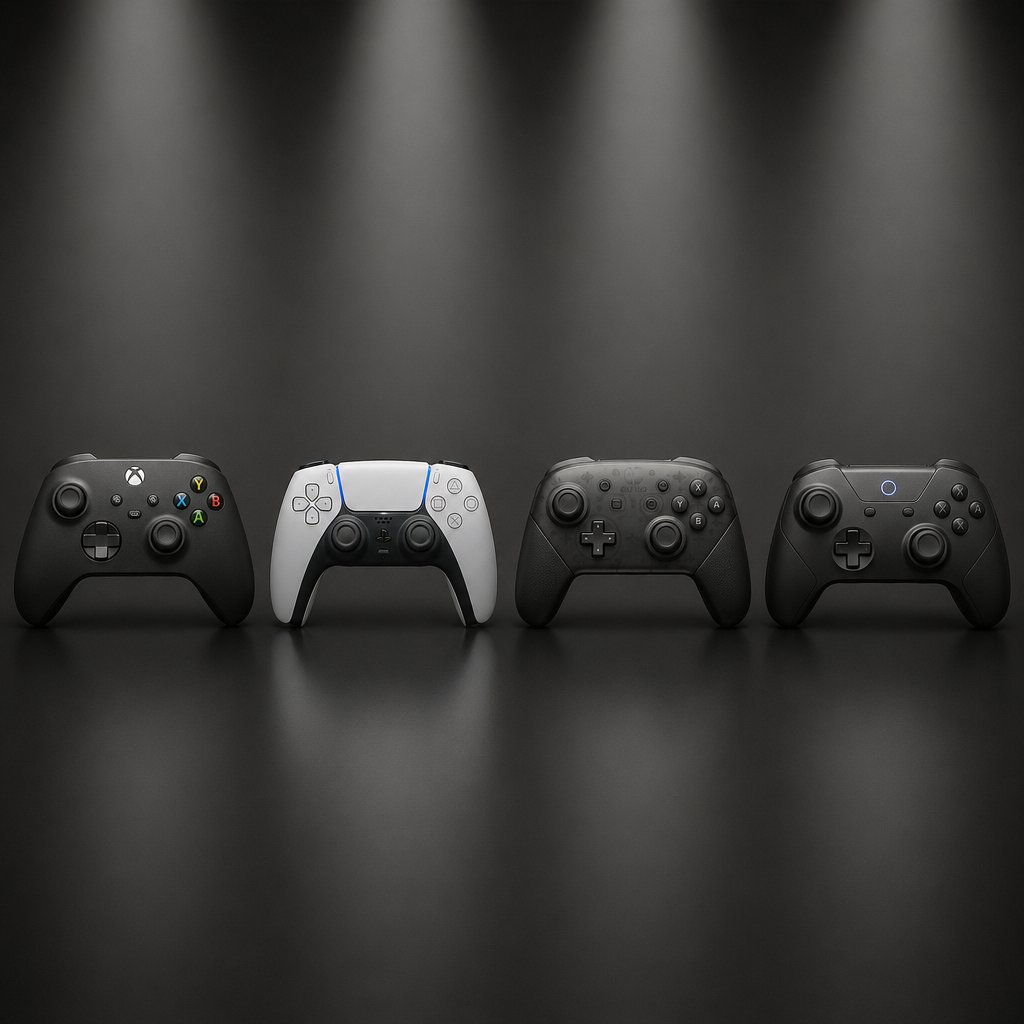
Compare Xbox PlayStation Switch and Generic Pads
Not every delta force controller experience is created equal. Two players can both say "it works" while holding completely different pads and getting completely different results. The controller family you own determines your support path, prompt behavior, and how many workarounds you will need. Rather than testing blind, use the matrix below to see where your hardware lands before you even plug in.
Controller Compatibility Matrix
This table covers the five controller families most commonly asked about in the Delta Force community. Evidence status is noted per row so you can gauge how much weight to give each entry. Can you play Delta Force on controller with your specific pad? Check here first.

A few patterns jump out immediately. Xbox pads sit closest to a plug-and-play experience because Microsoft's XInput API remains the default standard most PC games are built around. Everything else routes through Steam Input, which adds a translation step and strips away hardware-specific features like DualSense haptics or Switch Pro gyro.
Which Pads Usually Rely on Steam Input
In short, all of them for Delta Force, but the degree of reliance varies. Xbox controllers occasionally get partial direct recognition because the game's input layer already speaks XInput. DualSense, DualShock 4, and Switch Pro pads depend almost entirely on Steam Input to function. Without it enabled, the game either ignores them or produces erratic behavior.
Generic gamepads sit in the most uncertain territory. Delta Force game controller support through Steam Input requires the pad to identify itself as a recognized device class. Budget controllers that use older DirectInput protocols or non-standard reporting modes may need the Generic Gamepad Configuration checkbox toggled on in Steam's controller settings, and even then, analog sticks or triggers can behave unpredictably. If you are shopping for a pad specifically to play Delta Force with controller input, an Xbox Series controller is the safest bet for the least friction.
How to Interpret Partial Compatibility
A row marked "community-reported" does not mean unreliable. It means the information comes from player testing rather than official documentation or developer confirmation. Given that Delta Force's controller layer may have been adapted from the mobile port rather than built from a console-native codebase, some inconsistencies are expected. Community reports are the best data available for non-Xbox pads right now.
Partial compatibility shows up in specific ways worth watching for:
- Working sticks, broken prompts — movement and aiming respond fine, but on-screen icons show keyboard keys or no icons at all.
- Gameplay works, menus do not — you can fight through a match but need a keyboard to navigate loadout screens or settings.
- Intermittent detection — the controller works after a fresh launch but drops out after alt-tabbing or returning from sleep mode.
None of these patterns mean your pad is incompatible. They mean the integration is incomplete, and knowing exactly where it breaks helps you decide whether the tradeoff is livable or whether a different input method makes more sense for your play style.
Recognizing what works is only half the equation, though. Once your controller is detected and responding, the settings you dial in and the limitations you accept shape whether playing Delta Force on a pad actually feels good or just feels possible.
Tune Your Delta Force Controller Settings and Know the Tradeoffs
Getting your controller detected is one thing. Making it feel right is another problem entirely. Delta Force started as a PC and mobile title before landing on console, and that origin shows in how the delta force controls handle on a gamepad. Out of the box, movement and aiming can feel stiff and sluggish compared to other shooters you might be used to. The good news is that the game offers a surprisingly deep settings menu for controller players, and a few targeted adjustments go a long way.
Controller Settings That Matter Most
Rather than tweaking every slider at once, focus on the settings that have the biggest impact on how your aim and movement actually feel in a match. Here is a checklist of what to prioritize when dialing in the best controller settings for Delta Force:
- Deadzone values — set both right and left stick center deadzones to around 10 and maximum input to 80. This tightens stick response without introducing drift. If your controller is older and has stick wear, nudge the center deadzone up slightly.
- Hip fire and ADS sensitivity — the game lets you set horizontal and vertical sensitivity independently for both hip fire and aiming down sights. GameSpot recommends starting around 450 horizontal / 300 vertical for hip fire and 200 / 150 for ADS, then adjusting to taste.
- Stick response curve — keep this on Standard unless you have a strong preference for a different acceleration profile. Standard gives the most predictable relationship between stick movement and in-game rotation.
- Aim assist — Delta Force includes an Aim Assist Switch in its controller settings. Keep it on. In a cross-input environment where you may face mouse-and-keyboard players, turning it off puts you at a measurable disadvantage.
- Controller vibration — turn it off for competitive play. Vibration adds immersion but introduces micro-distractions during precise aiming moments.
- Adaptive triggers (PS5) — disable these if you are playing with a DualSense through Steam Input. The resistance effect can interfere with quick trigger pulls during firefights.
- Button layout — the game offers layout presets and lets you swap bumpers with triggers or remap crouch to the right thumbstick for faster slides and dives. Experiment here based on your grip style.
Delta force controller settings also extend to vehicles. Ground vehicle and aircraft sensitivity defaults tend to feel too slow, so try matching those values roughly to your infantry sensitivity as a starting point.
Practical Limitations You Should Expect
Even with perfectly tuned delta force best controller settings, a gamepad introduces friction that no amount of slider adjustment can fully erase. Being honest about these tradeoffs helps you decide whether the experience is worth committing to.
Pros
- Comfortable for longer sessions, especially from a couch or reclined setup
- Analog movement gives smoother speed control compared to WASD's binary walk-or-run
- Familiar layout if you are coming from console shooters like Call of Duty or Battlefield
- Aim assist helps close the precision gap in medium-range engagements
Cons
- Aiming precision at long range falls behind a mouse, particularly for single-shot weapons and sniping
- Menu navigation on PC still requires a keyboard for certain screens, breaking the all-controller flow
- Button prompts may not match your actual pad, especially on DualSense or Switch Pro through Steam Input
- Response consistency can vary between sessions if Steam Input profiles reset or updates change input handling
When Mouse and Keyboard Still Has the Edge
Controller play in Delta Force is viable, not optimal. In close-quarters combat and vehicle gameplay, a pad holds its own. But the moment engagements stretch to long range or you need to snap between multiple targets quickly, mouse precision wins. Menu navigation friction compounds the issue: swapping loadouts or adjusting settings mid-session means reaching for a keyboard anyway.
If you primarily play Hazard Operations where looting speed and inventory management matter, mouse and keyboard gives you a tangible efficiency advantage. For Havoc Warfare's larger-scale fights where positioning and sustained aim matter more than twitch reflexes, a controller with well-tuned settings is a perfectly reasonable choice.
Dialing in settings only helps when the controller is actually cooperating, though. If your pad is not being detected, prompts are flickering between input types, or buttons are registering twice, the problem is not your sensitivity curve. It is an input conflict that needs a different kind of fix.
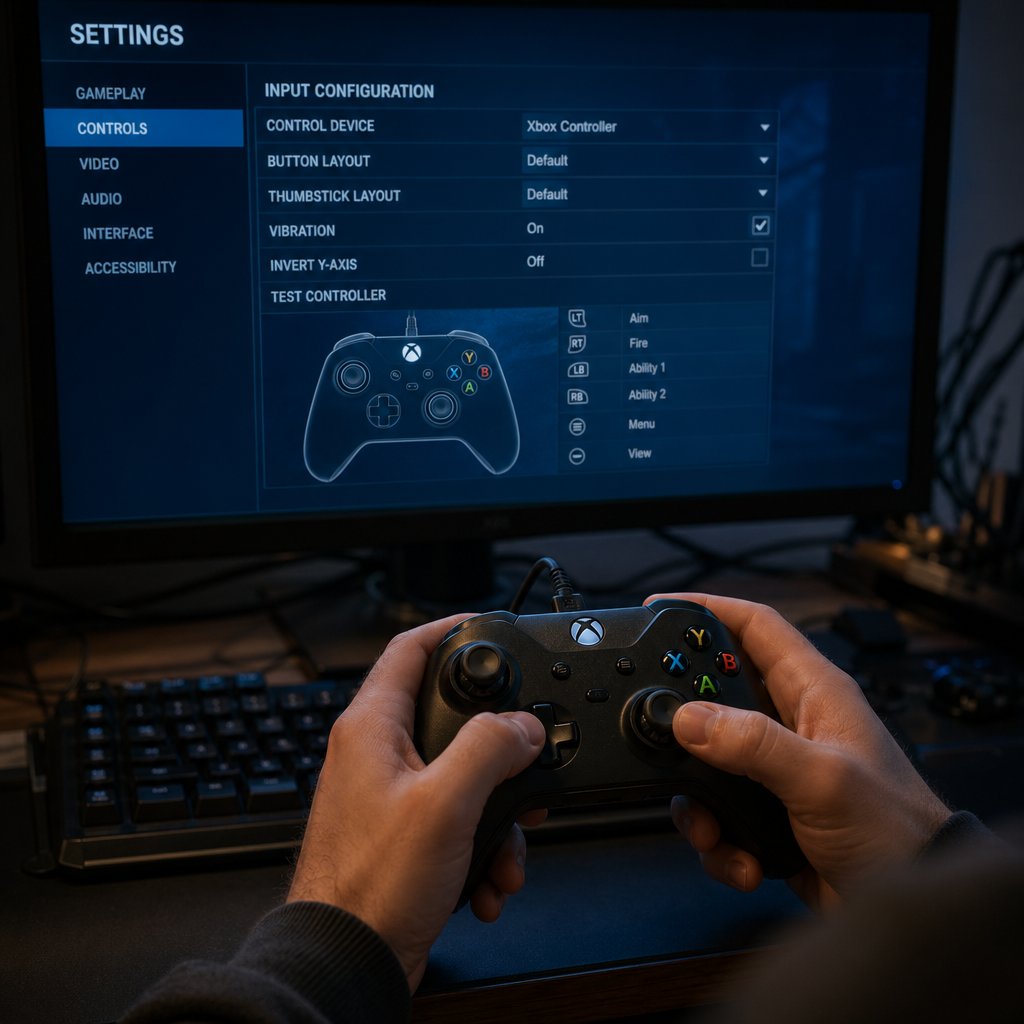
Troubleshoot Detection, Prompts, and Input Conflicts
A sensitivity slider cannot fix a controller the game refuses to see. If your delta force controller not working search brought you here, the issue almost always lives in one of three layers: hardware detection, Steam Input configuration, or conflicting input signals. Isolating which layer is broken turns a frustrating guessing game into a short checklist.
Fix a Controller That Is Not Detected
Start at the bottom of the stack and work upward. If the game does not acknowledge your pad at all, the problem is usually below the game itself.
- Confirm the controller powers on and holds a charge. A pad with a dying battery can pair briefly, then vanish mid-session.
- Open your OS-level device list. On Windows, check Settings > Bluetooth & devices > Devices or type joy.cpl into the Run dialog. If the controller does not appear here, the game never had a chance to read it. Xbox Support recommends inspecting the controller, updating firmware, and checking button mapping settings at this stage.
- Swap your connection method. If Bluetooth is flaky, try a USB cable you trust for data transfer, not just charging. If wired is not responding, test a different USB port, preferably one directly on the motherboard rather than a hub.
- Disconnect every other input device except your keyboard and the one controller you are testing. Extra gamepads, flight sticks, racing wheels, and even some drawing tablets register as game controllers and can confuse detection order.
- Restart Steam completely, not just the game. Steam caches controller state at launch, so a pad connected after Steam opened may not be picked up until the client restarts.
- Launch Delta Force and check whether the game responds to any stick or button input on the main menu. If it does, detection is working and the issue is elsewhere. If nothing happens, move to the Steam Input section below.
That sequence covers the basics of how to use controller on Delta Force when the pad seems invisible. Most detection failures resolve by step three or four.
Stop Double Input and Wrong Button Prompts
Double input is one of the most disorienting problems you can hit. Menus skip past options, buttons register twice, or the game flickers between showing Xbox glyphs and keyboard keys in the same second. The root cause is almost always two input readers fighting over the same controller.
Here is how that happens. Steam Input translates your pad into a virtual controller the game can understand. But if the game also reads the physical pad directly, it sees two devices sending identical commands at the same time. The DS4Windows documentation explains this clearly: when a remapping tool creates a virtual gamepad, Windows detects both the real and virtual device, and any game listening to both will receive every input twice. The same principle applies when Steam Input and Delta Force's own detection overlap.
Wrong button prompts follow a related pattern. If you are holding a DualSense but seeing Xbox icons, Steam Input is translating your pad into an Xbox-compatible signal. That is expected behavior, not a bug. But if prompts alternate between controller glyphs and keyboard icons mid-match, the game is receiving input from both your pad and your mouse or keyboard simultaneously. Even a slight bump of the mouse on your desk can trigger the switch.
A controller that works in menus but dies in matches points to a different conflict. Some games switch input handling between the frontend and the gameplay engine. If Delta Force reads your pad through one method in the lobby and a different method during a match, the handoff can fail silently. Testing both environments separately helps you figure out how to play Delta Force with controller input that stays consistent from menu to match.
Resolve Steam Input Conflicts Step by Step
When detection works but behavior is erratic, Steam Input is usually the variable worth resetting. Walk through these steps in order, testing after each one rather than changing everything at once:
- Right-click Delta Force in your Steam Library, open Properties > Controller, and set the override to Disable Steam Input. Launch the game. If the controller works cleanly, the game has enough native detection to handle your pad on its own and Steam Input was creating a conflict.
- If disabling Steam Input kills all controller response, re-enable it and instead check for third-party remapping software. Close DS4Windows, reWASD, or any similar tool before launching. These create their own virtual controllers, and stacking them on top of Steam Input produces the exact double-device problem described above.
- Reset your Steam Input configuration for Delta Force to the default template. Custom community layouts can carry bindings that conflict with the game's own mapping, especially after a patch changes input handling.
- If you are using a PlayStation pad and still seeing issues, open Steam's controller settings and confirm that PlayStation Configuration Support is checked. Without it, Steam may not translate the pad correctly, leaving the game with a half-recognized device.
- As a final reset, navigate to Steam > Settings > Controller > Desktop Configuration and revert it to the default. A modified desktop config can bleed into game sessions and inject unexpected inputs.
Can I use controller on Delta Force after all of this? In most cases, yes. The majority of persistent issues trace back to overlapping input layers rather than genuine incompatibility. Fix the layer, and the pad behaves.
Once detection and input conflicts are behind you, the remaining question is simpler: what do you actually do with a working setup, and where does it make sense to invest more time?
Pick the Best Path After You Test Support
You have verified your platform, tested your pad, and sorted out any input conflicts. The next move depends entirely on what you found.
Choose Your Best Next Step After Testing
- Controller works and feels stable — keep playing. Dial in your sensitivity, enable aim assist, and enjoy the setup. You are in the best-case scenario.
- Partial compatibility through Steam Input — stick with it if gameplay feels responsive, even if menus still need a keyboard tap here and there. Community templates improve over time as delta force controller support 2025 builds have matured into more complete integration through later seasons.
- Too many tradeoffs — switch back to mouse and keyboard. There is no shame in it, especially for ranked play where precision matters most.
For anyone still wondering when will Delta Force get controller support on mobile beyond the Backbone One, keep an eye on official patch notes each season. The PC side expanded significantly from Season 4 to Season 5, so broader mobile compatibility is not out of the question.
Resources for Players Ready to Invest More Time
If your testing confirmed that you can play Delta Force with controller comfortably, you are past the evaluation phase and into the commitment phase. That is where unlocking cosmetics, grabbing a battle pass, or picking up Credits starts to make sense.
Where a Top Up Resource Fits Naturally
Players ready to go deeper can grab Delta Force Coins through VeloxGame's Delta Force Top Up page, which offers discounted packs with instant delivery directly to your account. It is a straightforward way to fund skins, equipment, and seasonal content once you have confirmed your setup works and you are sticking around.
Frequently Asked Questions About Delta Force Controller Support
1. Does Delta Force have full native controller support on PC?
Delta Force on PC does not offer full native controller support as of Season 5 Break. Instead, the game is playable with a controller through Steam Input, which acts as a translation layer between your gamepad and the game. This means you can move, aim, and shoot with a controller, but you may encounter Xbox-only button prompts regardless of your pad type, and certain menu screens may still require keyboard interaction. The experience is functional and improving with each season, though it falls short of the seamless native integration found in console-first shooters.
2. Can you use a controller on Delta Force Mobile?
Standard Bluetooth controllers like Xbox or PlayStation gamepads are not recognized by Delta Force Mobile on either iOS or Android. The only officially supported peripheral is the Backbone One, which connects physically through a Lightning or USB-C port. While Bluetooth pads will pair with your phone at the operating system level, the game itself ignores them entirely. Players should also avoid third-party mapping apps to force controller input, as this can risk account bans. Broader mobile controller compatibility has not been confirmed by TiMi Studio, though the PC version has expanded its gamepad support over multiple seasons, leaving the door open for future mobile updates.
3. Which controller works best with Delta Force on PC?
Xbox Series X|S and Xbox One controllers offer the smoothest experience because Delta Force's input layer is built around Microsoft's XInput standard. These pads are recognized with minimal configuration, display correct Xbox button prompts, and work reliably over USB, Bluetooth, or the Xbox Wireless Adapter. DualSense, DualShock 4, and Switch Pro controllers all function through Steam Input but display Xbox glyphs instead of their native icons, and hardware-specific features like adaptive triggers or gyro are not utilized. If you are purchasing a controller specifically for Delta Force, an Xbox pad minimizes setup friction.
4. Why is my controller not working in Delta Force?
The most common causes are Steam Input conflicts, unrecognized Bluetooth connections, or overlapping input software. Start by confirming your OS detects the controller, then check that Steam Input is enabled for Delta Force in the game's Properties menu. If you run third-party remapping tools like DS4Windows or reWASD alongside Steam Input, both create virtual controllers that cause double inputs and erratic behavior. Disconnecting extra peripherals, switching from Bluetooth to a USB cable, and restarting Steam after making changes resolves the majority of detection failures.
5. Is it worth playing Delta Force with a controller instead of mouse and keyboard?
Controller play in Delta Force is viable for casual sessions, couch setups, and game modes like Havoc Warfare where sustained positioning matters more than snap aiming. The game includes aim assist for controller users, and sensitivity settings are deep enough to dial in a comfortable feel. However, mouse and keyboard retains a clear advantage in long-range precision, inventory management in Hazard Operations, and overall menu navigation speed. Many committed players who settle on controller input find it worthwhile to invest further in their experience through resources like VELOX's Delta Force Top Up page at https://www.veloxgame.com/delta-force/, where discounted Credit packs and instant delivery make it easy to unlock cosmetics, battle passes, and equipment once the setup feels right.





