


Can You Play Delta Force With a Controller?
So, can you play Delta Force with a controller? Yes, but the experience depends heavily on your platform and which controller you're using. Delta Force added gamepad support on PC with its Season 4 update, though the feature still carries some rough edges. On mobile, the situation is murkier. And on handhelds like Steam Deck, most players rely on platform-level tools rather than anything built directly into the game.
Short Answer on Delta Force Controller Support
Delta Force does support controllers on PC as of Season 4, but functionality remains partial, menus may still require a keyboard, and mobile controller support is not clearly confirmed.
That single line covers the core of it. The rest of this article breaks down exactly what works, what doesn't, and where the gaps are, so you can decide whether it's worth plugging in your gamepad or sticking with keyboard and mouse.

Official Support vs Workaround-Based Support
Before diving deeper, it helps to understand three terms you'll see throughout this guide. Official support means the developer has confirmed and shipped controller functionality. Native support means the game detects your gamepad automatically and responds with proper button prompts, aim assist, and full menu navigation. Workaround-based support means you're relying on external tools like Steam Input or third-party remapping software to make a controller function, even if the game itself doesn't fully recognize it.
Does delta force support controller input natively across every platform? Not quite. Can you use a controller on Delta Force through a combination of built-in features and platform tools? In most cases, yes. The distinction matters because it shapes what kind of experience you'll actually get. The sections ahead lay out exactly what's confirmed, what's reported by players, and where the information simply isn't complete yet.

Is Delta Force Controller Compatible?
Knowing that controller play is possible on some platforms only gets you halfway. The real question is what kind of support each platform actually delivers, whether it's baked into the game or stitched together through external tools, and how reliable the evidence behind each claim really is.
Delta Force Controller Support by Platform
Controller support for Delta Force looks different depending on where you play. Some platforms offer native gamepad detection, others lean on workarounds, and at least one major version still locks you into touch controls almost entirely. The table below maps out every relevant play path with the type of evidence backing each status.

A few things jump out immediately. Delta Force PC controller support has matured significantly since Season 5 Break rolled out full gamepad functionality across Havoc Warfare and Hazard Operations. Console players never had to worry — native support shipped at launch. But does Delta Force mobile support controller input the way most players expect? Not really. The mobile version was designed touch-first, and the developer has been transparent about keeping it that way for competitive fairness.
Confirmed vs Reported Compatibility
Not every claim in the table above carries the same weight. Some entries come from patch notes or direct developer statements. Others rely on player testing and Reddit threads. That gap matters, especially if you're about to spend time configuring hardware or buying an accessory.
- PC and console support is confirmed through official channels and is the most reliable.
- Delta Force on Steam Deck works, but through community-built Steam Input profiles rather than dedicated handheld optimization.
- Mobile controller compatibility is extremely narrow. If you don't own a Backbone One, standard gamepads won't respond, and third-party workaround apps risk account bans.
- Does delta force mobile have controller support in the traditional sense? No. The developer has acknowledged the demand but hasn't committed to broader gamepad integration.
Treat confirmed entries as safe to act on. Treat reported entries as worth testing, but go in expecting some friction. The next section walks through exactly how to get a controller working on PC, step by step, so you're not guessing at settings.
How to Play Delta Force With a Controller on PC
Compatibility tables are useful, but they don't tell you what to actually do when you sit down with a gamepad plugged in. Getting a delta force controller on PC setup working involves a specific order of operations, and skipping steps is the fastest way to end up troubleshooting phantom problems that aren't really about the game at all.
How to Set Up a Controller on Delta Force PC
If you want to know how to use controller on Delta Force, start at the operating system level and work your way up. Jumping straight into the game with an unverified connection is where most frustration begins.
- Connect your controller to Windows first. Use a USB cable for the cleanest initial test, or pair via Bluetooth through Settings > Bluetooth & devices. Xbox pads connect wirelessly by holding the Pair button; DualShock 4 requires Share + PS, and DualSense uses Create + PS to enter pairing mode.
- Verify Windows actually sees the controller before opening anything else. Press Win + R, type joy.cpl, and check the Game Controllers panel. Press a few buttons and move both sticks. If nothing registers here, the problem is your connection or driver, not Delta Force.
- Launch the game through Steam with the controller already connected. Don't plug in mid-session.
- Test basic input at the first menu screen. Try the D-pad, left stick, face buttons, and triggers. Watch for on-screen prompt changes, menu movement, or camera response.
- If the game responds to your gamepad natively, you're set. If it doesn't, close the game entirely and enable Steam Input before relaunching. Don't test both paths simultaneously.
That sequence is how to play Delta Force with controller input on PC without chasing false leads. Each layer gets verified independently, so when something breaks, you know exactly where.
Steam Input and In-Game Settings
Steam Input is the main pathway for delta force pc controller play, especially since Season 5 Break expanded full gamepad support. To configure it, right-click Delta Force in your Steam Library, open Properties, and look for the Controller section. Select Enable Steam Input, then apply a community controller template from the layout browser. Some players report that choosing a "Keyboard and Mouse" style layout through Steam Input works as a functional workaround when native detection feels incomplete.
Once you're in-game, look for practical signs that the controller is being read correctly: smooth stick movement, consistent trigger response, and button selections that don't skip or double-register. Partial aim assist should activate during gameplay on supported builds.
That said, delta force controller support PC-side still has real limitations worth knowing upfront:
- Menu navigation may still require a keyboard. The game doesn't fully support gamepad input in every UI screen.
- DualShock controllers are reported to work reliably only through wired USB, not Bluetooth, according to current compatibility reports.
- Running a third-party remapping tool alongside Steam Input can cause double inputs, wrong prompts, or ghost controller detection. Pick one input layer and stick with it.
- Button remapping may be necessary if the default layout feels awkward for actions like crouching, pinging, or sliding.
None of these are dealbreakers, but they shape expectations. A working delta force controller on PC setup is absolutely achievable — it just isn't quite as plug-and-play as a console experience yet. The real wildcard, though, isn't PC at all. It's mobile, where pairing a controller and actually getting the game to respond are two very different things.
What Mobile Support Actually Looks Like
Mobile is where the gap between "my controller is connected" and "the game actually responds" is widest. Your phone's Bluetooth menu might show a perfectly paired Xbox or PlayStation gamepad, but that tells you almost nothing about what happens once Delta Force Mobile opens. This distinction trips up a huge number of players, so it's worth unpacking carefully.
What Delta Force Mobile Controller Support Really Means
Can you play Delta Force Mobile with a controller the same way you'd play on PC? Not in any practical sense. When Delta Force Mobile launched globally in April 2025, it shipped without standard gamepad support. That means your DualShock 4, DualSense, Xbox Wireless Controller, or any generic Bluetooth pad won't produce usable input inside the game, even if your phone pairs with it just fine.
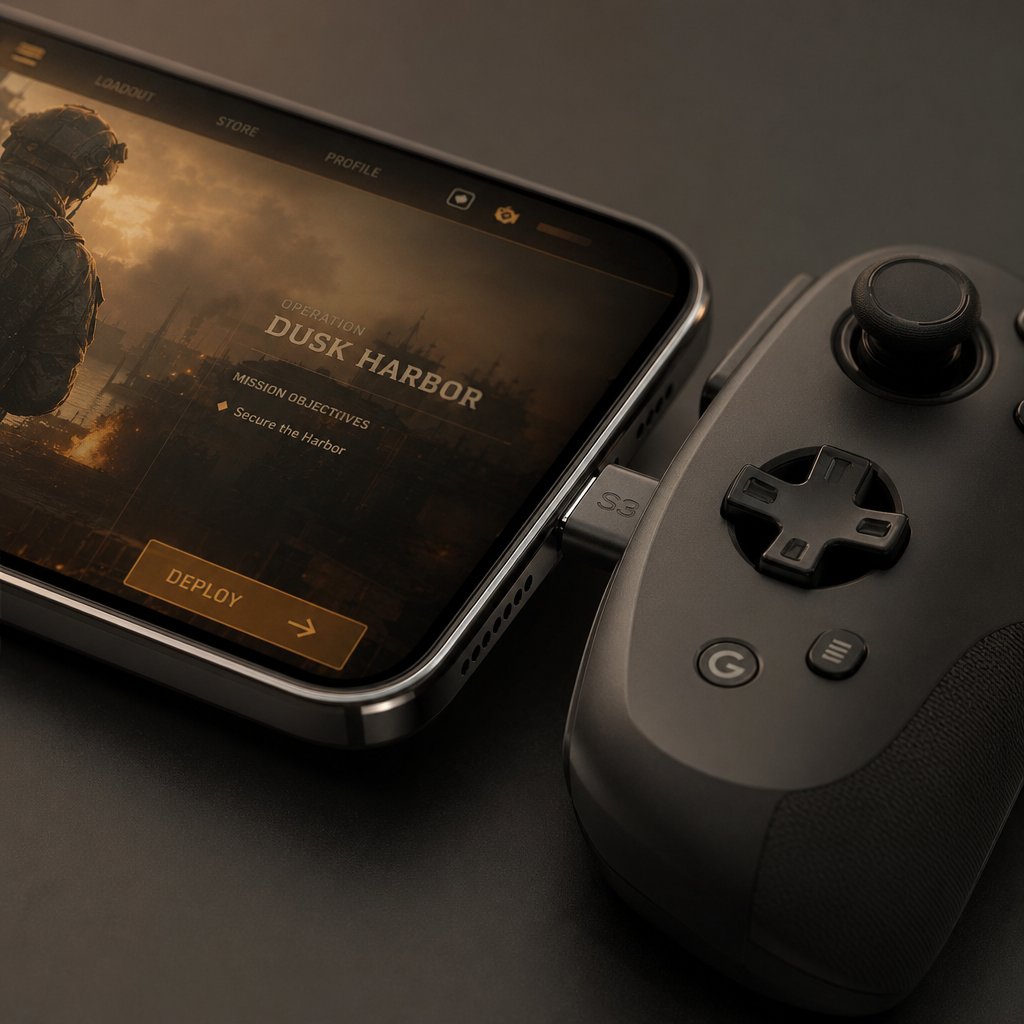
The one narrow exception reported across multiple sources is the Backbone One, a mobile-specific controller that connects physically through Lightning or USB-C rather than Bluetooth. According to current compatibility reporting, this is the only controller with documented functionality on Delta Force Mobile. Standard wireless gamepads from major manufacturers simply aren't recognized by the game itself.
So when someone asks whether delta force mobile controller support exists, the honest answer is: barely. One physically connected peripheral works. Everything else doesn't. That's a far cry from what most players picture when they search for how to use controller on Delta Force Mobile.
Mobile Pairing vs Native In-Game Support
This is the concept that causes the most confusion. Pairing and support are two completely separate checkpoints.

On both iOS and Android, the operating system handles Bluetooth pairing independently from any individual app. Apple devices, for instance, will happily pair with a DualSense or Xbox controller through Settings > Bluetooth. Apple's own support documentation even notes that controller feature support varies by app. That caveat is exactly the issue here. Delta force iOS controller support doesn't exist for standard Bluetooth gamepads because the game itself doesn't read their input, regardless of what your iPhone or iPad shows in its Bluetooth menu.
The same applies on the Android side. Delta force Android controller support follows the same pattern: the OS pairs the device, but the game ignores it. If you're wondering whether is Delta Force mobile controller compatible with your specific gamepad, the answer for standard wireless controllers remains no.
- Bluetooth pairing on your phone confirms the controller works at the device level. It says nothing about Delta Force.
- The Backbone One (physical connection only) is the sole controller with reported mobile functionality.
- Standard Xbox, PlayStation, and third-party Bluetooth gamepads do not produce in-game response.
- Using third-party mapping apps to force controller input carries a real risk of account bans, as Sportskeeda's coverage specifically warns against.
Players in community discussions have raised fairness and accessibility as reasons the developer might eventually expand mobile controller support. Touch-only play can be physically uncomfortable during longer sessions, and some players with accessibility needs find gamepads far easier to use. These are valid points, but they remain community observations rather than anything TiMi Studio has committed to addressing. The developer hasn't provided a timeline or confirmation for broader mobile gamepad integration.
If you can you use a controller on Delta Force Mobile right now with a standard gamepad, the practical answer is no. If you own a Backbone One, it's worth testing on your specific build. Everyone else is limited to touch controls until something changes officially. That narrow reality on mobile makes the choice of controller hardware matter even more on the platforms where gamepads actually work, which raises a different question entirely: which controllers feel best, and what settings should you try first?
Choosing the Right Controller and Delta Force Controller Settings
Not every gamepad delivers the same experience in Delta Force. The controller you pick determines how much setup friction you'll face, and the delta force controller settings you land on determine whether the game actually feels good once you're in a match.
Xbox, PlayStation, and Third-Party Controller Compatibility
Delta Force game controller support varies by hardware category. Some pads are plug-and-play, others need a software layer in between, and a few will give you headaches no matter what you try. The table below maps out what to realistically expect from each type, based on current compatibility reporting and player feedback.

The takeaway is straightforward: Xbox controllers offer the least resistance on PC, DualSense is the default on PS5, and everything else works but may need a bit of coaxing. Your choice comes down to comfort and what you already own. The real differentiator is what you do with delta force controls once you're in the settings menu.
Best Delta Force Controller Settings to Test First
Finding the best controller settings for Delta Force is less about copying a pro's exact numbers and more about understanding which sliders actually change how the game feels. GameSpot's settings guide provides a solid baseline that many players use as a starting point. Here's a practical checklist to work through during your first session:
- Deadzones first. Set Right Stick Center Deadzone to 10 and Maximum Input to 80. This eliminates stick drift without making small adjustments feel sluggish. If your controller still drifts, bump Center to 12-15 instead of going higher on Maximum.
- Hip Fire sensitivity. Try Horizontal 450 and Vertical 300. This gives you fast enough turns for close-range fights without losing control at medium distance. Adjust in increments of 25 until 180-degree turns feel natural.
- ADS sensitivity. Start at Horizontal 200 and Vertical 150. Lower ADS values keep your crosshair steadier during longer-range engagements. If tracking moving targets feels too slow, raise both by 10-20.
- Aim Assist. Keep it on. Delta Force includes an aim assist toggle for controller users, and disabling it puts you at a measurable disadvantage against mouse players in cross-input lobbies.
- Button layout comfort. Consider swapping crouch to the right thumbstick click so you can slide and dive without lifting your thumb off the aim stick. Delta force best controller settings aren't just about sensitivity — layout changes reduce the number of awkward finger stretches during fast engagements.
- Adaptive Triggers and Vibration (PS5). Turn both off. The trigger resistance feels immersive, but it slows down your fire rate and fatigues your fingers over longer sessions.
These values aren't gospel. They're a tested starting point that gets most players into a comfortable range quickly. Spend 10-15 minutes in the firing range with an M4A1 or similar AR, spray a wall at 15 meters, then try tracking a moving target at 50+. If shots scatter, drop your sensitivity by 10-15. If turns feel sluggish, raise hip fire values. Small, deliberate tweaks beat wholesale changes every time.
Dialing in settings only helps if the controller is actually being detected, though. When it isn't — or when inputs behave strangely — the problem usually lives somewhere outside the game itself.
Delta Force Controller Not Working?
Strange controller behavior in Delta Force rarely points to a broken gamepad. More often, the culprit is a software conflict sitting between your hardware and the game. The trick is diagnosing the right layer instead of randomly toggling settings.
Fixing Delta Force Controller Not Working
Work through these steps in order. Each one isolates a different layer of the input chain, so you'll know exactly where the breakdown is happening.
- Verify the controller at the system level. Open the Game Controllers panel (Win + R, type joy.cpl) and press every button, move both sticks, and test the triggers. If nothing registers here, the issue is your connection or driver — not Delta Force.
- Close overlapping input utilities. DS4Windows, reWASD, JoyToKey, and similar tools can intercept controller signals before the game ever sees them. Shut down anything that remaps or emulates input. Third-party overlays from Discord, Nvidia GeForce Experience, and Xbox Game Bar can also interfere — disable those too.
- Check your launcher's controller settings. In Steam, go to Settings > Controller > General Controller Settings and make sure the correct configuration support is enabled for your pad (Xbox, PlayStation, or Generic Gamepad). Epic Games lacks built-in controller options, so you may need Steam Input as a bridge or a tool like DS4Windows running solo.
- Restart the game after pairing. Plugging in a controller mid-session often results in partial or zero detection. Close Delta Force completely, connect the gamepad, confirm it's recognized by the OS, then relaunch.
- Inspect remapping profiles. If you've applied a custom Steam Input layout or a third-party profile, conflicting bindings can cause buttons to fire twice or not at all. Reset to the default community template and test from there.
- Check for keyboard and mouse override. Having a mouse plugged in while using a controller can cause the game to flip between input modes. Try unplugging the mouse temporarily to see if controller prompts stabilize.
Most delta force controller not working issues trace back to platform or launcher conflicts, not the game itself. Fix the layer between your hardware and Delta Force, and the gamepad usually starts responding.
Common Input Conflicts and Quick Checks
If you've run through the steps above and something still feels off, match your symptom to this list. Each one points toward a specific cause.
- No detection at all — Controller isn't recognized by Windows, or Steam Input is disabled. Re-check joy.cpl and launcher settings.
- Menu-only control — The gamepad navigates menus but goes dead in gameplay. This can happen when Steam Input is mapping the controller as a mouse rather than a gamepad. Switch the layout template.
- Wrong button prompts — PlayStation icons showing on an Xbox pad (or vice versa) usually means a remapping tool is translating inputs. Close the extra software layer.
- Double inputs or ghost presses — Two input utilities are reading the same controller simultaneously. Running DS4Windows alongside Steam Input is the most common cause. Pick one and disable the other.
- Drift-like behavior without actual stick drift — Deadzone settings are too low, or a remapping profile is applying a curve that amplifies small stick movements. Reset deadzones to the defaults mentioned in the settings section above.
A quick note for mobile players: if you're wondering can you use controller on Delta Force Mobile and running into zero response from a Bluetooth gamepad, the issue isn't a fixable conflict. As covered earlier, standard wireless controllers simply aren't supported by the game. Can i use a controller on Delta Force Mobile with a regular Xbox or PlayStation pad? The game won't recognize it regardless of how to connect controller to Delta Force Mobile at the OS level. The Backbone One remains the only reported exception. Delta force controller support on mobile is a design limitation, not a troubleshooting problem.
When the fix isn't a settings tweak but a platform limitation, the question shifts from "how do I make this work" to "has anyone else gotten it working on my specific hardware." That's where community reports and handheld edge cases come in.
Steam Deck and Community Reality Checks
Community threads and Reddit posts are often the first place players look when official documentation runs thin. That's especially true for handheld play, where the developer hasn't published dedicated guidance and most of what we know comes from people testing things themselves.
Delta Force on Steam Deck and Other Handhelds
Does Delta Force work on Steam Deck? It does, but not because the game was built for it. Steam Deck players rely entirely on Steam Input and community-created controller layouts to get delta force steam controller support functioning. The game doesn't detect the Deck's built-in controls natively, so you're mapping inputs through Valve's software layer rather than playing with anything the developer specifically optimized.
That means the experience is workable but uneven. Gameplay generally responds well once a solid community template is applied, though menu navigation can still require the Deck's trackpads or on-screen keyboard. Performance and input latency vary depending on your Proton version and whether you're running the game from an SD card or internal storage. None of this is officially supported territory — it's experimentation that happens to produce playable results for most people who try it.
What Reddit Feedback Can and Cannot Confirm
Delta force mobile controller support reddit threads and Steam Deck discussion posts generate significant engagement, which signals genuine demand. But engagement isn't evidence. A highly upvoted comment saying "works great on Deck" tells you one person's setup worked — it doesn't confirm universal compatibility or guarantee your experience will match.
Here's how to sort what you'll find in community discussions:
- Confirmed facts: Delta Force added PC controller support in Season 4. Steam Input can map gamepad controls for the Deck. The game runs on Linux via Proton.
- Player-reported behavior: Specific community layouts produce good results. Some users report smooth gameplay with minor menu friction. Others describe input lag or missed button presses depending on Proton version.
- Open questions: When will Delta Force get controller support that's natively optimized for handhelds? Will the developer ever publish a verified Deck profile? When is controller support coming to Delta Force Mobile in a meaningful way beyond the Backbone One?
Treat Reddit threads and delta force mobile reddit discussions as useful starting points, not final answers. They're great for spotting patterns — if dozens of players report the same workaround succeeding, that's a reasonable signal. But a single post claiming flawless performance doesn't carry the same weight as a patch note.
If the community reports convince you that controller play is viable enough on your platform, the next step is practical: lock in your setup, fine-tune the feel, and figure out whether Delta Force is worth investing more time into.
Can You Play Delta Force With a Controller?
If you've confirmed that you can play Delta Force with controller input on your platform and the experience feels solid enough to stick with, the remaining work is about refinement rather than troubleshooting.
What to Do After You Confirm Controller Play
- Run a dedicated tuning session. Spend 15-20 minutes in the firing range adjusting sensitivity, deadzones, and ADS values until tracking feels natural. Don't tweak settings mid-match — isolated testing gives you cleaner feedback.
- Comfort-test across game modes. Delta force with controller can feel great in Hazard Operations but sluggish in Warfare's larger maps, or vice versa. Play at least two full rounds in each mode before deciding the setup works.
- Decide whether the game earns more of your time. Once input feels right, the question shifts from "can i use controller on delta force" to whether the gameplay loop holds up. That's a personal call, but a smooth controller experience removes the biggest barrier to longer sessions.
Helpful Resources for Longer Delta Force Sessions
Players who settle into Delta Force on controller often start thinking about progression — unlocking operators, grabbing battle pass tiers, or picking up cosmetics. If that's where you're headed, a few resources are worth bookmarking:
- VeloxGame's Delta Force Top Up — a straightforward way to pick up in-game Credits for cosmetics, equipment, and battle pass purchases without hunting for deals across multiple storefronts.
- GameSpot's settings guide — useful for revisiting controller sensitivity baselines as the game receives balance patches.
The controller question is really a gateway question. Most people searching it are trying to figure out if Delta Force is worth their time on their preferred input method. If you've made it this far and the gamepad feels right, you already have your answer.
Delta Force Controller Support FAQ
1. Does Delta Force officially support controllers on PC?
Yes. Delta Force introduced official gamepad support on PC starting with the Season 4 update, and Season 5 Break expanded it to full functionality across Havoc Warfare and Hazard Operations. Xbox controllers work natively through XInput, while PlayStation gamepads connect reliably through Steam Input. Menu navigation may still occasionally require a keyboard, but core gameplay responds well to controller input. Aim assist is also active for gamepad users on supported builds.
2. Can you use a standard Bluetooth controller on Delta Force Mobile?
No. Standard Bluetooth controllers from Xbox, PlayStation, and third-party manufacturers are not recognized by Delta Force Mobile, even if your phone pairs with them successfully. The only controller with reported functionality is the Backbone One, which connects physically through Lightning or USB-C. Developer TiMi Studio has cited competitive fairness as a reason for limiting mobile controller support, and no timeline has been given for broader gamepad integration. Using third-party mapping apps to force controller input risks account bans.
3. How do you fix a controller not working in Delta Force on PC?
Start by verifying the controller works at the Windows level using the Game Controllers panel (joy.cpl). Then close any overlapping input utilities like DS4Windows, reWASD, or JoyToKey that might intercept signals before the game reads them. Make sure Steam Input is enabled with the correct configuration for your controller type. Always connect the gamepad before launching the game rather than mid-session. If button prompts appear wrong or inputs double-register, it usually means two software layers are reading the same controller simultaneously. Disable one and retest.
4. Does Delta Force work on Steam Deck?
Delta Force is playable on Steam Deck, but it relies entirely on Steam Input and community-created controller layouts rather than native handheld optimization from the developer. Players need to enable Steam Input and apply a community template to get gamepad controls functioning. Gameplay generally responds well once configured, though menu navigation may require the Deck's trackpads or on-screen keyboard. Performance can vary depending on your Proton version and storage type. This remains unofficial, community-driven territory rather than a developer-supported experience.
5. What are the best controller settings for Delta Force?
A solid starting point is setting the Right Stick Center Deadzone to 10 and Maximum Input to 80 to eliminate drift without sacrificing precision. For hip fire sensitivity, try Horizontal 450 and Vertical 300, then adjust in increments of 25. ADS sensitivity works well around Horizontal 200 and Vertical 150 for steadier long-range aim. Keep aim assist enabled to stay competitive against mouse users. PS5 players should disable adaptive triggers and vibration to avoid slower fire rates and finger fatigue. Spend time in the firing range testing these values before jumping into live matches. For players looking to progress faster after dialing in their setup, VELOX's Delta Force Top Up at veloxgame.com offers a convenient way to pick up Credits for cosmetics, equipment, and battle pass tiers.





