


Step 1: What Actually Works on a MacBook
If you're wondering how to play Brawl Stars on MacBook, the short answer is: you can, but not by downloading it straight from the Mac App Store the way you'd grab any other app. Supercell built Brawl Stars for Android and iOS only. There's no official macOS release, and none has been announced. That single fact trips up most people before they even get started.
Can You Download Brawl Stars Directly on MacBook
For the majority of MacBook users, no. Some Apple Silicon owners (M1, M2, M3, or newer) may occasionally find compatible iOS apps listed in the Mac App Store, but availability is inconsistent and the experience can differ from what you'd get on an iPhone or iPad. If you're on an Intel MacBook, a direct download isn't an option at all. So treating Brawl Stars as a simple "search, click, play" situation on macOS will leave you stuck.
What Actually Works on a Mac
Two approaches reliably get the game running on a MacBook. The first is an Android emulator, which creates a virtual Android environment on your Mac and lets you install Brawl Stars through Google Play. The second is screen mirroring, where the game stays on your phone and your MacBook acts as a bigger display. Both work on Intel and Apple Silicon machines, though smoothness can vary between the two chip architectures.
The easiest method and the method that gives you the best control are not always the same. Picking the right one depends on whether you value quick setup or a keyboard-driven desktop experience.
How to Choose the Right Setup Before You Start
Before diving into installation steps, it helps to know what kind of player you are. If you want full keyboard and mouse control for competitive matches, emulation is the stronger path. If you already play on your phone and just want a larger screen with minimal hassle, mirroring gets you there faster. The next section breaks both options down side by side so you can pick the one that fits your play style and your MacBook's hardware.
Step 2: Choose Between Emulation and Mirroring
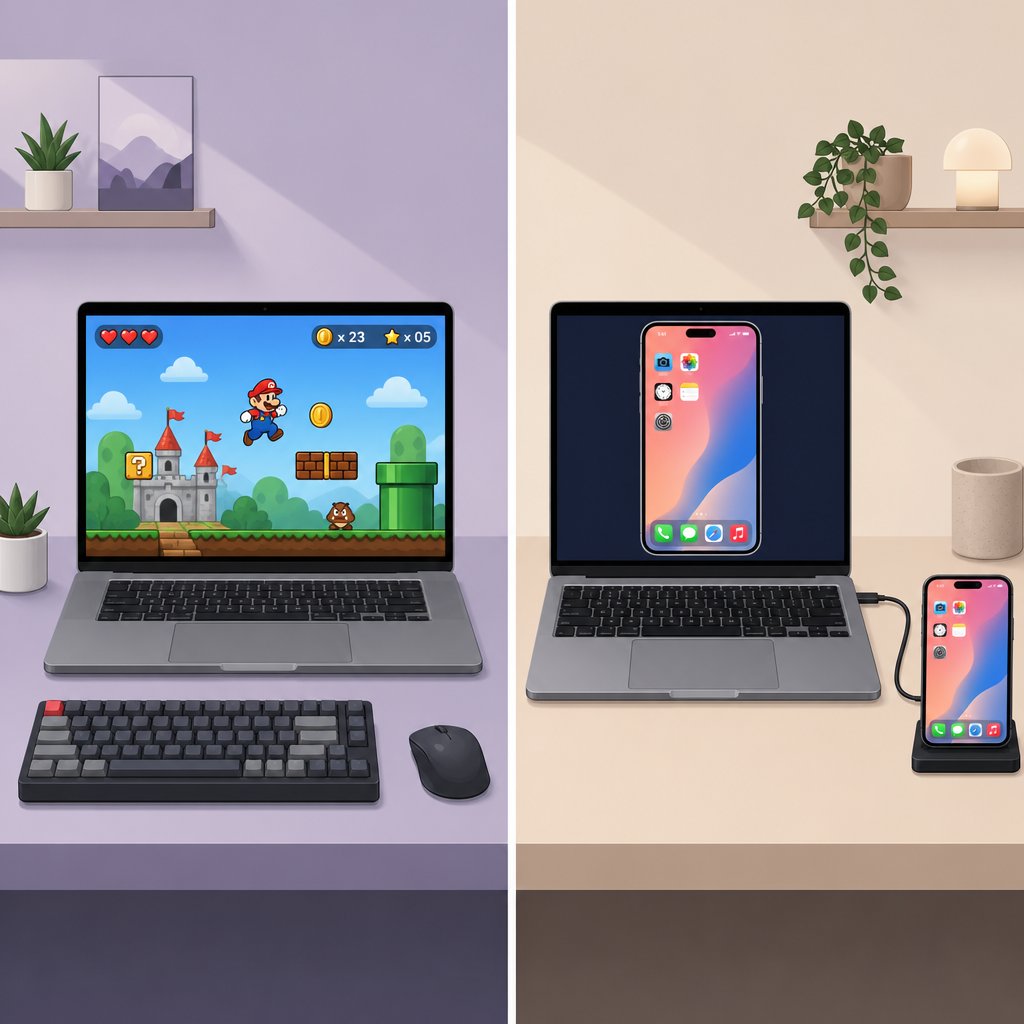
Both methods land Brawl Stars on your MacBook screen, but they feel completely different in practice. One turns your laptop into a standalone gaming setup; the other treats it like a monitor for your phone. Making the wrong pick here means either wasted setup time or a control scheme that frustrates you mid-match.
Emulator vs Screen Mirroring at a Glance
The table below compares the two approaches across the factors that matter most when you're playing on a laptop rather than a full desktop rig.

Which Method Fits Your Play Style
A Brawl Stars emulator is the stronger choice if you want keyboard-based aiming and movement. Mapping WASD for direction and using a mouse for attacks gives you a level of precision that touchscreen controls can't match, especially in ranked modes. It also means you can play without your phone, which is handy if your device is charging or you simply prefer a desktop-style experience on your MacBook.
Emulator Pros
- Full keyboard and mouse control for better aim
- No phone required once installed
- Works well for extended play sessions
- Access to Google Play for updates and other Android games
Emulator Cons
- Uses more CPU and RAM, which can warm up thinner MacBooks
- Initial setup takes longer than mirroring
- Some emulators have ads or higher resource demands
Screen mirroring flips the priorities. If you already grind Brawl Stars on an iPhone or iPad, mirroring lets you see the game on a bigger display in minutes. The game still runs on your mobile device, so your MacBook barely breaks a sweat. For players who just want a larger view during casual matches, this path removes almost all friction.
Screen Mirroring Pros
- Fastest setup with almost no storage impact on your MacBook
- Uses your existing mobile account and progress instantly
- Keeps MacBook resource usage low
Screen Mirroring Cons
- You still control the game on your phone's touchscreen
- Wi-Fi hiccups can introduce visible delay
- Not practical for laptop-only sessions away from your phone
When Not to Use Each Option
Skip the emulator route if your MacBook is low on storage or you only want to play a few quick matches without committing to a full install. Emulators like BlueStacks can occupy 5 GB or more, and the virtual Android environment adds ongoing resource overhead that lighter laptops will feel.
Skip mirroring if you care about playing Brawl Stars on a computer with real keyboard controls, or if you plan longer sessions where holding a phone gets uncomfortable. Mirroring also falls short when your Wi-Fi is unreliable, since even small latency spikes can cost you a match in a fast-paced brawler.
Whichever direction you lean, the next step is making sure your MacBook is actually ready for a clean install, because skipping a few quick checks upfront is where most setup headaches start.
Step 3: Prepare Your MacBook for Smooth Setup
A few minutes of prep saves a lot of mid-install frustration. Whether you're going the emulator route or setting up mirroring, your MacBook needs to meet some baseline conditions before anything runs properly.
MacBook Checks to Complete Before Installation
Run through this list before you download anything. Most failed installs trace back to one of these items being overlooked.
- Update macOS to the latest available version. Go to Apple menu > System Settings > General > Software Update. Emulators like BlueStacks Air require macOS 11 (Big Sur) or higher, and newer releases often include performance and security patches that help third-party apps run more reliably.
- Confirm at least 12 GB of free storage. The emulator itself, plus the Brawl Stars install inside it, adds up quickly. Check your available space under Apple menu > System Settings > General > Storage.
- Have your Google account credentials ready. You'll need them to sign in to Google Play inside the emulator. If you use two-factor authentication, keep your phone nearby for verification.
- Close resource-heavy apps. Browsers with dozens of tabs, video editors, and other memory-hungry software compete directly with the emulator for RAM. Quit anything you don't need before launching.
- Disable unnecessary login items. Background apps that start automatically at boot eat into CPU headroom. Trim them under System Settings > General > Login Items & Extensions.
Only download emulators and mirroring tools from their official websites or the Mac App Store. Mirror sites and unofficial links are the fastest way to end up with bundled adware or worse.
Apple Silicon and Intel Setup Considerations
If you're searching for a BlueStacks for Mac download, chip type matters. BlueStacks Air currently supports Apple Silicon processors (M1 through M4) and requires a minimum of 8 GB RAM, with 16 GB recommended. Intel MacBook owners will need to look at alternative emulators or rely on screen mirroring, since BlueStacks Air doesn't list Intel compatibility. Wondering is BlueStacks safe? On Apple Silicon, the app runs natively and is distributed through the official BlueStacks site, so the risk profile is comparable to any other third-party Mac app. Just make sure you grant permissions through macOS properly. When your Mac flags the app as being from an unknown developer, head to System Settings > Privacy & Security and click "Open Anyway" rather than force-opening it through workarounds.
MacBook Air and MacBook Pro Comfort Tips
Running an Android emulator is genuinely demanding work for a laptop. MacBook Air models, which rely on passive cooling with no internal fan, tend to warm up noticeably during longer emulator sessions. That heat is normal, but it can throttle performance over time. A few practical adjustments help: place the laptop on a hard, flat surface so airflow isn't blocked, lower the in-game graphics settings inside Brawl Stars, and consider shorter play sessions if the chassis gets uncomfortably warm. MacBook Pro users with active fans have more thermal headroom, though the fans may spin up audibly under sustained load. Neither scenario is harmful, but knowing what to expect keeps you from assuming something is broken when your MacBook starts working harder than usual.
With your system prepped and expectations set, the actual installation is the straightforward part. The next step walks through getting an emulator installed and Brawl Stars running inside it.
Step 4: Install Brawl Stars Through an Emulator
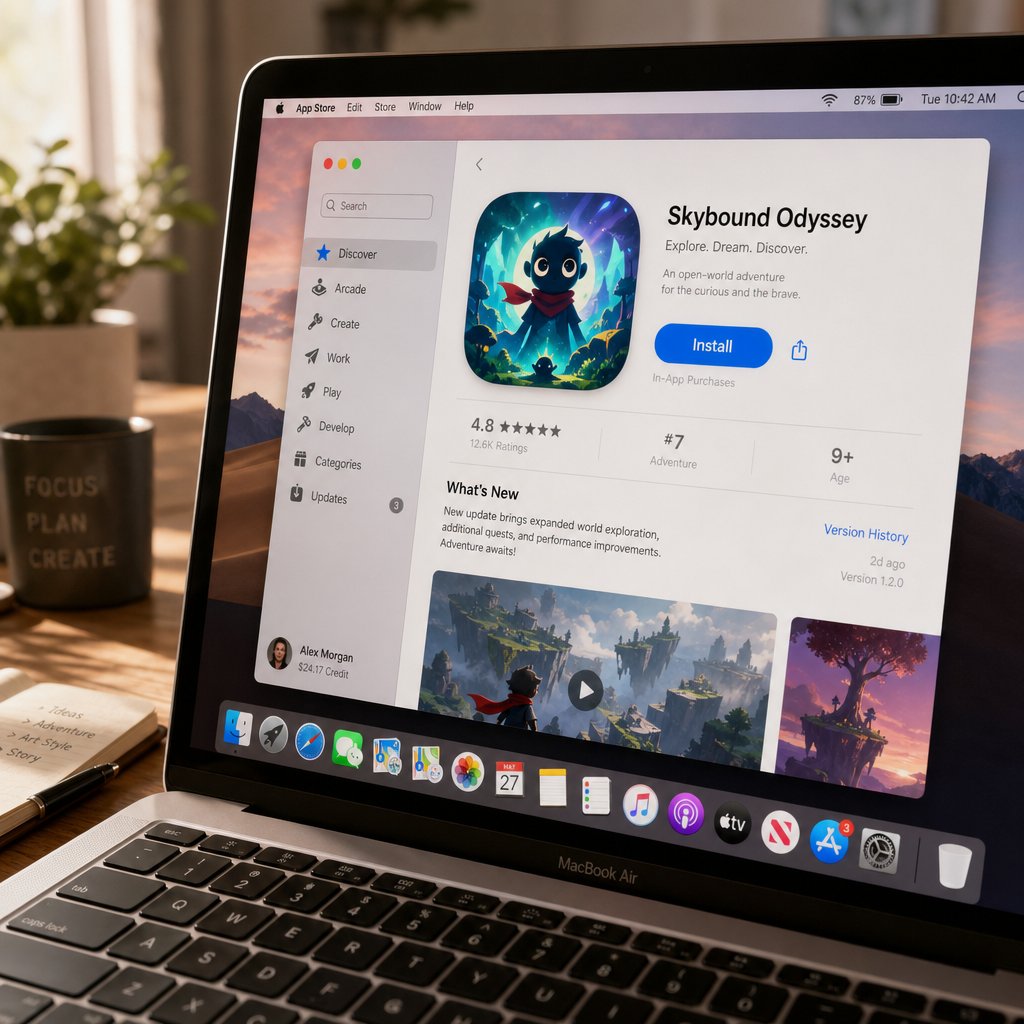
Your MacBook is prepped, storage is clear, and macOS is up to date. Time to get the emulator installed and Brawl Stars running inside it. The whole process takes about ten minutes if everything goes smoothly, and most hiccups come from skipping a permission prompt or rushing through the Google sign-in.
Install an Emulator from the Official Source
Most people searching for BlueStacks Brawl Stars instructions land here, and BlueStacks Air is a solid starting point for Apple Silicon MacBooks. That said, the steps below apply broadly to any reputable Android emulator you choose. Stick to the developer's official website for the download, not a third-party mirror or file-sharing site.
- Visit the emulator's official site (for BlueStacks, that's bluestacks.com) and download the macOS installer.
- Open the downloaded .dmg file and drag the app into your Applications folder, just like any other Mac app.
- Launch the emulator for the first time. macOS will likely flag it as software from an identified developer. Head to System Settings > Privacy & Security and click "Open Anyway" if prompted.
- Grant any additional permissions the emulator requests, including Accessibility access and keyboard input monitoring. These are required for key mapping to work later.
The first launch can feel slow. The emulator needs to build its virtual Android environment from scratch, and on some MacBooks this takes a minute or two of loading screens. Don't force-quit during this phase; let it finish.
Sign In to Google Play and Find Brawl Stars
Once the emulator home screen loads, you need a Google account to access the Play Store. This is the same login you'd use on any Android phone.
- Open the Google Play Store from the emulator's home screen or system apps folder.
- Sign in with your Google account. If you have two-factor authentication enabled, approve the prompt on your phone.
- Search for "Brawl Stars" in the Play Store search bar.
- Click Install. The download size is roughly 400-500 MB depending on the current version, so give it a moment on slower connections.
- Once installation finishes, tap Open or find the Brawl Stars icon on the emulator's home screen.
A common friction point here: Google sometimes triggers a sign-in loop where it keeps asking you to verify your account. If that happens, close the Play Store, reopen it, and try signing in again. Clearing the Play Store cache inside the emulator's app settings can also break the cycle.
For anyone wondering how to download Brawl Stars on PC through a different path, BlueStacks also supports APK sideloading. If you're curious about how to add an APK to BlueStacks, the process involves downloading the .apk file from a trusted source and either dragging it onto the emulator window or using the built-in "Install APK" tool in the sidebar. This is an advanced option, though. For most players, the Google Play route is simpler, keeps the app auto-updated, and avoids the risk of grabbing a modified file.
Finish First Launch Without Setup Errors
Brawl Stars may take an extra moment to load resources on its very first launch inside the emulator. You'll see the Supercell splash screen, then a brief asset download. A few things to watch for:
- If the app crashes immediately, restart the emulator and try again. BlueStacks support recommends closing and relaunching the app player as a first step, and uninstalling then reinstalling the app if the crash persists.
- If you see a black screen for more than 30 seconds, check that your macOS permissions (Accessibility, input monitoring) are still enabled. Sometimes a system update or restart resets them.
- If performance feels choppy right away, lower the emulator's resolution or allocated RAM in its settings before jumping into a match.
Before you start grinding, here are mistakes that trip up a surprising number of players:
- Downloading the emulator from unofficial mirror sites instead of the developer's own page
- Skipping macOS permission prompts and then wondering why keyboard controls don't register
- Force-quitting during the first-launch setup because it looks frozen
- Installing Brawl Stars via random APK links when the Play Store version is readily available
With the game installed and launching cleanly, the next thing that determines whether this setup actually feels good is how you configure your controls. Keyboard mapping and sensitivity adjustments make or break the emulator experience in a fast game like Brawl Stars.
Step 5: Configure Controls and First Launch Settings
Getting Brawl Stars installed is only half the job. The moment you actually try to move a Brawler with default settings, you'll realize that control mapping is what separates a playable experience from a frustrating one. This step is where most people either commit to playing Brawl Stars on their computer long-term or give up entirely.
Launch Brawl Stars and Reach the Home Screen
Open the game from your emulator's home screen. After the Supercell logo and a short loading bar, you'll land on the main menu. If you're a returning player, this is where you'll connect your Supercell ID (more on that in the next step). New players will run through a brief tutorial match first. Either way, don't jump into a real game yet. Head to the emulator's control settings before you queue into anything competitive.
Map Keyboard Controls for Better Aim and Movement
Brawl Stars relies on two virtual joysticks: one for movement, one for aiming and attacking. On a touchscreen that feels natural. On a keyboard, it needs deliberate remapping. Most emulators ship with a keymapping tool that lets you drag control overlays onto the game screen and assign keys to each action.
- Open the keymapping editor. In BlueStacks, press Ctrl + Shift + A or click the keyboard icon in the sidebar. MuMuPlayer Pro users will find a similar tool in the top toolbar.
- Place a D-Pad overlay on the left joystick area and assign WASD for movement. Adjust the radius so it covers the full joystick range.
- Map your attack to left mouse click and your Super ability to right mouse click or a nearby key like Q.
- Assign Gadget activation to a comfortable key, such as E or a side mouse button, so you can trigger it without lifting your fingers off movement.
- Save the control scheme. Most emulators let you name and store multiple profiles, which is useful if you play other games too.
Some emulators include preset control schemes built specifically for Brawl Stars. These defaults cover the basics and are a reasonable starting point, but tweaking the bindings to match your hand positioning makes a noticeable difference in reaction time.
A common question here: does Brawl Stars have controller support? Officially, Supercell has not added native controller support to the game. Some emulators do offer gamepad mapping, letting you bind a connected controller's buttons to on-screen actions. Results vary, though. Analog stick aiming in a game designed for touch input can feel imprecise, and there's no official calibration to fall back on. If you want to play Brawl Stars on PC with a controller, test it in a friendly match first and keep expectations realistic.
Test Performance Before You Start Grinding
Before you commit to ranked matches or trophy pushing, spend a few minutes dialing in comfort settings. These small adjustments prevent the kind of mid-game annoyances that make you alt-tab out of frustration.
- Switch to fullscreen mode so the cursor stays locked inside the game window. Stray clicks on the macOS dock mid-fight are a fast way to lose.
- Adjust mouse sensitivity inside the emulator's settings. If aiming feels sluggish or twitchy, small changes here have a big impact on accuracy.
- Lower in-game graphics to medium or low if you notice frame drops. Smooth input response matters more than visual polish in a fast brawler.
- Check cursor behavior: make sure the pointer doesn't escape the emulator window when you swipe quickly. Fullscreen or cursor-lock modes fix this.
- Run a training match or a casual Gem Grab round to test everything under real conditions. Pay attention to whether movement, attacks, and Super activations all register without delay.
If something feels off, go back to the keymapping editor and adjust. Getting controls right is an iterative process, not a one-shot setup. Once your inputs feel responsive and your MacBook is handling the load without major frame drops, you're ready to play seriously. But not every player wants the emulator path, and some would rather skip all of this configuration entirely. The mirroring approach covered next offers exactly that tradeoff.
Step 6: Mirror the Game If You Want the Fastest Setup
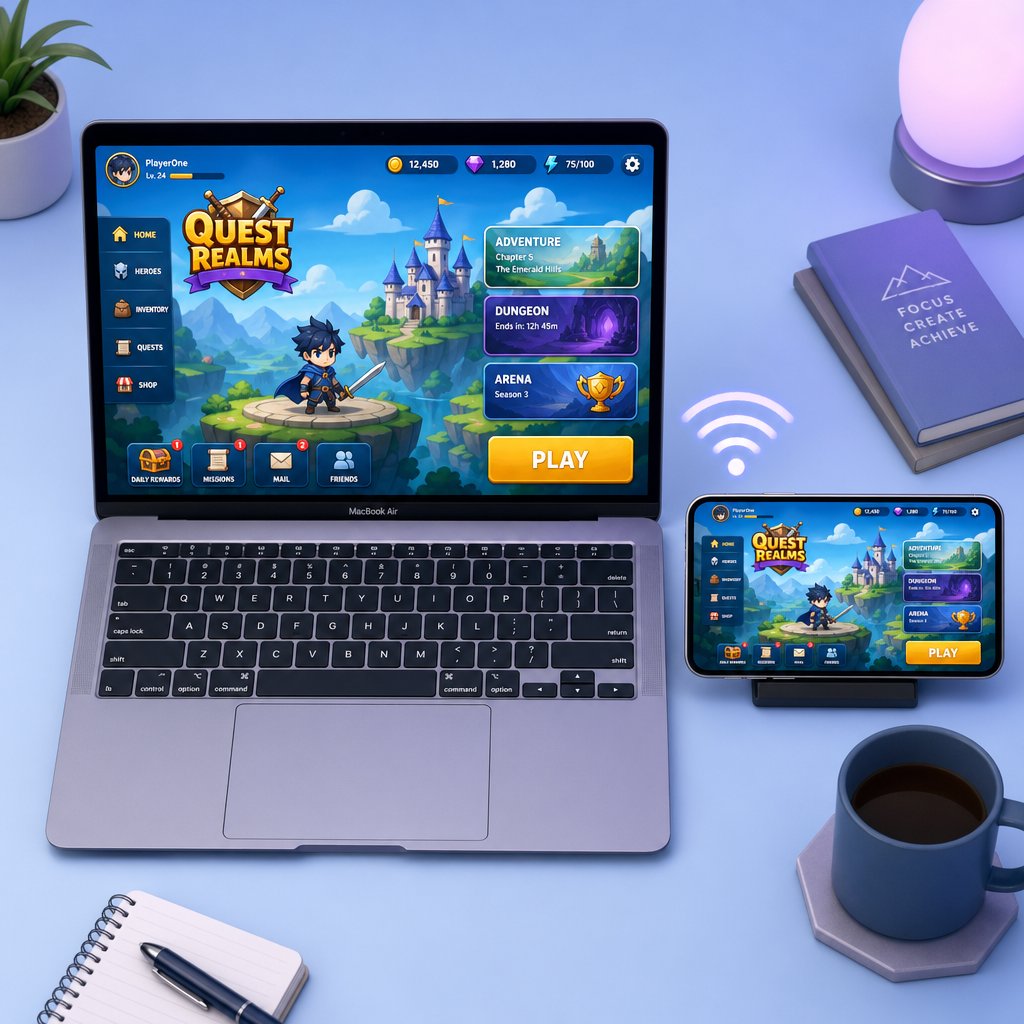
Zero keymapping, zero emulator downloads, zero Google Play sign-ins. Screen mirroring puts Brawl Stars on your MacBook screen by casting the game from your iPhone or iPad. The game itself never leaves your mobile device, so your Mac is just a bigger display with a wireless connection to your phone. For anyone who already plays Brawl Stars on Mac-adjacent hardware like an iPhone, this is the lowest-effort path to a larger view.
When Screen Mirroring Is the Better Choice
Mirroring makes sense in a specific scenario: you already have Brawl Stars installed on your phone, your account and progress are there, and you just want a more comfortable viewing experience without rebuilding anything on your laptop. It's also the better fit for older MacBooks that struggle with emulator overhead, since the Mac handles only the display stream rather than running a full virtual Android environment. If your goal is casual matches on a Brawl Stars MacBook setup with minimal commitment, mirroring gets you playing in minutes.
How to Mirror Brawl Stars to a MacBook
Apple's built-in iPhone Mirroring feature is the most straightforward option for iPhone users running iOS 18 or later paired with a Mac on macOS Sequoia or newer. Both devices need to be signed in to the same Apple Account, and the iPhone must be locked during the session. Third-party tools like ApowerMirror and AirDroid Cast offer alternatives if your devices don't meet those requirements or if you're mirroring from an Android phone.
- Make sure your MacBook and phone are on the same Wi-Fi network (or connected via USB, depending on the app).
- On a Mac running macOS Sequoia or later, open the iPhone Mirroring app from Spotlight or the Applications folder. For third-party tools, install the mirroring app on both devices first.
- Authenticate the connection. iPhone Mirroring uses your Mac login password or Touch ID on the first launch, plus a one-time device passcode entry on the phone.
- Lock your iPhone. The mirroring session only stays active while the phone screen is off and not in direct use.
- Open Brawl Stars through the mirrored phone interface on your MacBook and start playing.
One thing to note: with Apple's native iPhone Mirroring, you can actually click and interact with the mirrored screen using your Mac's mouse and keyboard. That means you can tap to attack and navigate menus without picking up your phone. It's not the same as full keymapping, but it does add a layer of convenience that pure display-only mirroring apps don't offer.
Tradeoffs You Will Notice During Real Matches
Mirroring sounds ideal on paper, but real gameplay exposes a few friction points that matter in a fast-paced brawler.
Pros
- Setup takes under five minutes with no large downloads on your Mac
- Your existing Brawl Stars for Mac mobile account, progress, and settings carry over instantly
- Minimal CPU and RAM usage on the MacBook since the game runs on your phone
- Works well on older Mac models that can't handle emulator demands
- No Google Play account or Android environment needed
Cons
- Input still relies on touch gestures or basic mouse clicks rather than full keyboard control
- Wi-Fi instability introduces visible lag, and even small delays hurt in competitive modes
- Your phone's battery drains faster during extended mirrored sessions
- Accelerometer-based features won't translate through the mirrored connection
- The phone must stay nearby and locked, so you can't use it for anything else while playing
Mirroring is not the right pick if you want to play Brawl Stars on Mac with dedicated keyboard controls, or if you plan on long grinding sessions where holding a phone nearby feels like a hassle. It also falls short for players who want a fully laptop-only experience, since the game literally can't run without the mobile device powering it. For competitive players chasing ranked wins, the slight input delay from wireless streaming can be the difference between landing a clutch Super and whiffing it entirely.
Whichever method you've settled on, the game is now on your screen. The next priority is making sure your account is properly connected and your progression choices set you up for long-term growth rather than wasted resources.
Step 7: Secure Your Account and Plan Your Progress
Brawl Stars is running on your MacBook, controls feel decent, and you're ready to grind. But before you sink hours into unlocking Brawlers and pushing trophies, there's one step that protects everything you earn from here on out: linking your account to Supercell ID. Skip this, and a single app reinstall or emulator reset wipes your progress with no recovery path.
Connect Supercell ID Before You Commit Progress
Supercell ID is a free cloud-based account system that ties your Brawl Stars progress to an email address. It works across devices and platforms, which is especially important if you plan to switch between your phone and MacBook. Once connected, Supercell ID becomes the only login method for that account, replacing Google Play or Apple Game Center as the sign-in authority.
To create a Supercell ID or link an existing one:
- Open Brawl Stars and tap the gear icon in the top-right corner to access Settings
- Tap the Supercell ID button, which shows "Disconnected" if you haven't linked yet
- Choose "Register Now" for a new ID, or "Sign In" if you already have one from Clash of Clans, Clash Royale, or another Supercell game
- Enter an email address you actively use and won't lose access to
- Check your inbox for a six-digit verification code and enter it in the app
- Tick "Remember me on this device" so you don't need a new code every time you launch through the emulator
Returning players who already have a Supercell ID on mobile just sign in with the same email inside the emulator. All Brawlers, trophies, skins, and Gems sync instantly. This is the whole reason cross-device play works without starting over.
Understand Gems, Store Value, and Account Growth
With your account secured, progression decisions start mattering. Brawl Stars has several currencies and systems competing for your attention, and spending resources carelessly early on is one of the fastest ways to stall out.
Gems are the premium currency, and they're scarce for free-to-play accounts. The highest-value use for Gems is the Brawl Pass, which unlocks a full season of rewards including Brawlers, Coins, Power Points, and cosmetics. Buying skins or skipping tiers with Gems before securing the pass is a common mistake that slows long-term growth. Coins and Power Points fuel Brawler upgrades from Power 1 through Power 11, and spreading them too thin across every Brawler leaves you with a roster that's mediocre everywhere instead of strong where it counts.
Choose Safe Upgrade Paths for Long-Term Play
A practical priority list keeps your resources working efficiently:
- Link Supercell ID immediately and use an email with two-factor authentication enabled
- Buy the Brawl Pass before spending Gems on anything cosmetic
- Focus Power Points and Coins on two or three strong Brawlers rather than upgrading everyone evenly
- Farm Mastery rewards consistently, since they're one of the best free sources of Coins in the game
- Avoid buying Hypercharges with Coins at 5,000 each when Legendary Star Drops can deliver them for free
- Check the Brawl Stars shop daily for free items and limited offers that stretch your resources further
For players who want to top up Gems safely outside the in-game store, VeloxGame's Brawl Stars Top Up page is worth a look. It's a straightforward option for adding premium currency to your account, especially if you're looking for a Brawl Stars gift card alternative or want to grab Gems before a new Brawl Pass season drops.
With your account locked down and a clear upgrade plan in place, the only thing left is making sure your setup stays stable. The final step covers common issues that pop up after everything is installed and how to decide which method deserves a permanent spot in your routine.
Step 8: Troubleshoot Issues and Keep the Best Setup
Even a clean install can develop quirks after a few sessions. Maybe the emulator freezes on launch one morning, or mirroring drops frames during a Showdown final circle. Knowing how to fix the most common problems, and when to switch methods entirely, saves you from abandoning a setup that's one small adjustment away from working perfectly.
Fix Launch and Performance Problems on MacBook
Most post-install issues fall into a handful of categories. If the BlueStacks app player is not opening at all, the fix is usually simpler than it looks. Run through this list before reinstalling anything:
- Restart the emulator. BlueStacks support recommends closing and relaunching as the first step for app crashes and launch failures.
- Reboot your MacBook. A fresh restart clears memory leaks and resets background processes that may be competing for resources.
- Re-check macOS permissions. Accessibility and input monitoring access can silently reset after a system update. Head to System Settings > Privacy & Security and confirm the emulator still has the toggles enabled.
- Free up storage. If your drive dropped below a few gigabytes of free space, the emulator may refuse to start or run erratically. Delete old files or clear the emulator's cache.
- Reinstall the app inside the emulator. If Brawl Stars itself crashes but the emulator loads fine, uninstall the game from the virtual Android environment and install it fresh from Google Play.
- Lower the emulator's allocated RAM or resolution. Unstable performance during matches often traces back to the emulator trying to use more resources than your MacBook can spare.
Wondering whether the BlueStacks app player is safe to keep running long-term? NordVPN's analysis confirms BlueStacks is not malware and is safe on Mac when downloaded from the official site. It does use virtualization, which can trigger false positives from antivirus tools, but the software itself has been around since 2011 and is backed by major tech companies. The key safety rule stays the same: download only from the official source, keep it updated, and review app permissions regularly.
How to Decide Which Method to Keep Using
After testing both paths, one will feel noticeably better for the way you actually play. Rather than sticking with whichever you tried first, match your method to your priority:
- For the easiest setup with the least maintenance, stick with screen mirroring. It requires almost no MacBook resources, keeps your mobile account intact, and works reliably on older hardware. Best for casual players who already game on their phone.
- For the best control and competitive potential, keep the emulator. Keyboard and mouse aiming gives you precision that touch controls can't replicate, and you don't need your phone nearby. Best for players who want to grind ranked modes or play Brawl Stars on PC-style hardware for extended sessions.
- For low-friction casual play on a Brawl Stars for MacBook setup, try both and rotate. Use mirroring for quick daily quests when you're short on time, and fire up the emulator when you want a longer, more focused session with full controls.
Your Best Next Step After Setup Works
The technical side is handled. Your MacBook runs the game, your controls are mapped, and your Supercell ID keeps everything synced. From here, the game itself takes over, and how fast your account grows depends on smart resource decisions more than hardware.
If you're actively pushing trophies and want to accelerate progression, these are worth exploring:
- VeloxGame Brawl Stars Top Up for adding Gems safely outside the in-game store
- The Brawl Pass each season for the highest return on premium currency
- Daily shop checks for free items and limited-time offers that stretch your resources
Whether you landed on emulation, mirroring, or a mix of both, the goal was always the same: get Brawl Stars running on your MacBook without wasting time on methods that don't work. You've got a working setup now. Go push some trophies.
Frequently Asked Questions About Playing Brawl Stars on MacBook
1. Can you play Brawl Stars on a MacBook without an emulator?
Yes, but options are limited. Some Apple Silicon MacBooks (M1 and newer) may find compatible iOS apps in the Mac App Store, though availability is inconsistent and the experience differs from mobile. Screen mirroring is the other emulator-free route: it casts the game from your iPhone or iPad to your MacBook display using Apple's built-in iPhone Mirroring feature (macOS Sequoia and iOS 18 required) or third-party apps like ApowerMirror. The game still runs on your phone, so your Mac handles only the video stream. For full keyboard and mouse control without a mobile device nearby, an Android emulator remains the most reliable standalone method.
2. Is BlueStacks safe to use on a Mac for Brawl Stars?
BlueStacks is generally considered safe when downloaded directly from the official BlueStacks website. The software has been available since 2011 and is backed by established tech investors. Because it uses virtualization technology, some antivirus tools may flag it with false positives, but the app itself is not malware. To stay safe, avoid downloading BlueStacks from third-party mirror sites or file-sharing platforms, keep the emulator updated to the latest version, and review the macOS permissions it requests during installation. BlueStacks Air currently supports Apple Silicon Macs (M1 through M4) and requires macOS 11 Big Sur or later.
3. How do you set up keyboard controls for Brawl Stars on a MacBook emulator?
Most Android emulators include a built-in keymapping editor that lets you overlay virtual controls onto the game screen. Open the editor (Ctrl + Shift + A in BlueStacks), place a D-Pad on the left joystick area, and assign WASD for movement. Map your primary attack to left mouse click and your Super to right click or a nearby key like Q. Gadget activation works well on E or a side mouse button. Save the profile so it loads automatically each session. Some emulators also ship with preset Brawl Stars control schemes that cover the basics, though customizing bindings to your hand positioning improves reaction time noticeably.
4. Does Brawl Stars support controllers on Mac?
Supercell has not added native controller support to Brawl Stars. However, some emulators offer gamepad mapping features that let you bind a connected controller's buttons to on-screen touch actions. The results are mixed because Brawl Stars was designed around dual-joystick touch input, and analog stick aiming through an emulator's translation layer can feel imprecise. If you want to try it, test the controller setup in a friendly or training match before jumping into ranked play. For most MacBook players, keyboard and mouse mapping through the emulator's keymapping tool provides more consistent and accurate control.
5. How do you keep Brawl Stars progress synced between a MacBook and a phone?
Supercell ID is the key to cross-device syncing. It is a free cloud-based account system that ties your Brawl Stars progress to an email address. Open the game, tap the gear icon for Settings, select Supercell ID, and register with an email you actively use. Once linked, signing in with the same Supercell ID on any device, whether through an emulator on your MacBook or the mobile app on your phone, instantly loads all your Brawlers, trophies, skins, and Gems. This also protects your account from data loss if you ever need to reinstall the emulator or reset your Mac.





