


Is Zenless Zone Zero on Steam?
No. Zenless Zone Zero is not available on Steam. There is no official store page, no confirmed listing, and no announced plan from HoYoverse to bring the game to Valve's platform. If you search for it on Steam right now, you will not find a legitimate download.
Zenless Zone Zero has never been listed on Steam, and HoYoverse has made no public announcement about a future Steam release.
Last checked: April 2025. If this changes, we will update this article accordingly.
Current Steam Status
The game launched in July 2024 across PC, PlayStation, and mobile. On PC specifically, it is only available through the Epic Games Store and HoYoverse's own HoYoPlay launcher. This follows the same distribution pattern as other recent HoYoverse titles like Genshin Impact and Honkai Star Rail, neither of which landed on Steam either. Older titles like Honkai Impact 3rd did get a Steam release, but the studio has consistently bypassed Valve's storefront for its newer games.
So if you have been wondering whether ZZZ is on Steam, the short answer stays the same: it is not there, and nothing official suggests that is changing.
What PC Players Can Do Right Now
You do have two real options for playing on PC. Download the game for free through the Epic Games Store, or grab the standalone HoYoPlay launcher directly from HoYoverse's website. Both paths give you the full game with cross-platform progression.
There is also a popular workaround where players add the game to their Steam library manually as a non-Steam shortcut. This lets you launch it from the Steam interface and access features like controller configuration, but it is not the same thing as an official Steam release. You will not get Steam achievements, store-level support, automatic updates through Steam, or native compatibility guarantees. The game still runs through its original launcher behind the scenes.
That distinction matters more than it might seem at first glance, and understanding exactly what a non-Steam shortcut does and does not give you is worth a closer look.
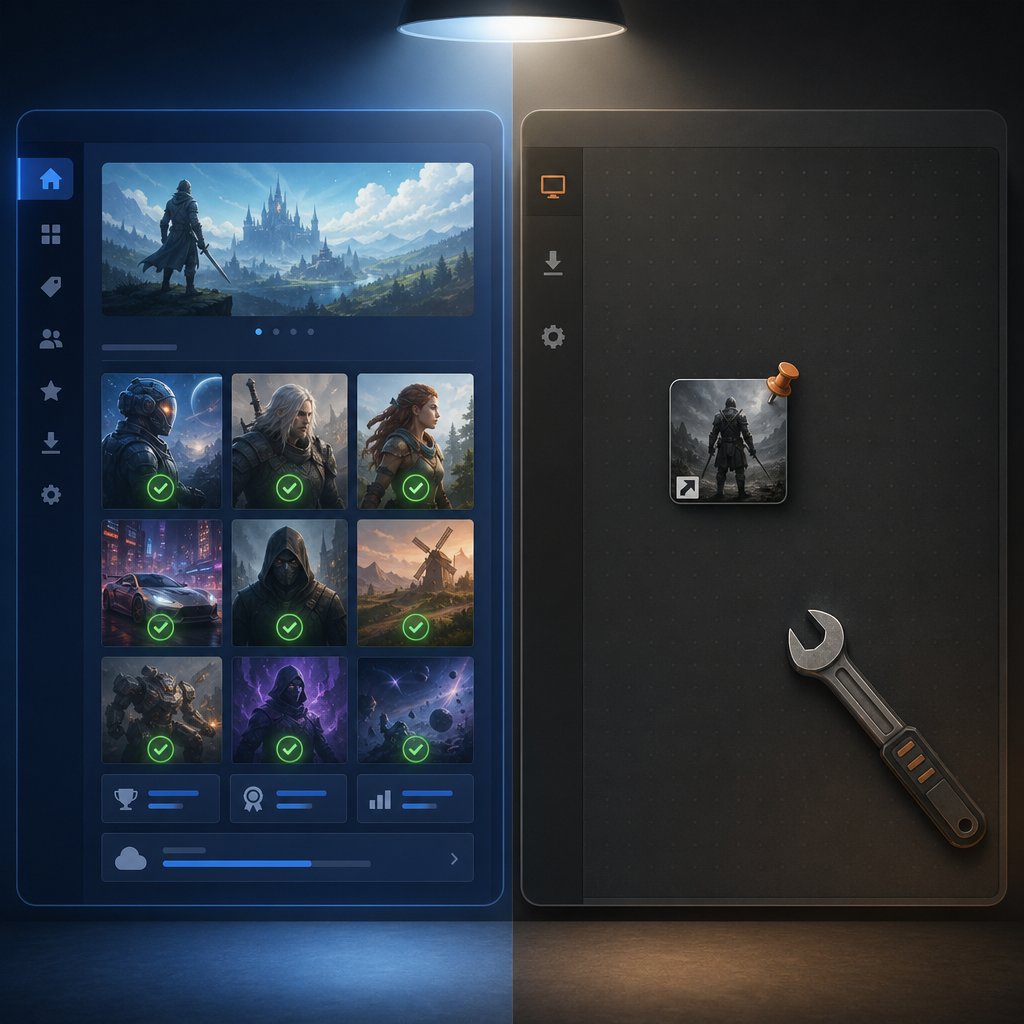
Official Release Versus Steam Shortcut
Seeing a game in your Steam library and having it officially on Steam are two very different things. The confusion around ZZZ and Steam usually starts right here, so let's separate the two clearly.
Official Steam Release Versus Non Steam Shortcut
An official Steam release means the developer publishes the game on Valve's storefront. It gets a dedicated store page, automatic updates through the Steam client, achievement tracking, community hub access, review scores, and full refund policy coverage. A non-Steam shortcut, on the other hand, is just a manual link you create yourself. Steam treats it like a bookmark. It points to an executable on your drive, and that is where its integration mostly ends.
There is also a third layer of confusion worth addressing. If you search "ZZZ" on Steam, you might find unrelated results. The abbreviation is shorthand the community uses for Zenless Zone Zero, but Steam's search engine does not know that. It will return whatever matches those three letters, which can include other titles, tags, or user-generated content. So what does ZZZ mean on Steam? In most gaming conversations, it refers to Zenless Zone Zero, but on the actual storefront, it means nothing specific.

What Adding ZZZ to Steam Actually Changes
Adding the game as a non-Steam shortcut does give you a few practical perks. You get one-click launching from your Steam library, access to the Steam overlay while playing, and the ability to use Steam's controller configuration tools. For players who live inside the Steam ecosystem, that convenience is real.
What you do not get is equally important. There are no automatic game updates through Steam, no Steam achievement support, no access to Steam's customer support for the title, and no guarantee of native compatibility on devices like the Steam Deck. The game still depends entirely on its own launcher for patching, account management, and anti-cheat. You are essentially launching the HoYoPlay client through a Steam wrapper.
Knowing exactly where the game is officially available, and how each platform option stacks up, makes the next decision much simpler.
Where You Can Actually Play Zenless Zone Zero
The full picture is broader than just Steam. Zenless Zone Zero is a free-to-play title available across several platforms, and each one comes with its own install path, trade-offs, and quirks. A side-by-side comparison cuts through the noise faster than hunting down answers platform by platform.
Where ZZZ Is Officially Available
HoYoverse launched the game in July 2024 on PC, PlayStation 5, Android, and iOS. On the PC side, the two official routes are the HoYoPlay launcher downloaded directly from HoYoverse's website and the Epic Games Store. Steam is not among them. PlayStation players grab it from the PlayStation Store, while mobile users find it on Google Play or the App Store. Every version is free to download and play, with no platform requiring a paid subscription for access. PS5, for example, does not need PlayStation Plus.
The table below maps out each option so you can scan for exactly what applies to your setup.

How Each Platform Option Differs
Content-wise, every version of Zenless Zone Zero is identical. Characters, events, story updates, and modes roll out simultaneously regardless of where you play. Cross-save also works across all platforms as long as you log into the same HoYoverse account on the same server region.
The real differences are practical. Zenless Zone Zero on PC gives you the sharpest visuals and full keyboard-and-mouse or controller support. PS5 offers a streamlined console experience with DualSense integration. Mobile versions are the most portable but come with slightly reduced visual fidelity and touch controls by default, though pairing a Bluetooth controller is always an option.
ZZZ is free on every platform, so cost is never the deciding factor. What matters more is your preferred input method, screen size, and whether you want the game living inside a specific launcher ecosystem. For PC players specifically, the install process itself is straightforward once you know which path to take.
How to Download Zenless Zone Zero on PC for Free
Knowing the game is not on Steam only matters if you also know where to go instead. The good news: getting ZZZ running on your PC takes about ten minutes of actual effort, and it costs nothing. The game is entirely free to play, with no upfront purchase on any platform.
Official PC Download Paths
PC players have two legitimate routes. The first and most direct is HoYoverse's own HoYoPlay launcher, which you download straight from the official Zenless Zone Zero website. This is the same unified launcher HoYoverse uses for Genshin Impact and Honkai Star Rail, so if you already have it installed, you can skip the launcher download entirely and just add ZZZ from within the client.
The second option is the Epic Games Store. Search for Zenless Zone Zero there, hit install, and the EGS client handles the download. Worth noting: even through Epic, the game still opens HoYoPlay for account authentication and patching. You are not bypassing the launcher either way.
Both paths deliver the exact same game. Pick whichever ecosystem you prefer, or whichever one is already sitting on your desktop.
Install Steps and Storage Planning
Here is the fastest way to go from nothing to playing, using the HoYoPlay route:
- Head to the official ZZZ website and click the PC download button to grab the HoYoPlay installer.
- Run the installer and choose your target directory. Pick an SSD if you have one available. HoYoverse specifically recommends SSD installation for the best performance.
- Open HoYoPlay, find Zenless Zone Zero in the game list, and click Install.
- Select the drive and folder where you want the game files to live. This can be different from where the launcher itself is installed.
- Wait for the download to finish, then let any initial patches apply before launching.
Storage is the one thing that catches people off guard. The official requirements list 57 GB of space for the base install, plus an extra 58 GB needed temporarily for decompression. That means you realistically need around 115 GB of free space on your target drive during the initial setup, even though the final footprint is smaller. Ongoing version updates will gradually increase the total size over time, so leaving a buffer is smart.
Before you start the download, run through this quick checklist:
- A HoYoverse account ready to go (create one for free at hoyoverse.com if you do not have one)
- At least 115 GB of free space on the target drive for install and decompression
- Windows 10 64-bit or later, with DirectX 11.1 support
- Admin permissions on your PC so the launcher can write files and apply updates without interruption
- Updated GPU drivers, especially if you are running an older Nvidia or AMD card
- Controller plugged in or paired beforehand if you plan to play with one, though the game supports both keyboard-mouse and gamepad natively
Once the install wraps up, ZZZ launches directly from HoYoPlay with a single click. Clean, simple, no Steam required. But if you still want the game living inside your Steam library for convenience or controller mapping, that is a separate process with its own set of expectations.
How to Add ZZZ to Steam and Launch It on Windows
The workaround is real, and it works. Just keep in mind that adding Zenless Zone Zero to Steam manually is a convenience layer, not a native integration. You are telling Steam where to find an executable on your drive. Everything else, updates, account management, patching, still runs through HoYoPlay behind the scenes.
Add the Launcher to Your Steam Library
Here is how to add ZZZ to Steam on a Windows PC, step by step:
- Make sure Zenless Zone Zero is already installed through HoYoPlay or the Epic Games Store. The non-Steam shortcut only points to existing files; it does not download anything.
- Open Steam and click Games in the top menu bar, then select Add a Non-Steam Game to My Library.
- A list of detected programs will appear. If ZZZ or HoYoPlay shows up, check the box and click Add Selected Programs. If it does not appear, click Browse and navigate to the game's executable manually.
- To find the right file, look for
ZenlessZoneZero.exeinside your install directory. The default path is typicallyC:\Program Files\HoYoverse\games\ZenlessZoneZero Game\ZenlessZoneZero.exe, though yours may differ depending on where you installed it. - Once added, the game appears in your Steam library under the non-Steam section. Right-click the entry to rename it, change the icon, or adjust launch options.
One thing to expect: if you add the HoYoPlay launcher executable instead of the game's own .exe, Steam will open the launcher first. You then click "Start Game" inside HoYoPlay to actually reach ZZZ. This is normal for any launcher-based setup. Pointing the shortcut directly at ZenlessZoneZero.exe can skip that extra step, though some users report that the launcher may still briefly appear depending on how the game handles authentication.
Set Expectations for Overlay and Controller Support
Having the game in your Steam library unlocks a few useful features, but not everything behaves the way it would with an official listing. Here is what to realistically expect:
- Steam Overlay: Generally works. You can shift-tab into the overlay for chat, browser, and screenshots. Occasional conflicts with the game's own overlay or anti-cheat are possible but uncommon.
- Controller configuration: This is the biggest practical win. Steam Input lets you remap buttons, adjust deadzones, and apply community controller profiles. ZZZ supports gamepad natively, but Steam's configuration layer gives you finer control.
- Big Picture and Steam Deck Game Mode: The shortcut will appear and launch, but behavior can be inconsistent. The HoYoPlay login screen or launcher window sometimes grabs focus in a way that does not play nicely with full-screen Big Picture navigation.
- Automatic updates: Not handled by Steam at all. You still need HoYoPlay to download patches. After a major version update, your shortcut path could even break if the executable location shifts.
- Achievements and playtime tracking: Steam will track hours played for non-Steam games, but there are no Steam achievements. All achievement-like tracking stays within ZZZ's own systems.
- Steam Cloud saves: Not supported. Your save data lives on HoYoverse's servers, tied to your HoYoverse account. This is actually a benefit since cross-save works regardless of how you launch the game.
The bottom line: launching Zenless Zone Zero on Steam through a manual shortcut is a perfectly valid way to centralize your library and get better controller tools. It is not, however, the same experience as a game that is officially on the platform. That gap becomes especially noticeable when something goes wrong, like a launcher conflict after a patch or a controller profile that stops loading correctly. Those kinds of hiccups are worth knowing about before they catch you mid-session.
What to Expect Running ZZZ on Steam Deck
Everything covered so far applies to a standard Windows desktop. The Steam Deck is a different animal. It runs SteamOS, a Linux-based operating system, and Zenless Zone Zero was never built with that environment in mind. Getting the game onto a Deck is possible, but the experience sits firmly in workaround territory, not plug-and-play territory.
Install Expectations on Steam Deck
Since ZZZ has no official Steam listing, there is no install button waiting for you in the Deck's default Game Mode. The entire setup happens in Desktop Mode, which gives you access to a traditional Linux desktop environment where you can download files, install third-party launchers, and manually configure shortcuts.
Community-tested methods generally follow one of two paths. The first involves downloading the HoYoPlay installer directly from the official ZZZ website using a browser in Desktop Mode, then adding the installer to Steam as a non-Steam game and running it through Proton Experimental. The second route uses the Heroic Games Launcher, a third-party client that connects to your Epic Games account and handles the download with its own compatibility layer. Both paths ultimately get you to the same game files, but the Heroic method can simplify some of the manual Proton configuration.
Regardless of which route you pick, expect to spend time in Desktop Mode navigating file managers, setting compatibility options, and creating shortcuts before the game is launchable from Game Mode. The install size is the same as on a standard ZZZ PC setup, so plan for roughly 60 GB or more on your internal storage or SD card.
Proton and Controller Caveats
Proton is Valve's compatibility layer that lets Windows applications run on Linux. For ZZZ on Steam Deck, you will need to enable Proton Experimental on the shortcut's properties. Community reports from sources like Steam Deck HQ and GameBoost confirm the game is playable through this method, with performance hitting around 60 FPS on medium settings. That said, Proton compatibility is not guaranteed to survive every patch. A future game update could change anti-cheat behavior or introduce dependencies that break the current working setup.
Here is what to keep in mind before and after getting the game running:
- The HoYoPlay launcher always opens first. You will need to use the touchscreen or configure a trackpad-as-mouse input to click "Start Game" inside the launcher each time.
- The Deck's controller is detected by ZZZ once you are past the launcher, but button prompts and mapping may not match your expectations out of the box. Steam Input remapping helps, though it requires manual setup.
- There is no native 800p resolution option in ZZZ. You will likely choose between 720p with slight letterboxing or a higher resolution that the Deck downscales. Neither is ideal, but 720p is the more stable choice for consistent frame rates.
- RAM usage can spike aggressively. Multiple community users report crashes tied to memory pressure, especially during visually dense combat sequences. Lowering texture settings or using tools like CryoUtilities to adjust the Deck's swap and UMA buffer can help stabilize things.
- Game updates do not flow through Steam. You need to relaunch the HoYoPlay installer or Heroic launcher to patch, and major updates can occasionally require reconfiguring your shortcut or compatibility settings.
- Anti-cheat is the wildcard. ZZZ currently works on Linux through Proton, but HoYoverse has not officially endorsed this. A future patch could activate stricter anti-cheat enforcement that blocks Linux entirely, and there is a small but nonzero risk of account flags, though no widespread bans have been reported.
A manual Steam shortcut on the Deck does not equal native support. The game is not Steam Deck Verified, not Steam Deck Playable, and not officially supported on Linux. Treat any working setup as community-maintained and subject to change.
When a Handheld Setup Makes Sense
Despite all the caveats, there are real reasons to go through this process. If the Steam Deck is your primary or only gaming device, the workaround gives you access to a game that otherwise requires a Windows PC, a PS5, or a phone. The 60 FPS performance on medium settings is genuinely solid for a handheld, and the ability to play ZZZ on a portable PC with physical controls is something the mobile version cannot fully replicate.
It makes less sense if you already have a capable Windows desktop or laptop. The native PC experience through HoYoPlay is smoother, more stable, and does not carry the risk of breaking after a patch. For players who just want to how to play ZZZ on PC with the least friction, a standard Windows install remains the cleanest path.
Where things get tricky for any setup, Deck or desktop, is when something stops working the way it should. Launcher conflicts, broken shortcuts after updates, controller profiles that vanish: these are the kinds of issues that deserve their own focused troubleshooting.
Common Non Steam Launch Problems and How to Fix Them
Most of these issues share a root cause: ZZZ on Steam is a manual shortcut, not a native integration, and the game's own launcher still controls everything that matters. When those two layers clash, the symptoms can look confusing even though the fixes are usually straightforward.
Launcher Opens but the Game Does Not
This is the single most common complaint after setting up the workaround. You click Play in Steam, HoYoPlay appears, and then nothing else happens. The game just sits there waiting for you to manually hit the launch button inside the launcher window. Here is what to check:
- Wrong executable selected: If your Steam shortcut points to
launcher.exe(the HoYoPlay client) instead ofZenlessZoneZero.exe, Steam will only open the launcher. Updating the shortcut target to the game's own executable can reduce this extra step, though the launcher may still briefly flash during authentication. - Admin permission mismatch: Steam and HoYoPlay need to run at the same privilege level. If one is elevated and the other is not, the handoff between them can silently fail. A community guide on Steam recommends setting Steam itself to run as administrator, then ensuring HoYoPlay's auto-launch at startup is disabled to avoid conflicts.
- Overlay interference: In rare cases, the Steam overlay attaches to the launcher process but not the game process. The result looks like a successful launch that stalls. Try disabling the overlay for that specific shortcut under Properties to see if the game loads normally without it.
- HoYoPlay was already running: If the launcher is open in the background before you click Play in Steam, the shortcut may create a second instance or simply fail to connect. Always fully exit HoYoPlay, including from the system tray, before launching through Steam.
Controller Mapping and Update Confusion
Controller and patching issues tend to surface later, usually after the initial setup is working fine and a game update rolls through.
- Controller not responding in-game: ZZZ supports gamepad natively, but if Steam Input is also active, the two systems can fight over control. Check your Steam controller settings for the shortcut and try switching the override to "Gamepad" or disabling Steam Input entirely if the game's built-in support is enough for you.
- Button prompts showing wrong icons: This happens when Steam Input remaps controls but the game still displays its default prompt set. There is no clean fix beyond choosing one input system and sticking with it.
- Shortcut breaks after a patch: Major ZZZ updates sometimes change file paths or executable names. If your shortcut suddenly stops working after a version update, right-click the entry in Steam, open Properties, and verify that the target path still points to a valid
.exefile. You may need to browse to the new location manually. - "Game is running" status stuck: After closing ZZZ, Steam may still show you as in-game. This happens because the HoYoPlay launcher remains active. Setting HoYoPlay's close behavior to "Exit Launcher" instead of "Minimize to tray" resolves this in most cases.
- Freezing or black screen after launch: HoYoverse's own troubleshooting steps apply here regardless of how you launched the game. Try switching to windowed mode, adjusting graphic quality, clearing the device cache, and using the built-in repair function on the "Press to Play" screen before logging in.
None of these fixes require a ZZZ download on PC from scratch. They are all adjustments to the shortcut configuration or the launcher's own settings. If something still is not cooperating after working through the list, the issue is more likely tied to your specific hardware or driver setup than to the Steam workaround itself, and that is where choosing the right launch path from the start saves the most headaches.
The Smartest Next Step for PC Players
Every troubleshooting step above circles back to the same reality: ZZZ is not on Steam, and the workaround is only worth the effort if it genuinely fits how you play. Here is how to pick the cleanest path based on what you actually care about.
Best Launch Path for Most Players
- You just want to play with zero friction: Install through HoYoPlay directly. It is the fastest route, gets patches first, and avoids every shortcut-related headache covered in this guide.
- You already live in the Epic ecosystem: Grab it from the Epic Games Store. Same game, same launcher behind the scenes, but your library stays consolidated.
- You need Steam controller tools or library organization: Add the game as a non-Steam shortcut after installing through one of the official paths. Just go in knowing the overlay and update limitations.
- Steam Deck is your only option: Follow the Desktop Mode workaround, but treat the setup as community-maintained. Keep expectations flexible around patches and Proton changes.
- You want portability without the Linux complexity: The mobile version is free, runs natively, and supports cross-save with your PC account. Earning a free ZZZ character through launch events or progression works the same way regardless of platform.
Since ZZZ is free to play, the real cost is always time spent configuring rather than playing. Zenless Zone Zero free characters, story content, and core gameplay are identical everywhere, so platform choice comes down to comfort, not access.
Helpful PC Gaming Resources Beyond This Guide
If you are already comparing launchers, managing drive space, and thinking about how your PC gaming setup fits together, these resources are worth bookmarking:
- VeloxGame PC Game Top Up collection — a practical hub for PC gamers looking into game-related purchases, top-ups, and account funding across multiple titles.
- Official Zenless Zone Zero site — always the safest source for download links, patch notes, and event announcements including free character giveaways.
- Epic Games Store listing — the alternative official PC download if you prefer not to use HoYoPlay standalone.
Pick the path that matches your setup, skip the wrong download, and get into New Eridu the easy way.
Frequently Asked Questions About Zenless Zone Zero and Steam
1. Will Zenless Zone Zero ever come to Steam?
As of April 2025, HoYoverse has not announced any plans to bring Zenless Zone Zero to Steam. The studio has followed a consistent pattern with its newer titles, including Genshin Impact and Honkai Star Rail, by distributing them through its own HoYoPlay launcher and the Epic Games Store rather than Valve's platform. While older HoYoverse games like Honkai Impact 3rd did receive Steam releases, there is currently no official indication that ZZZ will follow the same path. Players should rely on the two confirmed PC download options and avoid unofficial sources claiming a Steam launch date.
2. Can I add Zenless Zone Zero to my Steam library?
Yes, but only as a non-Steam shortcut. After installing ZZZ through HoYoPlay or the Epic Games Store, you can manually add the game's executable to your Steam library using the 'Add a Non-Steam Game' feature. This gives you one-click launching from Steam, access to the Steam overlay, and Steam Input controller configuration. However, it does not provide Steam achievements, automatic updates, store-level customer support, or native Steam Deck compatibility. The game still relies entirely on HoYoPlay for patching and account management behind the scenes.
3. Is Zenless Zone Zero free to play on PC?
Zenless Zone Zero is completely free to download and play on every platform, including PC. There is no upfront purchase required whether you install through HoYoverse's HoYoPlay launcher or the Epic Games Store. The game uses a free-to-play model with optional in-game purchases. All story content, characters earned through gameplay progression, events, and core modes are accessible without spending money. For players managing top-ups or game-related purchases across multiple PC titles, resources like the VELOX PC Game Top Up collection at veloxgame.com/pc can serve as a convenient hub.
4. Does Zenless Zone Zero work on Steam Deck?
ZZZ can run on Steam Deck through community-tested workarounds, but it is not officially supported. The game has no Steam listing, so there is no Verified or Playable rating from Valve. Setup requires switching to Desktop Mode, installing the game via HoYoPlay or the Heroic Games Launcher, and running it through Proton Experimental. Community reports indicate playable performance around 60 FPS on medium settings, though users should expect potential issues with launcher navigation, controller mapping, memory-related crashes, and the possibility that future game updates could break compatibility without warning.
5. What does ZZZ mean when I search for it on Steam?
In gaming communities, ZZZ is widely used shorthand for Zenless Zone Zero. However, searching 'ZZZ' on Steam's storefront will not return Zenless Zone Zero because the game has no official listing there. Instead, Steam's search engine may display unrelated titles, tags, or user-generated content that happen to match those three letters. This mismatch is a common source of confusion and sometimes leads players to believe the game exists on the platform when it does not. For the actual game, head to the Epic Games Store or HoYoverse's official website.





