


The honest answer for Mac players
So, can you play Genshin Impact on Mac? The short answer is yes, but not the way you might expect. HoYoverse has never released a native macOS client for Genshin Impact. The game's official platform support covers Windows PC, PlayStation 5, Xbox Series X|S, iOS, and Android. macOS is not on that list, and there is no Mac launcher waiting in your Applications folder.
Genshin Impact has no native Mac version. Mac players can still access the game through workarounds like cloud gaming, remote streaming, or Boot Camp on Intel hardware.
Can Genshin Impact run on Mac right now
It can, just not through a simple download-and-play path. Whether you own a MacBook Air, a MacBook Pro, or an iMac, you will need a workaround to get into Teyvat. The specific workaround that makes sense for you depends almost entirely on one detail: whether your Mac runs Apple Silicon or an Intel processor. That single distinction shapes every option available to you.
Official macOS support status
HoYoverse's published device requirements make no mention of macOS. The supported PC specs reference Windows 10 and Windows 11 exclusively, and the launcher only installs on Windows. There has been no public announcement about a future Mac port. If you have seen someone claim Genshin is on Mac natively, they are either confused or referring to one of the unofficial methods covered in this guide.
What playable on Mac actually means
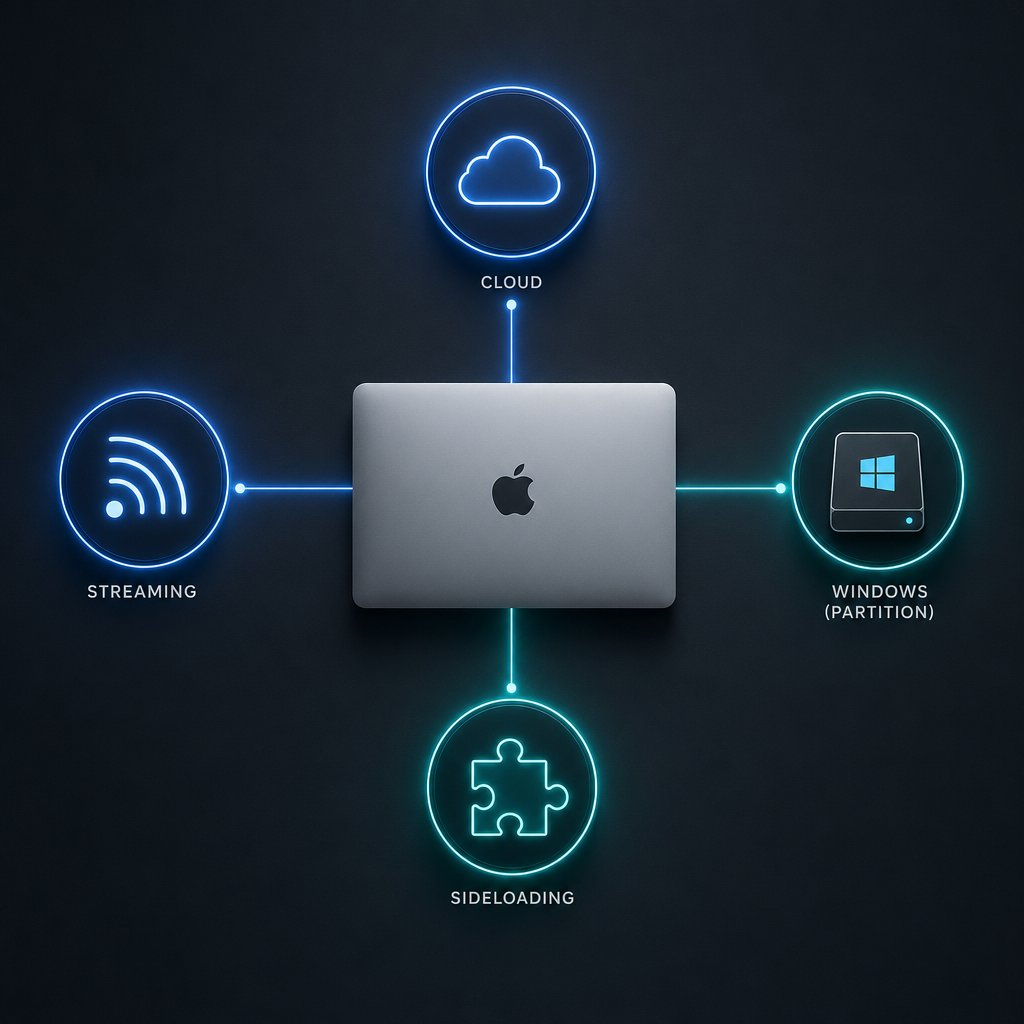
This is where conflicting search results come from. When people ask "is Genshin on Mac," some answers say yes and some say no, because they are answering different questions. A native client means a version of the game built specifically for macOS, and that does not exist. A workaround means using another layer of technology to run the game anyway. The three main categories are:
- Cloud gaming — the game runs on a remote server and streams video to your Mac. No local install required.
- Remote streaming — you play on a Windows PC or console you already own, and your Mac acts as a screen and controller over your network.
- Boot Camp — you install Windows directly on an Intel Mac and run the official Windows version of the game locally.
Each path carries different tradeoffs in cost, setup effort, and performance. The right choice hinges on your hardware, your internet connection, and whether you already have another device that can run the game. Figuring out which Mac you have is the first real step.
Check your Mac before you try anything
Your Mac's processor is the single biggest factor in deciding how you get Genshin Impact running. Pick the wrong method for your hardware and you will waste time on a setup that simply will not work. A quick check takes about ten seconds and saves you from that frustration entirely.
How to tell if your Mac is Intel or Apple Silicon
Click the Apple menu in the top-left corner of your screen and select About This Mac. That small window tells you everything you need to know. On an Apple Silicon Mac, you will see an item labeled Chip followed by a name like M1, M2, M3, or M4. On an Intel-based Mac, the same spot reads Processor and lists an Intel chip name instead.
Apple started shipping Apple Silicon Macs in late 2020. If you bought a MacBook Air, MacBook Pro, iMac, Mac mini, Mac Studio, or Mac Pro from 2021 onward, there is a strong chance it runs Apple Silicon. A few 2020 models, including the MacBook Air (M1, 2020), MacBook Pro (13-inch, M1, 2020), and Mac mini (M1, 2020), also use Apple Silicon. Anything older than that is Intel.
Why does this matter so much? Intel Macs can partition their drive and install Windows through Boot Camp, which opens the door to the official Windows version of Genshin Impact. Apple Silicon Macs cannot do that at all. Boot Camp does not exist on M-series hardware. So if you are wondering whether you can play Genshin on a MacBook with an M-chip, your realistic paths narrow to cloud gaming and remote streaming right away.
Before you start your setup checklist
Regardless of which method you end up choosing, a few basics apply across the board. Run through this list before diving into any setup guide:
- Know your Mac type. Apple Silicon or Intel, confirmed through About This Mac. This determines which methods are even possible.
- Check your available storage. Cloud gaming and remote streaming need almost no local space. Boot Camp is a different story. The official PC requirements list 110 GB of available storage for Genshin Impact alone, and you will also need room for the Windows installation itself.
- Test your internet connection. Cloud gaming and remote streaming both depend on a stable, reasonably fast connection. Wired Ethernet or a strong 5 GHz Wi-Fi signal makes a noticeable difference in input lag and visual quality.
- Have your HoYoverse account ready. Your game progress is tied to your account and server region. Make sure you can log in before you start configuring anything new.
- Decide on your input method. Keyboard and mouse work fine for most setups. If you prefer a controller, confirm it connects to your Mac via Bluetooth or USB. Most modern gamepads, including PlayStation DualSense and Xbox Wireless controllers, pair with macOS without extra software.
- Note whether you already own a Windows PC or console. If you have a desktop or laptop that already runs Genshin well, remote streaming might be the fastest path with the least setup on the Mac side.
The fastest way to choose the right method
With your Mac type confirmed and the checklist handled, the decision tree is surprisingly short:
- Apple Silicon Mac + no other gaming device: Cloud gaming is your most straightforward option. No local install, no partitioning, no compatibility headaches.
- Apple Silicon Mac + existing Windows PC or console: Remote streaming lets you leverage hardware you already own. Your Mac just acts as the display and input device.
- Intel Mac + enough storage and patience: Boot Camp gives you access to the official Windows client running locally, with no internet dependency during gameplay.
- Intel Mac + limited storage or simpler preference: Cloud gaming and remote streaming still work perfectly here, and they skip the hassle of maintaining a Windows partition.
That is the entire decision in four lines. Each path comes with its own tradeoffs in cost, complexity, and performance, and those differences are worth seeing side by side before you commit to one.
Compare every realistic way to play Genshin Impact on Mac
Knowing your Mac type narrows the field, but it does not pick a winner for you. Each method carries a different mix of cost, effort, and compromise. A side-by-side view makes those differences concrete instead of abstract.
Mac play methods compared side by side
The table below covers the four approaches that actually get Genshin Impact running on a Mac. Cloud gaming and remote streaming work across both Apple Silicon and Intel hardware. Boot Camp is exclusive to Intel Macs. PlayCover, an open-source compatibility layer that sideloads the iOS version of the game onto macOS, is a more experimental route that some players use on Apple Silicon machines.

Which method fits your hardware and internet
If you have an Apple Silicon Mac and a reliable broadband connection, cloud gaming through a service like GeForce NOW is the lowest-friction path. The free tier caps sessions at one hour, while the Priority plan ($9.99/month) extends that to six hours and the Ultimate plan ($19.99/month) pushes it to eight hours with 4K streaming support. No massive download, no partition, no compatibility gamble.
Remote streaming makes the most sense when you already own a Windows PC or console that runs Genshin well. Your Mac becomes a thin client, and the heavy lifting stays on the host machine. This works beautifully over a wired home network but can struggle over Wi-Fi with weak signal or high congestion.
Boot Camp remains the only way to run the official Windows client locally on a Mac, and it is limited to Intel hardware. You get true offline-capable gameplay with no streaming artifacts, but you trade a significant chunk of storage and take on the maintenance burden of a full Windows installation. Older Intel MacBooks may also run hot and loud under sustained gaming loads.
PlayCover sits in a different category entirely. It sideloads the iOS build of Genshin Impact onto macOS using a compatibility layer, and some players report solid results with keyboard and mouse keymapping. The catch is reliability. Game patches can break PlayCover compatibility without warning, and the setup involves sourcing an IPA file, installing dependencies through Homebrew, and configuring controls manually. It is not officially supported by HoYoverse, so treat it as a tinkerer's option rather than a dependable daily driver.
The real tradeoffs behind each option
No single method wins across every column. Cloud gaming trades local control for convenience. Remote streaming trades independence for leveraging existing hardware. Boot Camp trades simplicity for native performance. PlayCover trades stability for a free, local experience on Apple Silicon. The right pick depends on what you are willing to give up, not just what you want to gain.
That split between Apple Silicon and Intel keeps shaping the conversation. Each chip family opens certain doors and closes others, so the next step is understanding exactly what those doors look like for M-series Mac owners specifically.
What works on Apple Silicon Macs
Apple Silicon rewrote the rules for Mac performance, but it also removed one of the most practical gaming workarounds Intel users relied on for years. If you are trying to figure out how to play Genshin on a MacBook with an M1, M2, M3, or M4 chip, the landscape is narrower than you might hope, though not hopeless.
Why Apple Silicon changes your options
Boot Camp is gone. Apple dropped Boot Camp entirely when it transitioned to its own ARM-based processors. The utility simply does not exist on any M-series Mac, which means there is no supported way to install Windows natively and run the official Genshin Impact PC client on these machines. That single limitation eliminates the only method that offered true local, offline-capable gameplay on a Mac.
What remains are approaches that either rely on the internet or venture into unofficial territory. For most players asking "can I play Genshin Impact on MacBook," the realistic answer comes down to two dependable paths and one risky one.
The best choices for M series MacBooks
Cloud gaming and remote streaming are the two methods worth building a setup around. Both work reliably on Apple Silicon, and neither requires you to install the game locally or modify your system in any meaningful way.
Cloud gaming
- How it works: A remote server runs Genshin Impact and streams the video feed to your Mac. You interact through a browser or lightweight app.
- Why it fits Apple Silicon: M-series chips handle video decoding efficiently, so the streaming experience is smooth even on a MacBook Air. Services like GeForce NOW offer a native macOS app plus browser access through Safari and Chrome.
Pros
- No local install, no storage sacrifice
- Server-side hardware handles all rendering
- Game updates happen on the server, not your Mac
- Works on any M-series MacBook, including the Air
Cons
- Requires a stable, fast internet connection at all times
- Free tiers impose session time limits
- Input lag depends on your distance from the nearest data center
- Service availability varies by region
Remote streaming
- How it works: Your Windows PC or console runs the game, and your Mac receives the video stream over your local network or the internet.
- Why it fits Apple Silicon: The Mac only needs to decode video and relay your inputs. Even a base-model MacBook Air handles that without breaking a sweat.
Pros
- Performance mirrors your host device, not your Mac's specs
- No subscription cost if you already own the host hardware
- Excellent quality over a wired home network
Cons
- Requires a second device that already runs Genshin well
- Latency increases significantly over Wi-Fi or remote connections
- Host device must stay powered on and updated
For anyone searching "genshin for MacBook Air" specifically, cloud gaming is usually the better fit. The Air's fanless design means it stays cool and silent during streaming since the heavy processing happens elsewhere. Remote streaming works just as well on the Air, but only if you have a capable host machine to pair it with.
What to avoid if you want a stable setup
Experimental sideloading tools like PlayCover can technically get the iOS version of Genshin running on Apple Silicon. Some players report playable results. The problem is consistency. Every game patch risks breaking compatibility, and you may find yourself reinstalling, reconfiguring keymaps, or waiting days for the community to release a fix. HoYoverse does not officially support this method, so there is also an inherent account-risk gray area that is difficult to quantify.
If your priority is a setup that just works every time you open your MacBook, stick with cloud gaming or remote streaming. They are less exciting than running the game locally, but they are predictable. Thermals, controller pairing, and Wi-Fi quality will shape your actual experience far more than whether the game technically launches.
Apple Silicon owners are not the only ones weighing tradeoffs, though. Intel Mac users face a completely different set of choices, and confusing the two paths is one of the most common mistakes in this space.
What works on Intel Macs
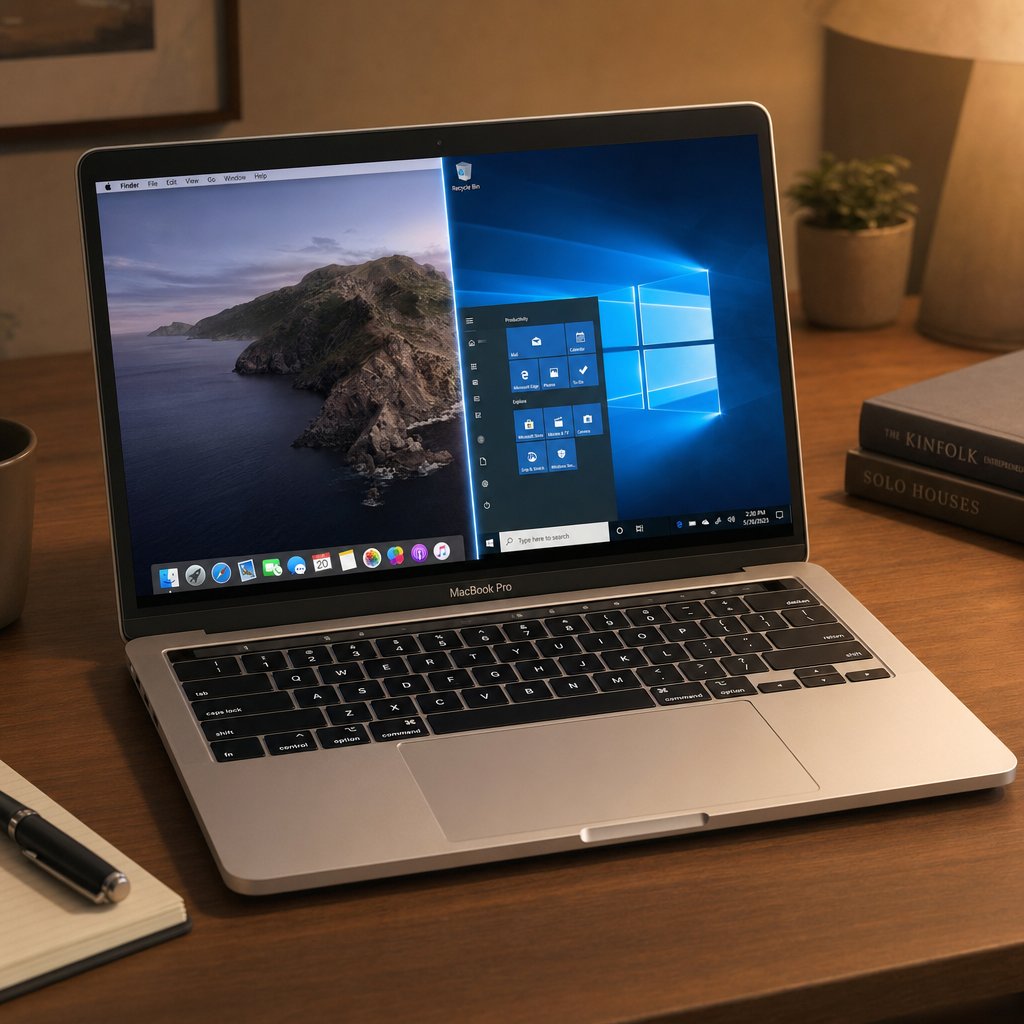
Intel-based Macs sit in a different position entirely. Where Apple Silicon owners lost access to Boot Camp, Intel users still have it, and that one utility opens a door that no other Mac hardware can match right now.
Why Intel Macs have more flexibility
Boot Camp ships with every Intel Mac and lets you partition your drive to install a full copy of Windows alongside macOS. That means you can run the official HoYoverse Windows launcher and play Genshin Impact as a local PC game, no streaming dependency, no subscription, no server between you and Teyvat. It is not a native Genshin Impact Mac OS build. It is the real Windows client running on real Windows, installed on your Mac's hardware.
On top of that, cloud gaming and remote streaming work just as well on Intel machines as they do on Apple Silicon. So Intel users get three viable paths instead of two. The question is which one deserves your time.
When Boot Camp makes sense
Boot Camp is the strongest option if you want local, self-contained gameplay and your Intel Mac has the storage and specs to handle it. You avoid internet-dependent input lag, session time limits, and subscription fees. The game runs directly on your hardware, and you control every graphics setting.
Pros
- Full Windows compatibility with the official Genshin Impact client
- No reliance on internet quality during gameplay
- No recurring subscription cost
- Native input support for keyboard, mouse, and controllers
Cons
- Requires significant free storage for both Windows and the game
- Setup involves partitioning your drive and installing drivers
- You must maintain Windows updates separately from macOS
- Older Intel MacBooks can run hot, spin fans loudly, and drain battery quickly under sustained gaming loads
That last point matters more than most guides let on. An aging Intel MacBook Pro with a degraded battery and dust-clogged fans will throttle performance during longer Genshin sessions. If your machine already runs warm during everyday tasks, expect it to get noticeably worse with a demanding open-world game pushing the GPU for hours at a time.
When Intel users should still choose cloud or streaming
Boot Camp is not automatically the right call just because your Mac supports it. If your Intel MacBook has limited storage, a worn battery, or you simply do not want to deal with a Windows partition, cloud gaming and remote streaming sidestep all of those concerns.
Pros
- No drive partitioning or Windows maintenance
- Minimal local storage footprint
- Less thermal stress on older hardware
- Faster to set up and easier to walk away from if you change your mind
Cons
- Constant internet connection required
- Cloud gaming may involve session limits or monthly fees
- Remote streaming needs a second device running the game
Think of it this way: Boot Camp turns your Intel Mac into a Windows gaming machine. Cloud gaming and streaming let your Mac stay exactly as it is while borrowing power from somewhere else. Both roads lead to Genshin Impact for MacBook owners on Intel, but the journey and the maintenance look very different.
Whichever direction fits your situation, the actual setup steps matter. Cloud gaming is the lightest lift, so that walkthrough comes first.
How to get Genshin Impact on Mac through cloud gaming
Cloud gaming skips the biggest headache Mac users face: there is nothing to install locally. No genshin download for Mac, no partition, no compatibility layer. The game runs on a powerful remote server, and your Mac simply receives the video stream while sending your inputs back. For Apple Silicon owners especially, this is the most direct way to get into the game without modifying your system at all.
What you need before using cloud gaming
A few things need to line up before you launch anything. Run through this quick checklist first:
- Regional availability. Not every cloud gaming service operates in every country. GeForce NOW's service status page lets you confirm whether your region is covered and check current server health before you commit.
- Internet speed. NVIDIA's official macOS setup guide lists minimum requirements of 25 Mbps for 1080p at 60 FPS and 15 Mbps for 720p at 60 FPS. Higher tiers demand more: 45 Mbps for 4K at 120 FPS, for example. A hardwired Ethernet connection or a strong 5 GHz Wi-Fi signal is recommended.
- Latency. Your ping to the nearest NVIDIA data center should be under 80 ms, though under 40 ms is the sweet spot. Use the in-app network test rather than generic speed test websites, since those do not measure the route to NVIDIA's servers.
- A HoYoverse account. You will sign into your existing account through the game itself once it launches on the server. Have your credentials ready.
- An input device. Keyboard and mouse work natively. Bluetooth controllers like the DualSense or Xbox Wireless pair with macOS and are recognized by the stream without extra configuration.
If all five boxes check out, setup takes just a few minutes.
How to launch Genshin through a cloud service
GeForce NOW is the most widely referenced option for this, and it supports Genshin Impact directly in its game library. Here is how to get Genshin Impact on Mac through it:
- Download the GeForce NOW macOS app from NVIDIA's official site, or open play.geforcenow.com in Chrome or Safari to use the browser version. The native app generally delivers better performance and more streaming options.
- Create or sign into your NVIDIA account. Choose a membership tier. The free plan allows one-hour sessions with potential queue waits. The Priority plan ($9.99/month) extends sessions to six hours, and the Ultimate plan ($19.99/month) offers up to eight hours per session with 4K resolution and up to 240 FPS streaming.
- Search for Genshin Impact in the GeForce NOW library and add it to your list.
- Launch the game. The service will spin up a virtual machine, load the game, and prompt you to sign into your HoYoverse account. Use the same credentials and server region tied to your existing progress.
- Connect your preferred input method before the game fully loads. If you are using a Bluetooth controller, pair it with your Mac first through System Settings so it is ready when the stream begins.
- Adjust streaming quality settings inside the GeForce NOW app under Settings > Streaming Quality. Balanced mode auto-detects the best resolution for your connection. Custom mode lets you manually set resolution, frame rate, and V-Sync preferences if you want finer control.
- Test in low-pressure gameplay first. Wander around a city or run a simple domain before jumping into Spiral Abyss or co-op. This gives you a feel for input responsiveness and visual quality without the penalty of dying mid-combat to a lag spike.
That is the entire process. No massive download eating up your SSD, no rebooting into another operating system. If you have been searching for how to download Genshin Impact on Mac and hitting dead ends, cloud gaming is the reason those searches feel misleading. There is nothing to download in the traditional sense.
How to reduce lag and input delay
Cloud gaming lives and dies by your network. Even with a fast connection, small optimizations can noticeably tighten the experience:
- Use Ethernet whenever possible. Wi-Fi introduces variable latency that wired connections avoid entirely. A USB-C to Ethernet adapter costs very little and makes a real difference on a MacBook.
- Stay on 5 GHz Wi-Fi if a cable is not an option. The 2.4 GHz band is more congested and slower, which translates directly into input delay.
- Close bandwidth-heavy apps. Video calls, large downloads, and other streaming services competing for the same connection will degrade your session quality.
- Sit closer to your router or move to a room with fewer walls between you and the access point. Signal strength matters more than people expect.
- Lower the streaming resolution if you notice stuttering. Dropping from 4K to 1080p at 60 FPS cuts the bandwidth requirement roughly in half and often feels smoother in fast-paced combat.
- Enable Adaptive V-Sync in the GeForce NOW custom settings. It balances latency and visual smoothness better than leaving V-Sync fully on or fully off.
Cloud gaming is the simplest answer for most Mac players, particularly on Apple Silicon where local alternatives are limited. But it is not the only wireless option. If you already have a gaming PC or console sitting in another room, streaming the game from that device gives you a different kind of flexibility, one that does not depend on a subscription or a data center hundreds of miles away.

Use remote streaming from another device
A gaming PC already sitting at your desk changes the equation entirely. Instead of paying for cloud server time, you can stream Genshin from your own hardware to your MacBook over the local network. Your Mac handles video decoding and input relay while the host machine does all the rendering. It is essentially the same concept as cloud gaming, except the server is a device you already own and control.
When remote streaming is the smartest option
This method makes the most sense in a specific scenario: you already play Genshin Impact on a Windows PC or have a capable machine that could run it, and you want to continue sessions from a MacBook in another room, on the couch, or in bed. The performance you see on your Mac mirrors whatever the host device delivers, so a mid-range desktop with a decent GPU will produce a far better stream than any cloud gaming free tier.
There is no subscription involved. The only cost is the streaming software itself, and the two most popular options, Steam Remote Play and the Sunshine plus Moonlight combination, are both free. Steam Remote Play is simpler to configure. Moonlight paired with Sunshine tends to deliver lower input latency and somewhat better image quality, though it takes more effort to set up initially.
How to stream Genshin to your MacBook
The exact steps vary slightly depending on which streaming tool you pick, but the general flow for getting Genshin on MacBook through remote play looks like this:
- Prepare the host machine. Make sure your Windows PC is powered on, connected to your home network (wired Ethernet is ideal), and running the streaming server software. For Steam Remote Play, just enable it under Steam > Settings > Remote Play. For Sunshine, install it from the official site and complete the Web UI setup, including creating a username and password.
- Confirm Genshin Impact is updated on the host. Launch the HoYoverse launcher on your PC and let any pending patches finish. A mid-session update prompt will kill your stream.
- Sign into the correct game account. Your progress is tied to your HoYoverse account and server region. Double-check that the right account is active on the host before you start streaming, especially if multiple people share the PC.
- Install the client app on your Mac. For Steam Remote Play, install Steam on your Mac and log into the same Steam account used on the host. For Moonlight, download the macOS Universal build from its GitHub releases page, then pair it with Sunshine using the four-digit PIN exchange.
- Connect both devices to the same network. Local streaming quality depends heavily on this. A wired connection on at least the host PC makes a significant difference. If the Mac is on Wi-Fi, stick to the 5 GHz band and stay within reasonable range of your router.
- Adjust resolution and input mapping. In Steam, enable "Change desktop resolution to match streaming client" under Advanced Host Options if you are streaming to a MacBook display. In Moonlight, set the resolution to match your MacBook's native panel or select "Native" to let it auto-detect. Connect your controller or confirm keyboard and mouse inputs are registering before loading into combat.
- Test with low-stakes gameplay. Roam an open area or run a quick commission. Get a feel for how responsive the controls are and whether the video feed holds steady before tackling anything that punishes lag.
That is the full path for how to play Genshin Impact on MacBook through remote streaming. The whole process usually takes under fifteen minutes if the game is already installed and updated on the host.
Common latency fixes for remote play
Latency is the one variable that separates a great remote streaming session from a frustrating one. A few targeted adjustments go a long way:
- Wire the host PC to the router. This alone eliminates the biggest source of inconsistency. Even if your Mac stays on Wi-Fi, a wired host stabilizes the stream dramatically.
- Use a Wi-Fi 6 router or better. Older routers on the Wi-Fi 5 standard still work, but Wi-Fi 6 handles concurrent traffic more gracefully, which matters if other devices share the network.
- Increase or uncap bandwidth limits. Both Steam Remote Play and Moonlight cap streaming bandwidth by default. In Steam, toggle on Advanced Client Options and raise the limit. In Moonlight, the default cap sits at 150 Mb/s, which you can unlock in settings if your network supports it.
- Lower the stream resolution if frames drop. Streaming at 1080p/60 FPS instead of 4K cuts bandwidth demand substantially and often feels more responsive during fast combat sequences.
- Close competing network traffic. Pause large downloads, cloud backups, or video streams on other devices. Streaming Genshin while someone else watches 4K video on the same connection is a recipe for stuttering.
Remote streaming keeps your Mac clean and cool while letting your existing hardware do the heavy lifting. It is the ideal way to stream Genshin from your desktop to your laptop without spending a dime on subscriptions. For Intel Mac owners who would rather skip streaming altogether and run the game locally, though, there is still one more path worth walking through: Boot Camp.
How to download Genshin Impact on MacBook through Boot Camp
Boot Camp is the only method that puts the actual Windows version of Genshin Impact on your Mac's hardware. No streaming, no subscription, no dependency on a remote server or second device. It is also the only method in this guide with a hard compatibility gate: this works exclusively on Intel-based Macs. If About This Mac shows an M1, M2, M3, or M4 chip, stop here. Boot Camp does not exist on Apple Silicon, and no workaround changes that.
Before you repartition anything, verify the latest instructions on Apple's Boot Camp support page and the HoYoverse PC installation guide. Requirements and supported models can change, and recovering from a failed partition is far more stressful than spending five minutes confirming you have the right information.
Boot Camp checklist for Intel Macs
Apple's documentation spells out the prerequisites clearly. Your Intel Mac must be a supported model — generally MacBooks, MacBook Airs, MacBook Pros, iMacs, Mac minis, and Mac Pros from roughly 2012 through 2020, excluding any model that shipped with Apple Silicon. Beyond the model itself, you need:
- The latest macOS updates installed, which include updates to Boot Camp Assistant itself.
- At least 64 GB of free storage on your startup disk, though Apple recommends 128 GB or more for the best experience since automatic Windows updates consume space over time. Keep in mind that Genshin Impact's own install will need substantial room on top of that.
- A 64-bit copy of Windows 10 Home or Windows 10 Pro. If you do not have a disc, you can download a Windows 10 ISO directly from Microsoft.
- An external USB flash drive (16 GB or more) for older models. Newer Intel Macs — generally MacBooks from 2015 onward, MacBook Airs and Pros from 2017 onward, and iMacs from 2015 onward — can skip the flash drive entirely.
- A full backup of your Mac. Time Machine or a clone to an external drive. Partitioning carries inherent risk, and you want a safety net before anything touches your disk layout.
If your Mac has 128 GB of RAM or more (relevant mainly for iMac Pro and Mac Pro models), Apple notes that your startup disk needs at least as much free storage as you have memory. Most MacBook owners will not hit that threshold, but it is worth checking.
How to install Windows and the official PC launcher
With the checklist cleared, the actual installation follows a predictable sequence. Take it step by step and resist the urge to rush through the partitioning stage.
- Back up your Mac completely. Confirm the backup finished successfully before moving on. This is your recovery plan if anything goes sideways during partitioning.
- Open Boot Camp Assistant. You will find it in Applications > Utilities. The assistant walks you through creating a Windows partition. Set the partition size carefully — Apple's minimum is 64 GB, but between Windows itself, Genshin Impact's game files, and future updates, you should allocate as much space as you can reasonably spare. You cannot resize this partition later without starting over.
- Let Boot Camp Assistant format and prepare the partition. Your Mac will restart into the Windows installer. When prompted for an install location, select the BOOTCAMP partition and click Format. In most cases the installer handles this automatically.
- Install Windows 10. Follow the on-screen prompts. Unplug any external devices you do not need during installation to avoid driver conflicts.
- Install Boot Camp drivers. After Windows finishes setting up, a "Welcome to the Boot Camp installer" window should appear. This installs the Windows support software — trackpad drivers, display drivers, keyboard mappings, and other essentials. Restart when prompted. If the installer does not appear automatically, Apple provides manual instructions to trigger it.
- Run Windows Update. Let every pending update install and reboot as needed. A freshly installed copy of Windows 10 will have a long queue of patches, and skipping them can cause stability issues or security gaps.
- Download the official HoYoverse launcher. Open a browser in Windows, go to the Genshin Impact official site, and grab the PC launcher. Install it to your BOOTCAMP partition, making sure the target directory has enough remaining space for the game files.
- Install Genshin Impact. Open the launcher, click "Get Game," and choose your install directory. The HoYoverse PC installation guide notes you can pause and resume the download if needed. Expect a sizable download — the game has grown considerably since launch.
- Tune your settings. Once the game loads, start with medium graphics presets and adjust from there based on how your Mac handles the load. Set your preferred input method — keyboard and mouse or a connected controller — and confirm your HoYoverse account and server region are correct.
The whole process from backup to first login can take a couple of hours, mostly spent waiting on downloads and Windows updates. It is not quick, but it is a one-time investment.
What to expect after your first launch
Running Genshin Impact locally through Boot Camp means the game performs according to your Mac's actual GPU and CPU capabilities, not a remote server's. That is both the advantage and the limitation. A newer Intel MacBook Pro with a discrete GPU will handle the game more comfortably than an older MacBook Air with integrated graphics. Start conservative with your quality settings and raise them gradually.
A few realities to plan for going forward:
- Heat and fan noise. Genshin Impact pushes hardware steadily during exploration and combat. Intel MacBooks were not designed as gaming laptops, so expect the fans to spin up and the chassis to get warm. A laptop cooling pad or elevated stand helps with airflow during longer sessions.
- Battery drain. Playing on battery power is technically possible but impractical. Keep the charger plugged in.
- Ongoing maintenance. You now have two operating systems to keep updated. Windows patches, Boot Camp driver updates, and Genshin Impact's own version updates all need attention. Neglecting any of them can introduce instability or prevent the game from launching after a major patch.
- Switching between macOS and Windows. Restart your Mac and hold the Option (Alt) key during startup to choose which OS to boot into. It is not instant, but it is straightforward.
Boot Camp delivers something no other Mac method can: a fully local, offline-capable Genshin experience with no middleman. The tradeoff is effort — both upfront and ongoing. For Intel users willing to maintain a Windows partition, it remains the most self-contained way to handle a genshin impact download on Mac. For everyone else, the earlier cloud and streaming sections offer lighter paths that skip all of this complexity.
With every method now laid out in detail, the final question is simpler than it seems: which one actually fits your situation best?
Choose the best path and what to do next
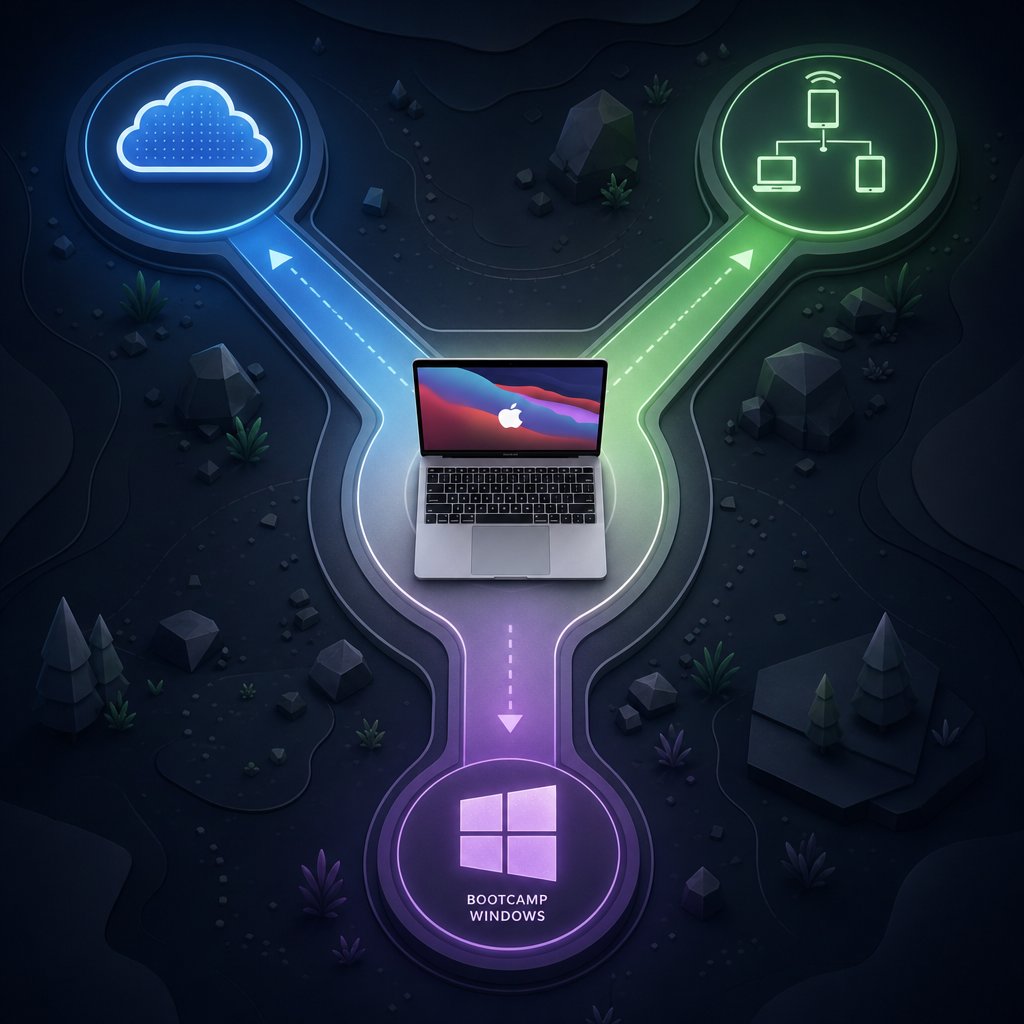
Every method has been walked through in detail. Rather than re-reading setup steps, match yourself to the right path based on what you actually have and what you actually want.
The best option for each kind of Mac player
- Apple Silicon Mac, no other gaming device: Cloud gaming through GeForce NOW. Lowest setup burden, no local install, works on every M-series MacBook including the Air.
- Apple Silicon Mac, existing Windows PC or console: Remote streaming via Moonlight/Sunshine or Steam Remote Play. Free, leverages hardware you already own, and your Mac stays clean.
- Intel Mac, enough storage and willingness to maintain Windows: Boot Camp. The only way to run the official PC client locally on a Mac, with no internet dependency during gameplay.
- Intel Mac, limited storage or preference for simplicity: Cloud gaming or remote streaming. All the benefits of skipping a Windows partition, with none of the thermal stress that Boot Camp sessions put on aging hardware.
What to choose if you care most about convenience
If the question is purely about the least friction, cloud gaming wins regardless of chip type. There is nothing to partition, nothing to install beyond a lightweight app, and game updates happen on the server without you lifting a finger. The tradeoff is internet dependence, but for most players with a decent broadband connection, that is a minor concession compared to maintaining a dual-boot setup or troubleshooting experimental sideload tools.
Remote streaming is a close second when you already have a capable host device. It costs nothing extra and delivers quality that mirrors your existing hardware rather than a subscription tier.
Genshin Impact on Mac is not officially supported, but it is genuinely playable. Cloud gaming, remote streaming, and Boot Camp each offer a real path depending on your hardware, internet, and patience. Pick the one that fits your situation and stop waiting for a native client that may never arrive.
Your next step after getting the game running
Getting the game to launch is only half the story. Once you are actually exploring Teyvat from your Mac, progression becomes the focus — pulling for new characters, stacking Primogems, and building your roster across banners. Playing on Mac through any of these methods ties to the same HoYoverse account you would use anywhere else, so your progress carries over seamlessly between devices.
If you want to accelerate that progress with Genesis Crystals or a Welkin Moon pass, a few resources make the process easier:
- VeloxGame Genshin Impact Top Up — supports UID-only top-ups with fast delivery, so you do not need to log into your HoYoverse account on a third-party site. Handy for Mac players who want more pulls or faster character collection without extra friction.
- HoYoverse's official site — for account management, redemption codes, and patch notes.
- GeForce NOW — to manage your cloud gaming membership and streaming settings.
Will Genshin ever come to Mac natively? HoYoverse has not signaled anything publicly. Until that changes, the methods in this guide are the real options. Pick one, get set up, and go enjoy the game.
Frequently Asked Questions About Playing Genshin Impact on Mac
1. Is there an official Genshin Impact client for macOS?
No. HoYoverse has never released a native macOS version of Genshin Impact. The game officially supports Windows PC, PlayStation 5, Xbox Series X|S, iOS, and Android. Mac players need to use alternative methods such as cloud gaming services, remote streaming from a Windows PC or console, or installing Windows via Boot Camp on Intel-based Macs. There has been no public announcement from HoYoverse indicating a Mac port is in development.
2. Can you play Genshin Impact on a MacBook Air with an M1 or M2 chip?
Yes, but only through cloud gaming or remote streaming. Apple Silicon MacBooks, including the Air, cannot use Boot Camp because Apple removed that utility entirely from M-series hardware. Cloud gaming through a service like GeForce NOW is the most practical route for MacBook Air owners since the fanless design stays cool and quiet while the remote server handles all rendering. Remote streaming is equally viable if you already own a Windows PC or console that runs the game well.
3. What is the easiest way to play Genshin Impact on Mac?
Cloud gaming is the simplest method regardless of whether your Mac uses Apple Silicon or Intel. Services like GeForce NOW let you play through a lightweight app or web browser with no local game installation, no drive partitioning, and no compatibility layers. Game updates are handled server-side, so maintenance is minimal. The main requirement is a stable internet connection with low latency to the nearest data center. A wired Ethernet connection or strong 5 GHz Wi-Fi signal delivers the best experience.
4. Can Intel Macs run Genshin Impact natively through Boot Camp?
Intel Macs can run the official Windows version of Genshin Impact by installing Windows through Boot Camp Assistant. This is not a native Mac build but rather the full PC client running on a Windows partition installed on your Mac's hardware. It requires significant free storage for both the Windows installation and the game files, plus ongoing maintenance of Windows updates. Older Intel MacBooks may experience elevated heat, fan noise, and battery drain during extended play sessions, so keeping the charger connected is strongly recommended.
5. How can I top up Genesis Crystals if I play Genshin Impact on Mac?
Mac players can top up Genesis Crystals or purchase a Welkin Moon pass through the same methods available to any platform. For a streamlined option, VELOX Genshin Impact Top Up supports UID-only transactions with fast delivery, meaning you do not need to log into your HoYoverse account on a third-party site. This is especially convenient for Mac players using cloud gaming or remote streaming, where navigating in-game purchase flows can sometimes feel less responsive due to input latency.





