


Why You Might Want to Uninstall Arena Breakout Infinite
Arena Breakout: Infinite landed on PC as a free-to-play extraction shooter with deep gun customization and high-stakes looting. But free-to-play does not mean free of cost to your system. The game demands 70GB of storage right out of the gate, and once you factor in the ACE Anti-Cheat kernel driver running alongside it, the footprint grows even larger. For plenty of players, that trade-off eventually stops making sense.
Whether you are here to learn how to uninstall Arena Breakout or looking for the same process for a similar extraction shooter like Escape from Tarkov, the steps overlap more than you might expect. The core workflow — remove the game, kill the anti-cheat service, clean up leftover files — applies broadly across the genre.
Common Reasons Players Remove Arena Breakout
- Reclaim disk space. 70GB is a serious chunk of an SSD, especially on a 500GB drive shared with other titles.
- Fix performance drops. Arena Breakout's mobile-to-PC port creates unusual CPU bottlenecks that hit lower-spec rigs hard, and some players decide removal is simpler than endless tweaking.
- Address anti-cheat privacy concerns. ACE runs at the kernel level, meaning it operates with deep system access — a sticking point for users who want tighter control over what software touches their OS core.
- Free up resources for other games. Sometimes you just move on to the next title and want a clean slate.
What This Guide Covers
This guide splits into two clear paths. The fast-track uninstall walks you through removing the game via Steam, Windows Settings, or Control Panel — the whole thing takes under two minutes. The deep-clean path goes further: removing the ACE kernel driver, deleting residual AppData folders, and scrubbing registry entries so zero traces remain. Pick the path that fits your situation, or follow both for a completely fresh system.
Every step is laid out in order, from backing up your data to verifying that the removal actually stuck. But before any files get deleted, there is one critical prep step you should not skip.
Step 1 - Back Up Your Data and Stop Running Processes
Skipping straight to the uninstall button is tempting, but a two-minute prep step can save you from a stalled removal or lost config files. The ACE Anti-Cheat service, in particular, likes to hold onto files even when the game itself is closed. If it is still active in the background, the uninstaller may hang, throw an error, or finish without actually deleting everything. Killing those processes first makes the rest of this guide go smoothly.
Stop All Running Game Processes
Even after you close Arena Breakout: Infinite, background services tied to the anti-cheat can linger. You need to stop them manually before the uninstall will cooperate.
- Press Ctrl + Shift + Esc to open Task Manager.
- Click the Processes tab and sort by name.
- Look for any entry containing Arena Breakout, ACE, or AntiCheatExpert.
- Right-click each matching process and select End task.
- Switch to the Services tab inside Task Manager and check for an AntiCheatExpert service. If it shows as "Running," right-click it and choose Stop.
Why does this matter? Kernel-level anti-cheat drivers lock certain files at the system level. When those locks are active, Windows cannot delete or modify the protected files, so the uninstaller either fails silently or leaves behind a half-removed install. Stopping the anti-cheat process before you uninstall is the single easiest way to avoid that headache. The same logic applies if you ever need to uninstall EFT or any other title bundled with a kernel-level driver — always stop the anti-cheat process before uninstall.
Back Up Any Data You Want to Keep
Arena Breakout: Infinite stores your match progress, inventory, and account data server-side, so none of that disappears when you remove the game. Local files are a different story. Your keybind profiles, graphics settings, audio preferences, and any screenshots you have taken all live on your machine. If there is any chance you will reinstall later, grabbing a copy of those files takes seconds and saves you from reconfiguring everything from scratch.
Here are the key locations to check:
- Main install directory: C:
\Program Files (x86)\Steam\steamapps\common\Arena Breakout Infinite - AppData config folders: C:
\Users\YourUsername\AppData\LocalandC:\Users\YourUsername\AppData\LocalLow— look for any folder named after the game or its developer. - Screenshots: Steam stores these separately under
Steam\userdata\YourSteamID\760\remote, but in-game screenshots may also sit inside the install directory.
Copy anything you want to keep into a backup folder on a different drive or your desktop. According to MiniTool's save file guide, Arena Breakout Infinite save data and config files can also be found via the path %USERPROFILE%\AppData\LocalLow using the Run dialog (Win + R), which is a quick way to jump straight to the right folder without navigating manually.
With your processes stopped and your data backed up, the actual uninstall can proceed without interruptions. The fastest route for most players starts inside the Steam client itself.
Step 2 - Uninstall Arena Breakout Through Steam
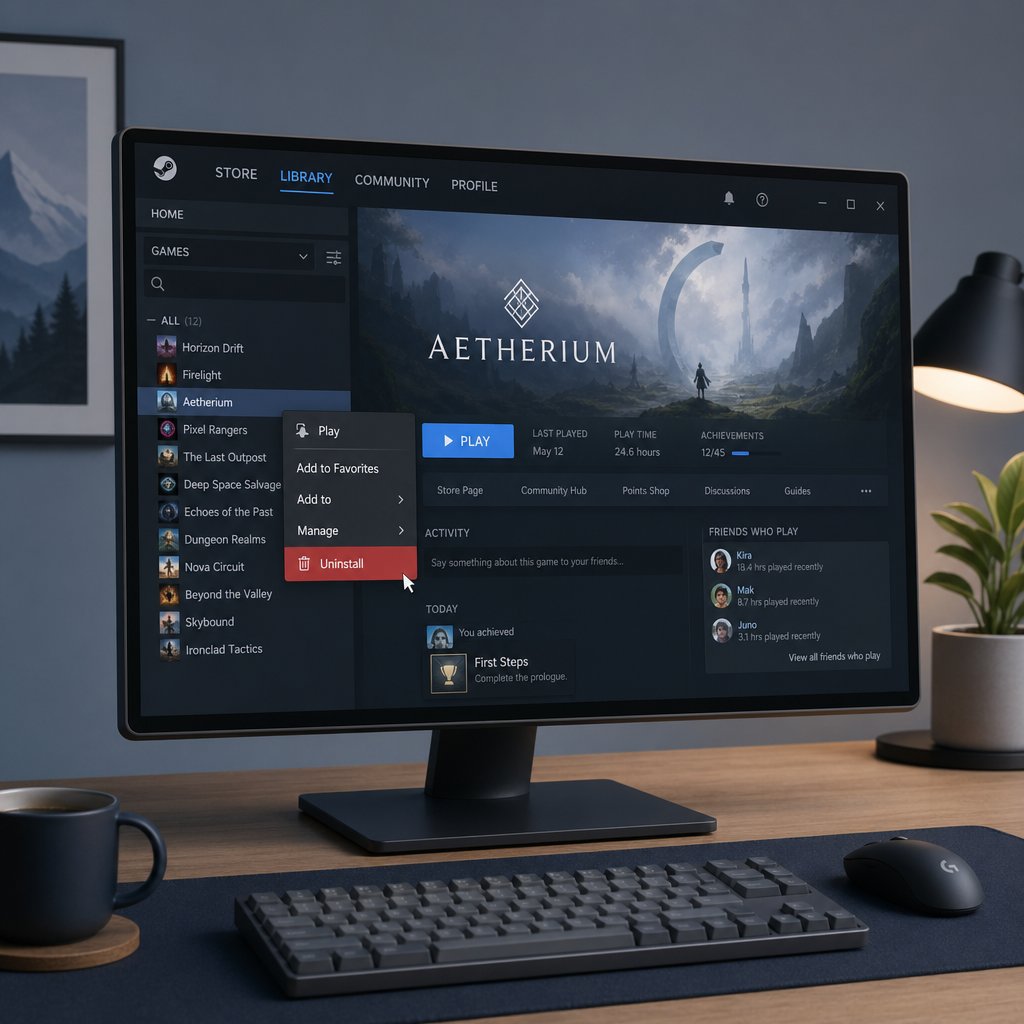
Steam's built-in uninstaller is the quickest and most straightforward way to remove Arena Breakout: Infinite from your PC. The entire process takes about 30 seconds of clicking and a short wait while Steam deletes the game files. If you installed the game through Steam — which most players did — this is where you should start.
Uninstall Arena Breakout Infinite From Your Steam Library
The click path here is identical to uninstalling any other Steam title, so if you have ever removed a game from your library before, this will feel familiar. For anyone doing it the first time, follow these steps exactly:
- Open the Steam client and navigate to your Library using the tab at the top of the window.
- Scroll through the sidebar or use the search bar to find Arena Breakout: Infinite.
- Right-click the game's title in the sidebar.
- Hover over Manage in the context menu, then click Uninstall.
- A confirmation dialog will appear. Click Uninstall again to confirm.
- Wait for Steam to finish removing the files. A progress indicator may flash briefly, or the game may simply disappear from your installed list within a few seconds depending on your drive speed.
That is the entire process for the standard removal. The game's entry will remain in your library since it is a free-to-play title tied to your account, but the local files are gone and the disk space is freed. If you also want to uninstall Tarkov or another extraction shooter sitting in the same library, the flow is exactly the same: right-click, Manage, Uninstall. It is a transferable skill that works across every Steam title.
What Steam Does and Does Not Remove
Here is the part most guides skip entirely. Steam's uninstaller is good at its core job — wiping the main game directory under steamapps\common\Arena Breakout Infinite — but it has clear blind spots. Understanding those gaps explains why some players still find leftover files eating up storage after they thought the game was gone.

The biggest item on that right column is the ACE Anti-Cheat driver. Because it installs as a separate Windows service at the kernel level, Steam does not manage it and has no authority to remove it. That driver will continue sitting on your system — and in some cases still loading at boot — until you remove it yourself. The same goes for any configuration or settings files the game wrote to your AppData directories. Steam simply does not touch folders outside its own ecosystem.
For players who just want the game off their drive and are not concerned about a few stray config files or the anti-cheat service, the Steam method alone gets the job done. But if you tried uninstalling Tarkov Arena or a similar title in the past and noticed lingering processes or mystery folders afterward, the pattern is the same here. Steam handles the surface layer. Everything underneath requires a different approach.
Players who installed Arena Breakout outside of Steam — or whose Steam uninstall button is grayed out — need an alternative path. Windows itself offers two built-in options that work independently of any game launcher.
Step 3 - Uninstall via Windows Settings or Control Panel
Steam is not the only way to remove a game from your PC, and it is not always the most reliable way either. A corrupted install manifest, a grayed-out uninstall button, or a non-Steam installation can all leave you stuck if the Steam client is your only option. Windows has its own removal tools baked directly into the operating system, and they work regardless of which launcher originally installed the game. These two methods — the modern Settings app and the legacy Control Panel — give you a fallback that bypasses Steam entirely.
Remove the Game via Windows Settings
The Settings app is the default way Microsoft recommends for uninstalling programs on Windows 11. It is fast, searchable, and does not require you to dig through nested menus. Here is the full walkthrough:
- Press Win + I to open Settings.
- Click Apps in the left sidebar, then select Installed apps.
- Type Arena Breakout into the search bar at the top of the app list. The game should appear within a second or two.
- Click the three-dot menu (…) to the right of the game's name and select Uninstall.
- A confirmation prompt will appear. Click Uninstall once more and follow any on-screen instructions until the process finishes.
One thing to keep in mind: if you are running Windows 10 instead of Windows 11, the path is slightly different. You will go to Settings > Apps > Apps & Features rather than Installed apps. The search bar and three-dot menu work the same way, but the layout looks a bit different. The underlying removal process is identical on both versions.
This method is also how you would delete Escape from Tarkov or any other PC game that registers itself with Windows during installation. The Settings app pulls from the same system database that every properly installed program writes to, so it is not limited to Steam titles.
Use the Legacy Control Panel Method
The Control Panel has been part of Windows for decades, and it still handles program removal just fine. Some users actually prefer it — especially on machines where the Settings app loads slowly or freezes under heavy system load. If you have ever removed software on an older version of Windows, this screen will look familiar.
- Press Win + S and type Control Panel, then open it from the search results.
- Click Programs, then select Programs and Features. (If your Control Panel is set to icon view instead of category view, look for Programs and Features directly.)
- Scroll through the list or use the search box in the upper-right corner to find Arena Breakout: Infinite.
- Right-click the game's entry and select Uninstall.
- Follow the prompts to complete the removal.
The Control Panel method triggers the same underlying uninstaller that the Settings app uses, so the end result is identical. It is really a matter of personal preference and which interface feels more comfortable. Both paths call the program's registered uninstall routine and clean up the same set of core files.
What If the Game Does Not Appear in Either Location?
Sometimes you open Settings or Control Panel and Arena Breakout simply is not listed. This usually means one of two things: the game was already partially removed by a previous attempt, or it was installed in a non-standard directory that did not register properly with Windows. A corrupted registry key can also cause a program to vanish from the installed apps list while its files remain on disk.
If you hit this situation, do not assume the game is gone. Files, folders, and the anti-cheat service can all still be sitting on your system even when Windows no longer recognizes the installation. Microsoft offers a Program Install and Uninstall troubleshooter for Windows 10 that can resolve corrupted registry entries blocking removal. On Windows 11, the OS may suggest built-in troubleshooting steps automatically when it detects a failed uninstall.
For cases where neither the troubleshooter nor the standard methods work, the manual cleanup steps later in this guide will handle the rest. You can delete the game folder directly, remove the anti-cheat driver by hand, and clear out any orphaned registry entries — no uninstaller required.
Removing the game itself is only half the equation, though. The ACE Anti-Cheat kernel driver installs as a standalone Windows service, and none of the methods covered so far — Steam, Settings, or Control Panel — will touch it. That driver needs its own dedicated removal process.
Step 4 - Remove ACE Anti-Cheat Service and Driver
This is the step that separates a surface-level uninstall from a genuinely clean one. Every method covered so far — Steam, Windows Settings, Control Panel — removes the game itself but leaves the ACE Anti-Cheat driver quietly installed on your system. That driver does not uninstall automatically, and it does not need Arena Breakout to be present in order to persist. If your main reason for searching how to remove ACE Anti-Cheat was privacy or system control, this section is the one that actually matters.
What Is ACE Anti-Cheat and Why Does It Matter
ACE stands for Anti-Cheat Expert. It is a kernel-level anti-cheat system used by several multiplayer games, including Arena Breakout: Infinite, to detect and block cheating software in real time. The key phrase there is kernel-level. Your operating system has layers of privilege, and the kernel sits at the very bottom — it is the layer that controls hardware access, memory management, and every other process running on your machine. A kernel-level driver operates with the same high-level permissions as the operating system itself, meaning it can oversee all other drivers, processes, and memory allocations on the system.
For anti-cheat purposes, that deep access lets ACE spot cheats that manipulate game memory or use Direct Memory Access hardware — techniques that a standard user-mode scanner would miss entirely. The trade-off is significant, though. A driver running at this privilege level can read virtually anything on your system, and if a vulnerability is ever found in the anti-cheat software itself, it could become an attack vector with root-level access to your PC. The CrowdStrike incident demonstrated what happens when kernel-level software pushes a bad update at scale — millions of machines rendered unusable. A gaming anti-cheat driver carries the same theoretical risk, just aimed at a consumer audience instead of enterprise.
That combination of deep system access and post-uninstall persistence is exactly why so many players want the Arena Breakout anti-cheat kernel driver gone after they remove the game. The driver can continue loading at boot even with no game installed, consuming resources and maintaining its hooks into your OS for no practical reason.
Caution: Removing kernel drivers incorrectly can cause system instability, including boot failures or blue screen errors. Follow the steps below exactly as written, and do not delete or modify any service you are not certain belongs to ACE. If you are uncomfortable working in an elevated Command Prompt, consider asking a tech-savvy friend to walk through this with you.
How to Remove the ACE Service and Driver
The removal process uses Windows' built-in service management commands. You do not need any third-party software. The entire sequence takes about five minutes, including a reboot at the end.
- Open Command Prompt as Administrator. Press Win + S, type cmd, right-click Command Prompt in the results, and select Run as administrator. Accept the User Account Control prompt if one appears.
- Confirm the ACE service exists. Type the following command and press Enter:
sc query AntiCheatExpert- If the service is installed, you will see its current state (likely RUNNING or STOPPED). If you get an error stating the service was not found, the usermode component may already be gone — skip to step 5 to check for leftover files.
- Stop the service. Run:
sc stop AntiCheatExpert- This halts the active process. It may take a few seconds. If the command returns an error saying the service is not started, that is fine — it just means the service was not running at the time.
- Delete the service entry. Run:
sc delete AntiCheatExpert- This removes the service registration from Windows. You should see a confirmation message stating the command succeeded. For a thorough cleanup, also check for the kernel-level driver components by running:
sc query ACE-BASEsc query ACE-GAME- If either of those returns a result instead of an error, stop and delete them the same way:
sc stop ACE-BASEsc stop ACE-GAMEsc delete ACE-BASEsc delete ACE-GAME- These are the two kernel driver modules that ACE installs alongside its usermode service. Uninstalling the game typically removes two of the three ACE modules, but the third often lingers — which is why this manual step exists.
- Delete the ACE install folder. Open File Explorer and navigate to C:
\Program Files\AntiCheatExpert. If the folder exists, delete it. Also check C:\ProgramData\AntiCheatExpertfor a secondary data folder and remove it if present. If Windows blocks deletion because a file is in use, the reboot in the next step will release the lock — try deleting the folder again after restarting. - Reboot your system. A restart forces Windows to unload any cached driver handles and finalize the service removal. Without this step, the deleted services may still appear in queries until the next boot cycle.
Verify the Anti-Cheat Is Fully Gone
After your PC restarts, confirm that every ACE component has been removed. Open Services by pressing Win + R, typing services.msc, and pressing Enter. Scroll through the list and search for anything containing "AntiCheatExpert," "ACE-BASE," or "ACE-GAME." None of those entries should appear.
For a command-line check, open an elevated Command Prompt again and run:
sc query AntiCheatExpert
sc query ACE-BASE
sc query ACE-GAME
All three commands should return error 1060 — "The specified service does not exist as an installed service." That error is exactly what you want to see. It confirms the services are fully purged from your system.
If any of the queries still return a valid result after the reboot, repeat the stop-and-delete commands from step 3 and step 4, then reboot once more. In rare cases, Windows holds onto a driver handle through the first restart, but a second cycle almost always clears it. The batch script originally published by Sharkmob for removing ACE from Vampire: The Masquerade - Bloodhunt includes retry logic for exactly this scenario — the driver file handle sometimes takes multiple attempts to release.
With the anti-cheat driver gone, the deepest system-level component from Arena Breakout is no longer on your machine. But the game and its anti-cheat are not the only things that leave traces behind. Config files tucked into AppData folders and orphaned registry keys can still linger quietly on your drive, and cleaning those out is the final piece of a truly complete removal.
Step 5 - Delete Leftover Files and Registry Entries
Removing the game and killing the anti-cheat service handles the heavy lifting, but your file system still has crumbs scattered across multiple directories. Config files, cached shader data, log files, and empty folder structures can all survive a standard uninstall. For most users, these leftovers are harmless — a few megabytes of dead weight that Windows will never touch again. But if you want a completely clean system with zero Arena Breakout Infinite leftover files on your drive, this is the step that finishes the job.
Think of it as the difference between moving out of an apartment and actually cleaning it. The furniture is gone, but the closets still have stuff in them.
Delete Residual Game Folders
Even after Steam or Windows removes the core game files, several directories can retain leftover data. These folders hold settings, cached textures, crash logs, and other files the uninstaller does not know about or does not have permission to touch. Open File Explorer and check each of the following locations manually:
- Steam game directory: C:
\Program Files (x86)\Steam\steamapps\common\Arena Breakout Infinite— If this folder still exists after uninstalling through Steam, delete it entirely. Steam sometimes leaves behind user-modified files or folders it did not create. - AppData Local: C:
\Users\YourUsername\AppData\Local— Look for any folder named after Arena Breakout, its developer (MoreFun Studios), or the game's internal project name. Delete what you find. - AppData LocalLow: C:
\Users\YourUsername\AppData\LocalLow— This is where Unity-based games frequently store player preferences, graphics configs, and log files. Arena Breakout: Infinite uses this path for local settings data. - AppData Roaming: C:
\Users\YourUsername\AppData\Roaming— Less commonly used by the game itself, but worth a quick check. Some anti-cheat or launcher components write temporary data here. - ProgramData: C:
\ProgramData\AntiCheatExpert— If you did not already delete this folder during the ACE removal step, grab it now. It can contain cached anti-cheat configuration files. - Custom install paths: If you installed the game to a non-default location (a secondary drive, a dedicated games partition, etc.), navigate there and confirm the game folder is gone.
A quick way to reach the AppData folders without typing the full path: press Win + R, type %appdata% and hit Enter to land in the Roaming folder. Swap %appdata% for %localappdata% to jump straight to Local. From there, scanning for game-related folders takes just a few seconds.
Once you delete the Arena Breakout AppData folder contents and any remaining install directory files, the file-level cleanup is done. Every byte the game wrote to your drive is gone. For the majority of users, this is a perfectly satisfactory stopping point — your disk space is reclaimed, no stray processes are running, and the game is fully removed.
The next part goes one layer deeper, into the Windows Registry. It is entirely optional, and you should only proceed if you specifically want to clean registry entries after uninstalling the game and leave absolutely no trace behind.
Clean Up Registry Entries Safely
The Windows Registry is a centralized database where your operating system and installed programs store configuration data. Every application you install writes keys and values into the registry, and uninstallers do not always clean up after themselves. Arena Breakout and its ACE Anti-Cheat components can leave behind orphaned entries that serve no purpose once the software is gone.
These leftover keys will not cause performance problems or security risks on their own. They are just dead data. But they can clutter up your system over time, and for users who want a pristine machine, removing them is the final step in a thorough deep-clean.
Important: Always export a full backup of your registry before making any changes. The registry controls critical system functions, and deleting the wrong key can cause applications to break, drivers to fail, or Windows itself to become unstable. If anything goes wrong, a backup lets you restore the registry to its previous state in seconds. Do not skip this step.
Here is how to safely search for and remove Arena Breakout registry entries:
- Open Registry Editor. Press Win + R, type
regedit, and press Enter. Accept the User Account Control prompt. - Create a registry backup. Click File in the menu bar, then select Export. In the Export Range section at the bottom of the dialog, make sure All is selected. Choose a save location you will remember (your Desktop works fine), give the file a clear name like
registry-backup-before-cleanup, and click Save. This may take a minute or two depending on how large your registry is — Trend Micro's registry guide notes that the editor may become temporarily unresponsive while saving, which is normal. - Search for Arena Breakout entries. Press Ctrl + F to open the Find dialog. Type
Arena Breakoutand click Find Next. The editor will highlight the first matching key or value. - Evaluate before deleting. Check the key's path in the address bar at the top of the window. If it clearly belongs to Arena Breakout (you will typically see it under
HKEY_CURRENT_USER\SOFTWAREorHKEY_LOCAL_MACHINE\SOFTWARE), right-click the key and select Delete. If you are unsure whether a key is related to the game, leave it alone. Deleting an unrelated key is the one mistake you cannot afford here. - Continue searching. Press F3 to jump to the next match. Repeat the evaluate-and-delete process for each result until the search wraps around and reports no more matches found.
- Search for AntiCheatExpert entries. Open the Find dialog again with Ctrl + F, type
AntiCheatExpert, and repeat the same process. These entries are remnants of the ACE driver registration and can be safely removed if the service was already deleted in the previous step. - Check the Uninstall key. Navigate manually to
HKEY_LOCAL_MACHINE\SOFTWARE\Microsoft\Windows\CurrentVersion\Uninstall. Look through the sub-keys for any entry referencing Arena Breakout or ACE. If you find one, verify that itsUninstallStringvalue points to a path that no longer exists, then delete the sub-key. This clears the ghost entry that can sometimes cause the game to reappear in your installed programs list. - Close Registry Editor and restart your PC to let Windows finalize the changes.
If you ever need to undo your changes, open Registry Editor again, click File > Import, and select the backup file you saved in step 2. Windows will restore every key and value to exactly where it was before you started editing.
To be clear: most users do not need to touch the registry at all. If the game uninstalled cleanly, the anti-cheat service is gone, and the leftover folders have been deleted, your system is already in great shape. Registry cleanup is for the deep-clean completionists who want every last digital fingerprint erased. If that is not you, feel free to skip this section entirely and move on.
Even with every file deleted and every registry key scrubbed, things can still go sideways. Grayed-out buttons, phantom game entries, and error messages mid-uninstall are more common than they should be — and each one has a specific fix.
Step 6 - Troubleshoot a Failed or Incomplete Uninstall
Sometimes the uninstall process does not cooperate. You click the button and nothing happens, or the game vanishes from your library only to reappear the next time you open Steam. These are not rare edge cases — they come up often enough that forums are full of frustrated posts about them. The good news is that every common failure has a specific, fixable cause. If your attempt to remove Arena Breakout: Infinite hit a wall, one of the scenarios below almost certainly matches your situation.
Fix a Grayed-Out or Missing Uninstall Button
You right-click the game in your Steam library, hover over Manage, and the Uninstall option is either grayed out or missing entirely. This is one of the most reported issues when players try to remove the game, and it nearly always traces back to a corrupted install manifest. Steam tracks every installed game through a set of manifest files stored in the steamapps folder. When one of those files gets damaged — from a crash, a failed update, or a forced shutdown during a download — Steam loses track of the game's install state. It knows the game exists on your account, but it cannot figure out whether the files are actually on your disk, so it disables the uninstall option as a safety measure.
The fix is counterintuitive: you need to repair the installation before you can remove it.
- Right-click Arena Breakout: Infinite in your Steam library and select Properties.
- Go to the Installed Files tab (labeled "Local Files" in older Steam client versions).
- Click Verify integrity of game files. Steam will scan the existing files, rebuild the manifest, and re-download anything that is missing or corrupted.
- Once verification finishes, close the Properties window. The Uninstall option under Manage should now be active again.
- Right-click the game, select Manage > Uninstall, and proceed normally.
If the game does not appear in your Steam library at all — not grayed out, just completely absent — then Steam has already lost its connection to the local files. In that case, skip Steam entirely and use the Windows Settings or Control Panel method from Step 3. Those tools pull from the Windows program registry, which is independent of Steam's manifest system. And if the game is missing from both Steam and Windows, jump straight to the manual file deletion process in Step 5 to clean up whatever is left on disk.
Resolve the Game Reappearing After Removal
Few things are more annoying than uninstalling a game, confirming it is gone, and then seeing it pop back into your installed list the next time Steam launches. This happens because Steam scans the steamapps\common folder on startup. If it finds a folder matching a game you own — even a nearly empty one with just a few stray files — it can re-register the game as installed. The uninstaller removed the bulk of the data, but a handful of leftover files tricked Steam into thinking the game was still there.
The solution is straightforward:
- Close Steam completely. Right-click the Steam icon in your system tray and select Exit Steam — do not just close the window, as Steam often keeps running in the background.
- Open File Explorer and navigate to C:
\Program Files (x86)\Steam\steamapps\common\. - Look for a folder named Arena Breakout Infinite (or any variation of the game's name). Delete it.
- While you are in the
steamappsfolder, also check for a file named something likeappmanifest_2073620.acf(the number is the game's Steam App ID). If it exists, delete that file too. This is the manifest entry that tells Steam the game is installed. - Relaunch Steam. The game should now show as uninstalled in your library.
This same pattern — the game reappearing after uninstall on Steam — can happen with any title, not just Arena Breakout. Leftover folders in steamapps\common are the usual culprit. Getting into the habit of checking that directory after any uninstall prevents the issue from recurring.
Common Error Messages and How to Fix Them
Error dialogs during uninstallation tend to be vague and unhelpful. A message like "An error occurred while uninstalling" does not tell you much on its own. The actual cause is almost always one of a few predictable problems. The table below maps the most common symptoms to their specific fixes so you can diagnose the issue quickly without guessing.

Most of these issues circle back to two root causes: the anti-cheat service holding file locks, or Steam's manifest getting out of sync with what is actually on disk. If you followed the earlier steps in order — stopping processes first, then uninstalling, then cleaning up — you are unlikely to hit any of these problems. But if you jumped straight to the uninstall button without the prep work, one of the rows above probably describes exactly what went wrong.
A failed uninstall does not mean you are stuck. Every scenario listed here has a clear resolution, and none of them require third-party tools or advanced technical knowledge. Work through the matching fix, and the removal will complete.
With the game fully removed and any errors resolved, there is one final step worth taking: confirming that every component is actually gone. A quick verification pass catches anything the previous steps might have missed and gives you a clean baseline before you move on to whatever comes next.
Step 7 - Verify Complete Removal and Plan Your Next Move
You have uninstalled the game, killed the anti-cheat driver, scrubbed leftover folders, and resolved any errors along the way. But how do you actually know everything is gone? Trusting the process is fine. Verifying it is better. A quick confirmation pass takes less than two minutes and catches anything that slipped through the cracks — a stray service still registered, a folder you overlooked, or disk space that never got freed because a file deletion silently failed.
Post-Uninstall Verification Checklist
Walk through each item below. If every point checks out, your system is completely clean.
- Steam Library: Open Steam and check your library. Arena Breakout: Infinite should show as uninstalled (no play button, just an install option). Since it is a free-to-play title, the listing itself will remain on your account — that is normal and does not mean files are still on your drive.
- Game folder deleted: Navigate to C:
\Program Files (x86)\Steam\steamapps\common\and confirm there is no Arena Breakout Infinite folder. If you used a custom install path, check that location too. - ACE Anti-Cheat service removed: Press Win + R, type
services.msc, and press Enter. Scroll through the list and search for AntiCheatExpert, ACE-BASE, or ACE-GAME. None of these should appear. For a faster check, open an elevated Command Prompt and runsc query AntiCheatExpert— error 1060 ("service does not exist") is the result you want. - AppData folders cleared: Check
%localappdata%and%appdata%using the Run dialog (Win + R). Look for any folder referencing Arena Breakout or its developer. Nothing should remain. - AntiCheatExpert install directory gone: Verify that C:
\Program Files\AntiCheatExpertand C:\ProgramData\AntiCheatExpertno longer exist. - Registry entries removed (deep-clean path only): If you followed the registry cleanup in Step 5, open
regedit, press Ctrl + F, and search for "Arena Breakout" one more time. The search should return no results. - Disk space reclaimed: Open Settings > System > Storage to see your current drive usage. Windows breaks down space by category, making it easy to spot whether the expected storage has been freed. On Windows 10, the path is Settings > System > Storage as well — the layout differs slightly, but the storage overview shows the same information.
If any item on that list does not check out, loop back to the relevant step earlier in the guide. A service still showing in services.msc means the ACE removal from Step 4 needs another pass. A folder still sitting in steamapps\common just needs a manual delete. Every loose end has a specific fix already covered — you do not need to start over from scratch.
Make the Most of Your Freed-Up Storage
Arena Breakout: Infinite plus its anti-cheat components can occupy upward of 70GB on an SSD. That is a meaningful chunk of storage, especially on drives in the 500GB to 1TB range where every gigabyte counts. Getting that space back opens up real options.
Some players reclaim disk space after an uninstall and immediately put it toward another title they have been eyeing. Others use the breathing room to finally enable larger Steam shader caches, expand a video editing scratch disk, or just let their SSD operate with healthier free-space margins — which can actually improve write performance on drives that were running close to full. Windows itself benefits too. Features like Storage Sense work more effectively when your drive is not perpetually near capacity, and system updates install more reliably with adequate free space available.
If you are jumping into another PC game with the storage you just freed up, topping up on in-game currency before diving in can save you time once you are actually playing. VeloxGame's PC Game Top Up collection is a quick way to load credits for a wide range of titles so you are ready to go from the first session.
Whatever direction you take, your system is now running without a kernel-level driver it no longer needs, without orphaned files cluttering your directories, and with a verified clean slate. That is the whole point of a proper uninstall — not just removing the game, but making sure your PC is genuinely better off afterward.
Frequently Asked Questions About Uninstalling Arena Breakout
1. Does uninstalling Arena Breakout Infinite remove the ACE Anti-Cheat driver?
No. Uninstalling Arena Breakout through Steam, Windows Settings, or Control Panel only removes the game files. The ACE Anti-Cheat kernel driver installs as a separate Windows service and persists on your system even after the game is gone. You need to manually stop and delete the AntiCheatExpert, ACE-BASE, and ACE-GAME services using elevated Command Prompt commands (sc stop and sc delete), then delete the AntiCheatExpert folder from Program Files and reboot your PC to fully remove it.
2. How much disk space does Arena Breakout Infinite use, and will I get it all back after uninstalling?
Arena Breakout Infinite requires approximately 70GB of storage for the core game files, plus additional space for the ACE Anti-Cheat components and cached data in AppData folders. A standard Steam uninstall reclaims most of that space, but leftover config files, shader caches, and the anti-cheat directory can retain several hundred megabytes. To reclaim every byte, you need to manually delete residual folders in steamapps/common, AppData Local and LocalLow, and the AntiCheatExpert directory in Program Files.
3. Why does Arena Breakout keep reappearing in my Steam library after I uninstall it?
Steam scans the steamapps/common folder on startup. If any leftover files remain in the Arena Breakout Infinite directory, Steam can re-detect them and re-register the game as installed. The fix is to fully exit Steam, navigate to steamapps/common and delete the Arena Breakout Infinite folder manually, then also remove any stale .acf manifest file (like appmanifest_2073620.acf) from the steamapps directory before relaunching Steam.
4. Is it safe to delete ACE Anti-Cheat registry entries after uninstalling Arena Breakout?
Yes, but only if you take precautions. Before editing the Windows Registry, always export a full backup by going to File > Export in Registry Editor with the All range selected. Then use Ctrl+F to search for ArenaBreakout and AntiCheatExpert entries, deleting only keys that clearly belong to the game or its anti-cheat. If you are unsure about a key, leave it alone. Incorrect registry edits can cause system instability, so this step is optional and recommended only for users who want zero traces remaining.
5. Can I uninstall Arena Breakout if the uninstall button is grayed out in Steam?
Yes. A grayed-out uninstall button typically means Steam's install manifest is corrupted. Right-click the game in your library, go to Properties > Installed Files, and click Verify integrity of game files. This rebuilds the manifest and re-enables the uninstall option. If the game does not appear in Steam at all, use Windows Settings (Win+I > Apps > Installed Apps) or Control Panel (Programs and Features) as alternative removal methods that work independently of Steam.





