


What VSync Means in Wuthering Waves
VSync in Wuthering Waves is a graphics setting labeled Vertical Synchronization that forces the game's rendered frames to line up with your monitor's refresh cycle. When it works as intended, each frame appears whole and complete instead of splitting into mismatched halves during fast camera movement or combat. The tradeoff is a small amount of added input delay, because the GPU has to wait for the display before delivering the next frame.
VSync synchronizes Wuthering Waves' frame output with your display's refresh rate, eliminating visible screen tearing at the cost of slightly higher input latency.
That single sentence captures the core idea, but the real question most players are asking goes deeper: should the toggle stay on or off in a game built around rapid dodges, parries, and open-world traversal? Wuthering Waves is not a slow-paced RPG where a few extra milliseconds go unnoticed. Its combat system rewards precise timing, and its wide open environments push the camera through constant motion. Both of those scenarios are exactly where synchronization choices become visible and felt.
- Tearing reduction — horizontal splits during panning and combat largely disappear with VSync enabled
- Possible latency tradeoff — conventional VSync can queue frames, adding noticeable delay to inputs
- Not a universal fix — shader compilation hitches, unstable frame rates, and content-loading stutter are separate problems VSync will not solve
- Most apparent during fast action — players tend to notice the difference when chaining dodges or sweeping the camera across dense areas
What the Setting Actually Changes
Understanding what VSync actually does helps separate it from settings that control raw performance. Turning it on does not raise or lower your frame rate by itself. Instead, it governs when each finished frame is sent to the screen. Without it, the GPU pushes frames out as fast as it can, which is great for responsiveness but can produce a torn image whenever a new frame arrives mid-refresh. With it enabled, the GPU holds each frame until the monitor is ready, so every refresh cycle shows one clean picture.
In practical terms, vsync means the game trades a bit of reaction speed for visual consistency. For many players on a standard 60 Hz display, that latency sits somewhere around one to two extra frames of delay. On higher-refresh monitors running at 120 Hz, the per-frame wait is shorter, so the penalty feels smaller. The vsync meaning stays the same across any game, but how much it matters depends entirely on the pace of what you are playing, and Wuthering Waves sits firmly on the fast end of that scale.
The rest of this guide breaks down exactly how that synchronization works, what symptoms point toward turning it on or off, and how the game's own frame cap options change the equation.
How VSync Matches Frames to Your Display
Your monitor and your GPU operate on their own clocks. The monitor redraws the screen at a fixed pace, while the GPU finishes frames whenever the rendering workload allows. Vertical sync exists to bridge that gap. It holds each completed frame in a buffer until the display is ready to start a fresh refresh cycle, so the two stay in lockstep rather than stepping on each other.
Here is the simplified sequence that plays out every time a frame reaches your screen:
- The GPU renders a complete frame of the current scene based on your position, camera angle, and on-screen effects.
- That finished frame is placed into a buffer, essentially a waiting area in video memory.
- The monitor finishes drawing the previous image and signals it is ready for the next one.
- The buffer hands the new frame to the display, and the monitor draws it top to bottom in a single pass.
With v-sync enabled, step four only happens at the start of a refresh cycle. Without it, the GPU can overwrite the buffer at any point, even while the monitor is partway through drawing the old frame. That overlap is exactly where visual problems begin.
Why Screen Tearing Happens
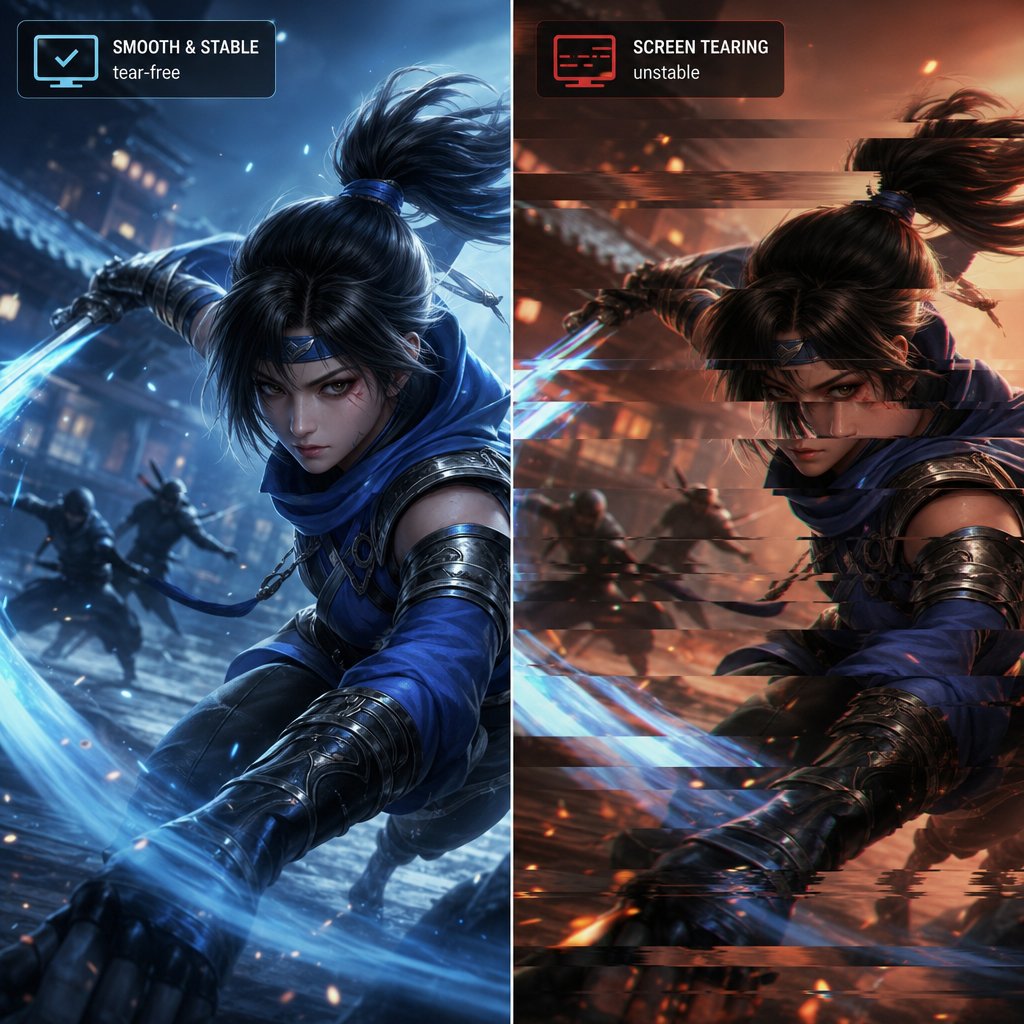
A screen tear appears when the display draws part of one frame and part of the next in a single refresh. The result is a horizontal split, sometimes more than one, where the image above the line does not align with the image below it. Fast horizontal movement makes the split far more obvious because the offset between the two partial frames is larger.
In Wuthering Waves, frame tearing tends to show up during wide camera sweeps across open terrain, quick rotations in combat, and high-speed traversal sequences where the environment streams past rapidly. Any moment that pushes a lot of horizontal pixel change into a short window gives the mismatch more room to be seen.
The table below maps the key terms to plain-language definitions so you can follow the rest of the guide without second-guessing the vocabulary.

One thing worth repeating: vertical sync is purely a synchronization tool. It does not make the GPU render faster, lower your graphics load, or smooth out hitches caused by shader compilation or asset streaming. If Wuthering Waves is already struggling to hold a stable frame rate, enabling v-sync will not fix that instability. It may actually make dips feel worse, because the system has to snap down to a lower synchronized step when it cannot keep up. That distinction matters a lot once you start comparing what you see on screen with what the setting can realistically change.
What Players Notice With VSync On and Off
Knowing what vertical sync does on paper is one thing. Recognizing how it actually feels inside Wuthering Waves is where the setting starts to matter. Different players report different symptoms depending on their hardware, display, and whether performance is stable to begin with. The trick is matching what you see on screen to the right cause, because not every visual hiccup traces back to the same toggle.
What Players Notice With VSync Turned Off
The most immediate difference is tearing. With synchronization disabled, the GPU pushes frames to the display whenever they are ready, and during fast camera pans or mid-combat rotations you will often spot one or more horizontal splits cutting across the image. The faster the on-screen motion, the more obvious those splits become. Some players barely register them; others find them distracting enough to pull focus away from dodge timing and parry windows.
On the upside, turning the setting off tends to make inputs feel snappier. There is no buffer queue holding finished frames back, so the gap between pressing a button and seeing the result on screen shrinks. In a game where combat rewards tight reaction windows, that responsiveness can genuinely change how fluid encounters feel. Players who prioritize control over visual polish often prefer this tradeoff.
What Players Notice With VSync Turned On
Enabling VSync cleans up those tears almost entirely. Camera sweeps across Solaris-3's open zones look noticeably smoother, and combat animations play out without jarring splits. The image feels more cohesive, especially on a 60 Hz panel where tearing lines tend to be thick and easy to spot.
The cost shows up in responsiveness. Because each frame waits for the next refresh cycle, inputs carry a slight delay. Most players describe it as a "floaty" or "sluggish" quality to movement and attacks. It is subtle at steady frame rates, but if performance dips even briefly, traditional VSync can snap the output down to half the refresh rate, a jump from 60 to 30 FPS for example, producing a sudden and very noticeable stutter. That frame-halving behavior is one of the most common complaints from players who enable the setting and then hit an inconsistent area.
There is also a category of issues that VSync simply does not address. Shader compilation hitches, the brief freezes that happen when the game encounters a new visual effect for the first time, are an engine-level problem unrelated to display synchronization. The same goes for asset-streaming stutter when moving quickly between zones. Turning VSync on or off will not change how those feel, and confusing them with tearing leads to a lot of unnecessary setting swaps.
The table below maps common in-game symptoms to their likely cause and whether VSync is part of the fix.

If your main complaint lines up with the first row, enabling VSync is a straightforward improvement. If it matches the second or third row, the setting is not your problem. Most real-world situations land somewhere in between, which is why the relationship between VSync and the game's own frame cap options ends up being the more useful thing to understand.
How VSync Interacts With Frame Caps
Wuthering Waves offers built-in frame rate caps under its Graphics Settings menu, with options that currently include 30, 60, and 120 FPS (the last one requiring specific supported CPU and GPU hardware). The cap you choose changes the entire VSync equation, because synchronization behavior depends on how your GPU's actual output relates to your monitor's refresh rate. Picking the right combination is what separates a clean, responsive experience from one that feels either torn or sluggish.
How Frame Caps Change the VSync Decision
Think of the frame cap as a ceiling and VSync as a timing rule. The cap tells the GPU "don't render faster than this," while VSync says "don't deliver a frame until the monitor is ready." Used together under the right conditions, they keep the rendering pipeline tight and predictable. Used poorly, they stack penalties on top of each other.
Here is the core logic. Does vsync lower FPS on its own? Not exactly. It limits frame delivery to multiples of the refresh rate, but the cap is what actually controls how hard the GPU works. If you set the in-game cap to 60 on a 60 Hz display and your hardware can hold that target consistently, VSync simply ensures each frame arrives at the right moment. The buffer queue stays short, tearing disappears, and the added latency stays minimal. This is the scenario where the two settings complement each other best.
Problems appear when the cap and the refresh rate do not align cleanly, or when the GPU cannot actually sustain the target. Setting the cap to 120 on a 60 Hz monitor, for example, means the GPU is producing frames twice as fast as the display can show them. VSync will still lock output to 60, but the extra rendering work generates heat and power draw for frames that never reach the screen. Conversely, capping at 30 on a 60 Hz panel with VSync on produces a perfectly synchronized but noticeably choppy image, since each frame is displayed for two full refresh cycles.
The 120 FPS cap paired with a 120 Hz or higher monitor is the cleanest high-refresh scenario. Each refresh cycle gets a unique frame, the per-frame wait is half as long as at 60 Hz, and the latency penalty from VSync shrinks accordingly. But this only works if your system actually qualifies for the 120 FPS option and can hold that output steady. Wuthering Waves restricts the 120 FPS mode to specific Intel and AMD CPUs paired with supported NVIDIA or AMD GPUs, so not every setup can take advantage of it.
When Capped FPS Helps or Hurts Smoothness
Stability matters more than the number itself. A locked 60 FPS with consistent frame times feels smoother than a 90 FPS average that swings between 70 and 110. As XDA Developers points out, frame time consistency is often more important than raw FPS, because uneven frame delivery creates micro-stutter that no synchronization setting can fully mask.
When performance is uneven, VSync actually makes things worse. Traditional VSync snaps output to clean fractions of the refresh rate. On a 60 Hz display, that means 60 or 30, with nothing in between. If your GPU dips to 55 FPS for even a moment, VSync forces the output down to 30 until it recovers, creating a jarring stutter that feels far worse than the original dip. Does vsync cause input lag in that situation? Absolutely, and it compounds the visual disruption with a responsiveness hit at the same time.
Capping your frame rate slightly below your refresh rate is one way to reduce that risk. If the GPU always finishes each frame before the display needs it, the buffer queue stays at one frame deep and does vsync cause lag becomes a much smaller concern. This approach, documented by Blur Busters and tested by players across multiple titles, can cut VSync-related latency significantly compared to running at or above the refresh rate with synchronization enabled.
The table below compares three common frame delivery scenarios in Wuthering Waves and what each one means for tearing, responsiveness, and overall feel.

The pattern is clear: stable output close to your display's refresh rate gives VSync the best conditions to work in. Unstable output turns it into a liability. Before deciding whether to flip the toggle, it helps to spend a few minutes in a busy area and watch whether your FPS counter holds steady or bounces around. That single observation tells you more about the right VSync choice than any generic recommendation ever could.
Should VSync Be On or Off?
Stable FPS and refresh rate alignment set the stage, but the actual decision still comes down to what is bothering you right now. Rather than chasing a universal answer to whether VSync is good or bad, it helps to start from the symptom you are experiencing and work backward to the setting that addresses it. Every player's hardware and sensitivity are different, so the "right" choice is really the one that solves your specific problem without creating a new one.
VSync trades a small amount of input responsiveness for a cleaner image. The question is never whether that tradeoff exists — it always does — but whether it is worth it for the way you play.
When Turning VSync On Makes Sense
Some situations make the toggle an easy call. If horizontal tears are pulling your attention away from combat timing or exploration, enabling vertical sync on is the most direct fix available inside the game's own settings. Here are the scenarios where turning it on tends to pay off:
- You notice clear horizontal splits during camera pans across open terrain or fast rotations in combat, and they bother you more than a slight delay in input response.
- Your frame rate holds steady at or near your monitor's refresh rate. Stable output gives VSync the clean conditions it needs to work without introducing stutter or frame-halving.
- You play primarily for exploration, story, and co-op rather than frame-perfect parry timing. The latency penalty matters less when split-second reactions are not the focus.
- You are on a standard 60 Hz display where tearing lines are thick and hard to ignore. Lower refresh rates make each tear more visible, so the visual payoff of synchronization is larger.
In these cases, VSync smooths out the image without a dramatic hit to how the game feels under your hands. Most players who keep it enabled and have stable performance describe the experience as "just cleaner" without thinking much about the delay.
When Turning VSync Off Is the Better Choice
The opposite side of the vertical sync on or off debate favors responsiveness. If your main frustration is not what you see but how the game feels, disabling the setting is worth testing first.
- Combat feels sluggish or floaty even though your FPS counter looks healthy. That buffered delay from synchronization can dull the snap of dodges and parries, and turning it off often restores the crispness.
- Your frame rate is already unstable before touching the setting. VSync will not stabilize inconsistent performance — it will amplify the dips by forcing output down to a lower synchronized step. Fix the underlying performance first by lowering graphics quality or capping at a sustainable target.
- You are running a high-refresh display at 120 Hz or above and tearing is barely visible. At higher refresh rates, each tear occupies a smaller slice of the screen and persists for less time, so the visual benefit of VSync shrinks while the latency cost remains.
- You are practicing endgame combat encounters where reaction windows are tight. Even a small input delay can shift the timing on a perfect dodge, and competitive-minded players often prefer a few tears over a slower-feeling response.
So is VSync good in Wuthering Waves? It depends entirely on which problem is louder for you. Tearing that breaks immersion points toward enabling it. Delayed inputs that undermine combat flow point toward disabling it. Neither answer is wrong — they just serve different priorities. The key is to test in a consistent area, change one setting at a time, and give yourself a few minutes to feel the difference before deciding. That approach matters even more once you move into the game's own menus and start adjusting the toggle alongside other graphics options.
How to Enable VSync and Fix Common Problems
Testing one setting at a time only works if the setting actually does what you expect when you flip it. Changing VSync inside Wuthering Waves is straightforward, but a handful of external factors can quietly override your choice or mask the result. Walking through the process in the right order saves you from chasing a problem that was never about the game's toggle in the first place.
How to Change VSync in the Game Settings
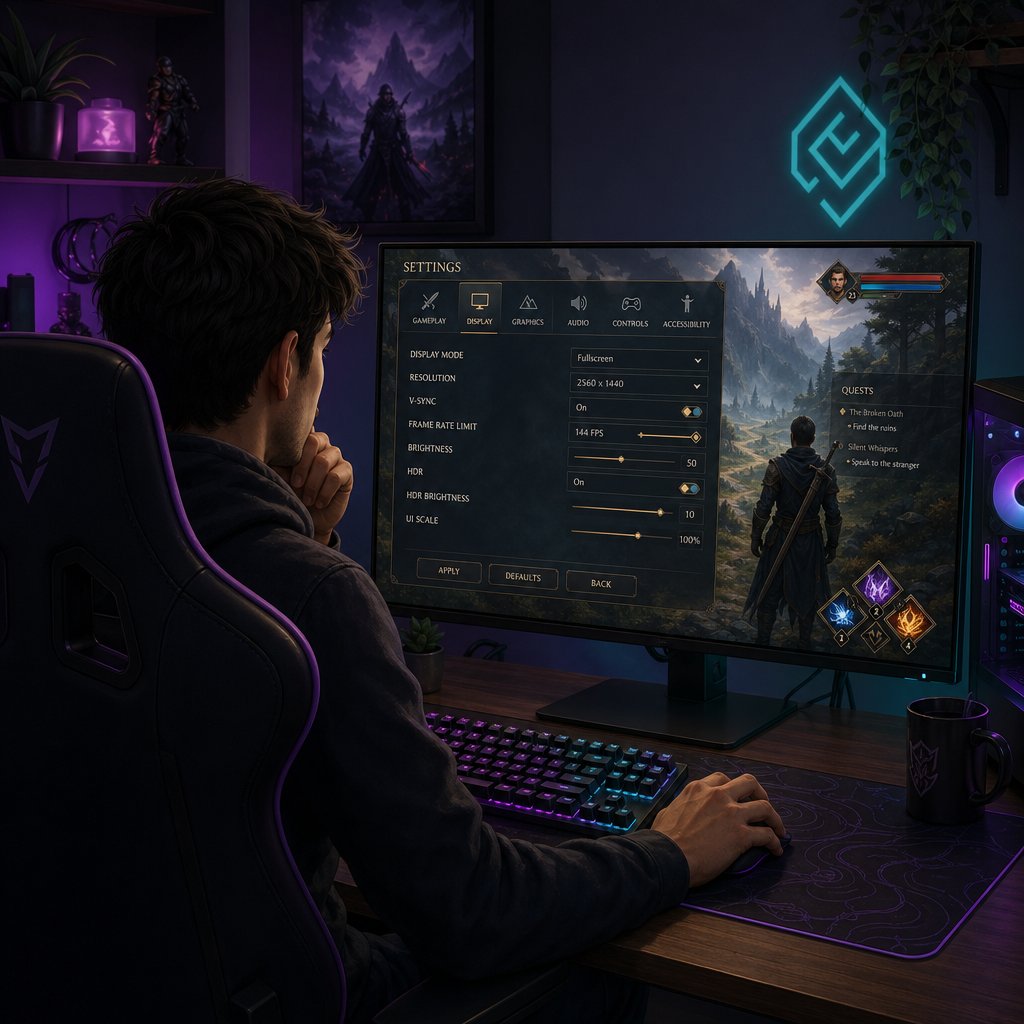
Wuthering Waves places its VSync option inside the in-game Graphics Settings panel. The exact label may read "Vertical Synchronization" or simply "V-Sync" depending on the client version, so look for either wording under the display or graphics tab. To get a clean read on what the change actually does, follow this sequence:
- Open the settings menu and note your current frame cap and display mode before touching anything else.
- Toggle VSync to the desired state — on if you want to test tearing removal, off if you want to test responsiveness.
- Close the menu and travel to a consistent gameplay area. An open zone with moderate enemy density works well because it combines camera movement with combat inputs.
- Spend a few minutes playing normally. Pan the camera, dodge, and traverse at speed. Pay attention to whether tearing, smoothness, or input feel changed in the direction you expected.
- If the result does not match expectations, check your GPU driver panel and display mode before blaming the in-game setting.
That last step matters more than most players realize. How to turn on vsync inside the game is the easy part — confirming nothing else is fighting the change is where troubleshooting actually begins.
Why VSync May Not Seem to Turn Off
A common frustration is toggling the setting and seeing no visible difference. You disable it expecting tearing to appear, but the image still looks synchronized. Or you enable it and tearing persists. Several things outside the game can cause this disconnect.
- GPU driver override — Both NVIDIA and AMD control panels have their own VSync settings that can force synchronization on or off regardless of what the game requests. If your driver is set to "Always On," the in-game toggle effectively does nothing. Check your driver's 3D settings or game profile and set VSync to "Application Controlled" so Wuthering Waves can manage it directly.
- Borderless windowed mode — Running in borderless windowed rather than exclusive fullscreen routes frames through the operating system's desktop compositor. On Windows, DWM applies its own form of synchronization, which can prevent tearing even with VSync disabled in-game. If vsync not turning off seems to be the issue, try switching to exclusive fullscreen to isolate the game's own setting.
- Frame limiter conflicts — A third-party frame limiter like RTSS running alongside the in-game cap can create unexpected pacing behavior that looks like VSync is active when it is not, or vice versa. Disable external limiters while testing so you are only measuring one variable.
- Confusing tearing with stutter — Tearing is a horizontal image split. Stutter is a timing irregularity that makes motion feel jerky. They look and feel different, but players sometimes expect VSync to fix both. If your issue is stutter rather than a visible split, the setting is not the cause and turning it on or off will not resolve it.
Work through these one at a time. Stacking multiple changes, like switching display modes, adjusting the driver, and toggling the in-game setting all at once, makes it impossible to tell which change actually mattered. Isolating each variable is the fastest path to a setup that feels right, and it also sets you up to evaluate whether a different synchronization approach might work better than standard VSync altogether.

Alternatives When Standard VSync Is Not the Best Fit
Standard VSync is not the only way to get rid of screen tearing. Several other synchronization methods exist, and depending on your hardware, one of them may handle Wuthering Waves better than the basic toggle inside the game's settings menu.
Alternatives to Standard VSync
The biggest limitation of traditional VSync is its all-or-nothing behavior. It locks output to the refresh rate when the GPU can keep up and drops to a harsh half-rate step when it cannot. Adaptive vsync, available through GPU driver panels, softens that penalty by disabling synchronization during frame rate dips instead of halving the output. You still get tear-free playback when performance is strong, but momentary dips produce a brief tear rather than a sudden lurch to 30 FPS.
A more flexible option is Variable Refresh Rate (VRR) technology. VRR lets the monitor adjust its own refresh timing to match whatever the GPU is producing, frame by frame. This mostly eliminates tearing without the fixed-step latency penalty of standard VSync. Nearly all modern gaming monitors support VRR through the open Adaptive-Sync standard, and both major GPU vendors are compatible with it.
A third approach skips synchronization entirely and relies on a frame cap set a few FPS below the display's refresh rate. This keeps the GPU from ever outpacing the monitor by a meaningful margin, which reduces tearing to near-invisible levels while adding zero synchronization delay. It is the lightest-touch option and pairs well with players who want maximum responsiveness.
When Driver or Display Sync Options Matter
Your GPU driver panel is where most of these alternatives live. For nvidia vertical sync options, the NVIDIA Control Panel offers settings like "Adaptive" and "Fast" under its 3D Settings profile. Players wondering where to find v sync on AMD software can look under the Gaming tab in AMD Software: Adrenalin Edition, where the "Wait for Vertical Refresh" dropdown provides per-application control with options ranging from "Always Off" to "Always On." Both panels also let you set VSync to "Application Controlled," which hands the decision back to Wuthering Waves itself.
If your monitor supports VRR, enabling it in your display's OSD and your driver panel is usually the single best change you can make. It addresses tearing and latency simultaneously, without requiring the game to do anything special.
The table below compares each approach so you can identify which one fits your setup.

Whichever method you try, change one variable at a time. Toggle the driver setting, play for a few minutes, and evaluate before layering on a frame cap adjustment or switching display modes. Stacking changes makes it impossible to tell which one actually improved tearing, pacing, or input feel — and clarity is the whole point of tuning in the first place.
A Simple Recommendation for Most Players
Every section above boils down to a short decision tree. Should I have VSync on? Start with what is actually bothering you, not with what a settings guide tells you to pick by default.
A Simple Default Recommendation
If you see tearing, turn VSync on. If combat feels delayed and tearing is not a problem, turn it off. If performance is already uneven, fix that first — VSync will not stabilize an unstable frame rate.
That covers the vast majority of situations. Whether is vertical sync good for your setup depends entirely on which side of the tradeoff matters more to you in practice, not in theory. One quick test in a busy combat zone tells you more than any blanket v sync on or off recommendation ever will.
What to Do After You Tune Your Settings
Once your display settings feel right, a short checklist keeps everything locked in:
- Confirm your GPU driver is set to "Application Controlled" so future game updates do not conflict with a forced override.
- Revisit the setting after major Wuthering Waves patches — engine changes can shift frame pacing behavior.
- If you upgraded your monitor or GPU, re-test from scratch. New hardware changes the entire sync equation.
- Keep your frame cap aligned with your refresh rate for the most predictable results.
With your visuals and responsiveness dialed in, the gameplay side of Wuthering Waves gets to shine. If you are also looking to keep your account progression moving — stocking up on Lunites for upcoming banners or character investments — VeloxGame's Wuthering Waves Global Top-Up is a convenient option worth bookmarking. A smooth-running client paired with the resources to pull when it counts is a solid place to be.
Frequently Asked Questions About VSync in Wuthering Waves
1. Does turning on VSync in Wuthering Waves reduce my FPS?
VSync does not directly lower your FPS. It limits frame delivery to match your monitor's refresh rate, so a 60 Hz display will cap output at 60 FPS even if your GPU can render more. The setting controls timing rather than rendering power. However, if your GPU cannot consistently hit the refresh rate, traditional VSync can force output down to half the rate (for example, from 60 to 30 FPS), which creates a noticeable stutter. Pairing VSync with a stable in-game frame cap that matches your display avoids this problem.
2. Should I use VSync or a frame rate cap in Wuthering Waves?
They serve different purposes and often work best together. The frame rate cap tells the GPU how many frames to render per second, while VSync controls when those frames are delivered to the display. Setting the in-game cap to match your monitor's refresh rate and enabling VSync gives you tear-free visuals with predictable latency. If you want even lower input delay, capping a few FPS below your refresh rate with VSync on keeps the buffer queue shallow and reduces the responsiveness penalty.
3. Why does VSync make Wuthering Waves combat feel sluggish?
When VSync is active, each rendered frame waits in a buffer until the monitor starts its next refresh cycle. That waiting period adds a small delay between your input and the on-screen response. In Wuthering Waves, where dodge and parry windows are tight, even one to two extra frames of latency can make actions feel floaty or less precise. Players who prioritize combat responsiveness over visual polish often disable VSync or switch to adaptive sync alternatives that reduce the latency penalty.
4. Can I use FreeSync or G-SYNC instead of VSync in Wuthering Waves?
Yes, and for most players with a compatible monitor, Variable Refresh Rate technology like FreeSync or G-SYNC Compatible mode is the better option. VRR lets the monitor dynamically match its refresh timing to the GPU's frame output, eliminating tearing without the fixed-step latency that standard VSync introduces. Enable VRR in both your monitor's on-screen display and your GPU driver panel, then set the in-game VSync toggle to off so the two systems do not conflict.
5. Why does VSync not fix all stuttering in Wuthering Waves?
VSync only addresses screen tearing caused by unsynchronized frame delivery. Other common sources of stutter in Wuthering Waves, such as shader compilation hitches when new visual effects load for the first time, asset streaming delays when moving between zones, and general frame time inconsistency from hardware limitations, are completely separate issues. If your stutter appears as brief freezes rather than horizontal image splits, VSync is not the cause or the solution. Lowering graphics settings, updating GPU drivers, or waiting for engine-level patches are more relevant fixes for those problems.





